prism docs · Music, control and shows · Keyboard shortcuts
Keyboard shortcuts
Every key prism knows, in one place: first the keys on the app's own shortcut sheet, grouped as the sheet groups them, then the keys that belong to one panel or tool. Every shortcut works in both modes; the Simple ones are those Simple's sheet lists.
The sheet? anywhere · the keyboard button (Advanced) · Help ▸ Keyboard shortcuts (Simple)
The docsF1 · the book button (Advanced) · Help ▸ Documentation (Simple)
On a Mac⌘ for Ctrl, ⌥ for Alt; the sheet shows Mac keys on a Mac
ModeAll keys work in both; Simple marks those on Simple's sheet
Where they work. Surface, layer and canvas keys work in Design. Keys marked “in the list” work when a row of the Surfaces list or a surface's Layers list has the focus. Show keys work in Show (a few in Design too).
Not while typing. Keys don't fire while you type in a field, except Ctrl + Shift + C.
Right-click for the rest. Right-click (or press and hold) a surface, a layer or the canvas for everything else; Shift + F10 or the Menu key opens the menu of whatever has the focus.
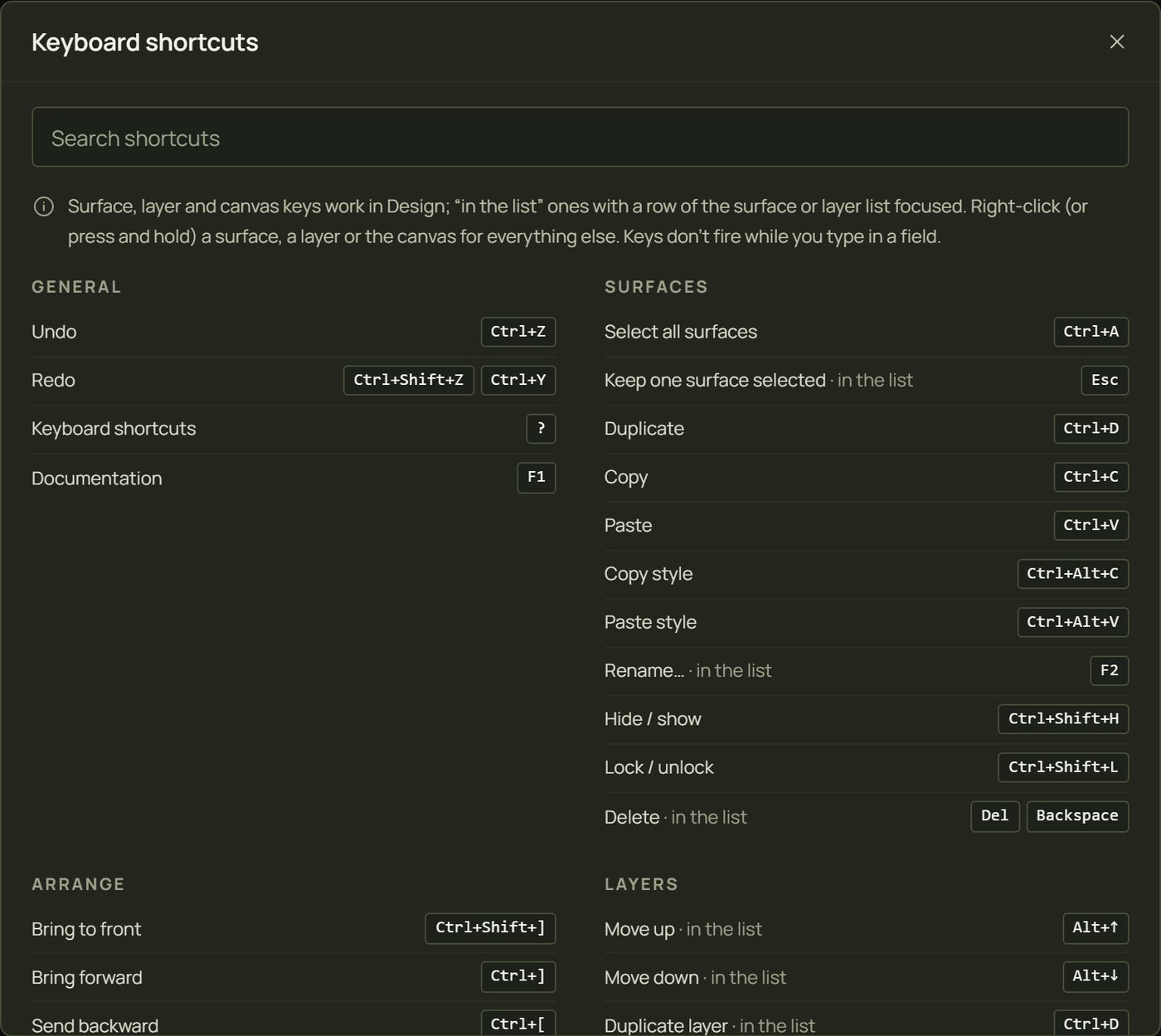
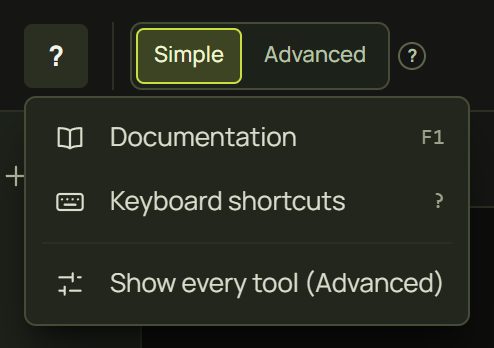
The sheet. Press ?, or click the keyboard button in the top bar (Advanced), or Help “?” ▸ Keyboard shortcuts (Simple). It has a search field. In Simple it lists only the Simple keys; the others still work.
The shortcut sheet (?). Search it by name or key.In Simple, the top bar's Help “?” has Documentation, Keyboard shortcuts and Show every tool (Advanced).
2General
Keys
What it does
Sheet
Ctrl + Z
Undo (anything: every edit is one named step)
Simple
Ctrl + Shift + Z · Ctrl + Y
Redo
Simple
?
Keyboard shortcuts: this sheet
Simple
F1
Documentation: these pages
Simple
3Surfaces
Keys
What it does
Sheet
Ctrl + A
Select all surfaces
Simple
Esc
Keep one surface selected · in the list
Simple
Ctrl + D
Duplicate
Simple
Ctrl + C · Ctrl + V
Copy · Paste
Simple
Ctrl + Alt + C · Ctrl + Alt + V
Copy style · Paste style (its layers and looks, blend and opacity, onto other surfaces)
Simple
F2
Rename… · in the list (or double-click the row)
Simple
Ctrl + Shift + H
Hide / show
Simple
Ctrl + Shift + L
Lock / unlock
Simple
Del · Backspace
Delete · in the list
Simple
In the Surfaces list: ↑↓HomeEnd move through the rows (Shift extends the selection within a group); ←→ fold or open a group; Ctrl/⌘-click adds a row, Shift-click a range, Alt-click selects its group; Enter / Esc finish or cancel a rename; Esc cancels a drag. See Surfaces list and groups.
4Arrange and groups
Keys
What it does
Sheet
Ctrl + Shift + ]
Bring to front
Simple
Ctrl + ]
Bring forward
Simple
Ctrl + [
Send backward
Simple
Ctrl + Shift + [
Send to back
Simple
Alt + ↑ · Alt + ↓
Move up the list (draw higher) · Move down the list (draw lower) · in the list
Simple
Alt + ← · Alt + →
In the list: out of its group · into the group above
—
Ctrl + G
Group the selection
Simple
Ctrl + Shift + G
Ungroup
Simple
5Layers and the look panel
Keys
What it does
Sheet
Alt + ↑ · Alt + ↓
Move a layer up · down · in the list
Simple
Ctrl + D
Duplicate layer · in the list
Simple
Del · Backspace
Delete layer · in the list
Simple
E
Look panel on / off (the selected layer's look: presets and settings)
Simple
Esc
Close the look panel
Simple
In a layer list, ↑↓HomeEnd select another layer. On a setting: right-click, Shift + F10 or the Menu key opens its menu; on a slider, the arrows step, PgUpPgDn step a tenth, HomeEnd go to the ends.
6Canvas
Keys
What it does
Sheet
Q · T · O · P
Add a quad · a triangle · a circle · a polygon
Simple
L
Add a line
Advanced
K
Add a mask (cuts the selection)
Advanced
D
Draw a shape freehand (a rectangle becomes a quad; Alt or an open stroke: a line)
Simple
Shift + D
Pen: click for corners, drag for curves (Alt: one handle); four corners make a quad
Advanced
Shift-click
Add a shape to the selection, or take it out (Ctrl/⌘-click too)
Simple
Alt-drag
Select and drag a shape's group
Simple
Arrow keys
Nudge the selected shape or point (Shift: 10 px)
Simple
M
Curved mesh on / off (quads)
Advanced
Del
Delete the selected point, else the selected surface (Backspace too)
Simple
Enter
Finish a Pen shape
Advanced
Esc
Cancel the drawing or the point; leave drawing, picking or aligning; else select nothing
Simple
Double-click
Add a point on an edge (a curve keeps its shape); on a point: corner ↔ smooth
Simple
Alt-drag a point
Pull curve handles out of a point; on a handle: move it alone (no symmetry)
Advanced
While dragging: Shift keeps a move straight, a box's proportions and a circle round. In the Pen, Backspace takes back the last point. Del deletes only with the canvas, the page or the Surfaces list focused: on a scene tile, a Live control tab or a panel's button it does nothing to your surfaces, and in Draw or the Pen it never deletes the selected surface. See The canvas, Shapes and Draw and Pen.
7View
Keys
What it does
Sheet
+ · =
Zoom in
Simple
-
Zoom out
Simple
Ctrl + 0 · Shift + 1
Fit to window
Simple
Ctrl + 1
Zoom to 100 % (one camera or projector pixel per screen pixel)
Simple
Shift + 2
Zoom to selection
Simple
I
Input view
Advanced
Hold Space and drag · middle-drag
Pan (a quick tap of Space is GO)
—
Wheel · Ctrl + wheel · Shift + wheel · pinch
Zoom at the pointer (a trackpad scroll pans) · always zoom · pan sideways · zoom
—
8Show
These are the project's show keys; change them in Live control ▸ Keys (Show keys).
Keys
What it does
Sheet
Space
GO (next cue): in Show, and in Design with the Select tool
Simple
→ · ←
Next cue · Previous cue (Show)
Simple
S
Stop following: in Show and Design
Simple
T
Tap trigger (Show)
Simple
B
Blackout (Show)
Simple
1 – 9
Triggers Key 1–9 (Show)
Simple
Esc
Back to Design (Show)
Simple
none
Tap tempo (Show): give it a key in Live control ▸ Keys
—
In Show, the GO key means GO even when a button has the focus; Enter still presses buttons. See Show mode.
9Scenes and cues
Keys
What it does
Sheet
Ctrl + Shift + C
Edit cues on / off (put settings into the selected cues); works while typing
Advanced
Esc
Leave Edit cues
Advanced
Backspace
Take the focused setting out of the selected cues (Edit cues)
Advanced
Shift + drag or click
Change a setting without cueing it (Edit cues)
Advanced
On the tiles (not on the sheet): click fires and selects · Ctrl/⌘-click and Shift-click select without firing · double-click opens the options (without firing: in Design a click fires once the double-click time has passed) · right-click, Shift + F10 or the Menu key opens the menu · a row is one Tab stop: ←→HomeEnd move, Enter fires, Tab reaches the tile's buttons · Alt + ← / → move a tile in the GO order. See Scenes and cues.
10Timeline
Keys
What it does
Sheet
Shift + Space
Play / pause the timeline (anywhere in Design)
Advanced
Tab · Shift + Tab
Next / previous key
Advanced
Delete
Delete the selected keys (Backspace too)
Advanced
Ctrl + C · Ctrl + V
Copy keys, paste them at the playhead
Advanced
H · L · B · A
Hold / Linear / Bézier / Auto
Advanced
Alt + drag
Duplicate keys
Advanced
Shift + drag
Drag without snapping
Advanced
Alt + wheel · Ctrl + wheel
Zoom time · Track height
Advanced
Ctrl + A · Esc
Select all keys · deselect
—
←→ · HomeEnd
Nudge the selected keys (or move the playhead) · the playhead to the start / end
—
Shift + wheel
Scroll time
—
The timeline's keys (except Shift + Space) work while it has the focus: click a key, a lane or a track name first. See The timeline.
11Keys of panels and tools
These aren't on the sheet: they belong to one panel or tool.
Where
Keys
Any menu
↑↓HomeEnd move · → opens a submenu, ← goes back · Enter or Space runs · Esc closes · type to jump to an item
A focused control
Shift + F10 or the Menu key opens its menu
“?” tips
Keyboard focus shows the tip · Enter or Space toggles it · Esc closes it
Live control drawer
Tabs: ←→HomeEnd · the top edge: ↑↓ 16 px, PgUpPgDn 64 px, Home tallest, End shortest, double-click for the default height
Audio band faders
↑↓ 1 dB · PgUpPgDn 3 dB · HomeEnd the ends · double-click 0 dB
Arrows move between looks · Enter puts it on · Space details · type to search · Esc closes (Choosing looks)
3D objects
Arrows move it (Shift: 10 px) · Alt resizes from the centre · Shift steps 5 % and 15° · in Align: arrows nudge a focused pin, Delete unpins (3D objects)
Mesh warp
M on / off · Alt-click adds a row and a column · arrows nudge points · Delete removes their row or column · Esc drops the selection (Mesh warping)
prism documentation · Music, control and shows · from the app's shortcut sheet and command registry · 28 Sept 2026
Source-backed shortcut reference
This table is generated from the command registry. Tool-specific gestures and context are explained above. Mod means Ctrl on Windows or Command on macOS; a shortcut may require its panel or canvas to have focus.
All registered shortcuts (64)
Action
Keys
cue.mark.remove
Backspace
Leave Edit cues
Escape
Add a circle
O
Draw a shape freehand (a rectangle becomes a quad; Alt or an open stroke: a line)
D
Add a line
L
Add a mask (cuts the selection)
K
Pen: click for corners, drag for curves (Alt: one handle); four corners make a quad
Shift+D
Add a polygon
P
Add a quad
Q
Add a triangle
T
Delete the selected point, else the selected surface
Delete
Cancel the drawing or the point; leave drawing, picking or aligning; else select nothing
Escape
Finish a Pen shape
Enter
Curved mesh on / off (quads)
M
Circle
O
Group the selection
Mod+G
Rename…
F2
Ungroup
Mod+Shift+G
Documentation
F1
Keyboard shortcuts
?
Redo
Mod+Shift+Z / Ctrl+Y
Undo
Mod+Z
Delete from the pack…
Delete
Move earlier
Alt+ArrowLeft
Move later
Alt+ArrowRight
Delete layer
Delete / Backspace
Duplicate layer
Mod+D
Move down
Alt+ArrowDown
Move up
Alt+ArrowUp
Line
L
Close the look panel
Escape
Mask quad
K
mesh.toggle
M
param.cue.remove
Backspace
Polygon
P
Quad
Q
Edit cues
Mod+Shift+C
Copy
Mod+C
Copy style
Mod+Alt+C
Delete
Delete / Backspace
Keep one surface selected
Escape
Duplicate
Mod+D
Move down the list (draw lower)
Alt+ArrowDown
Move up the list (draw higher)
Alt+ArrowUp
Paste
Mod+V
Paste style
Mod+Alt+V
Rename…
F2
Select all surfaces
Mod+A
Lock / unlock
Mod+Shift+L
Hide / show
Mod+Shift+H
Play / pause the timeline
Shift+Space
tl.key.copy
Mod+C
tl.key.delete
Delete
Paste at the playhead
Mod+V
tl.lane.delete
Delete
Paste at the playhead
Mod+V
Select all keys
Mod+A
Triangle
T
Zoom to 100 % (one camera or projector pixel per screen pixel)