Show mode
Show mode is the screen for running a show. It has a big GO, your scenes as large tiles, the trigger pads, the sound and tempo, Blackout and the brightness, and nothing you can change by accident: tiles only fire, and the GO key always means GO.
Advanced cues, MIDI and OSC status, tempo
Playing a song inside prism? Its timeline can feed the analyser and drive show timing. See A show to one song and the song lane.
1Open Show mode
- Build your scenes in Design (Scenes and cues).
- Click Show in the top bar (Setup · Design · Show).
- Press Esc or click Design to go back. The projectors keep running the whole time.
2The screen
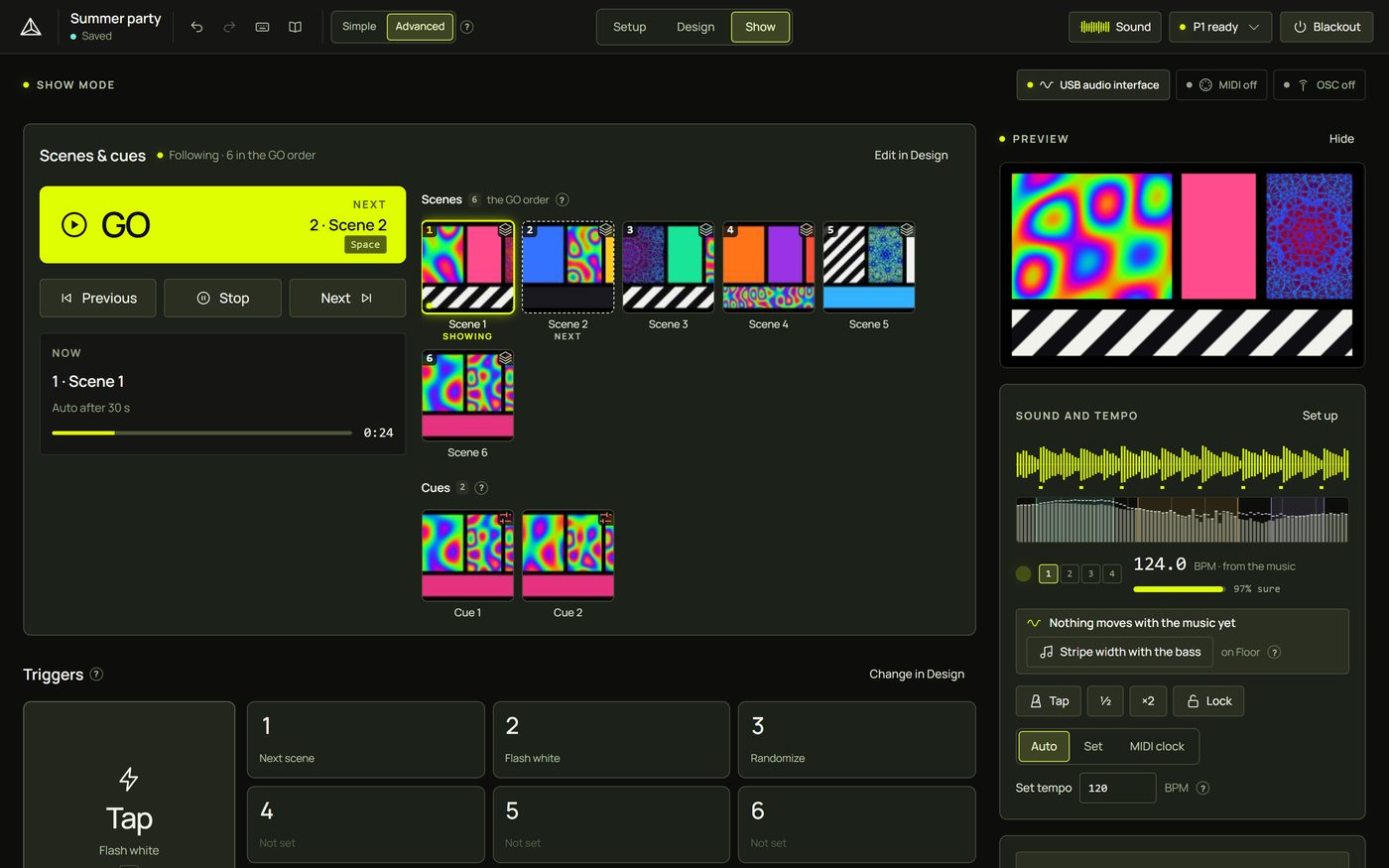
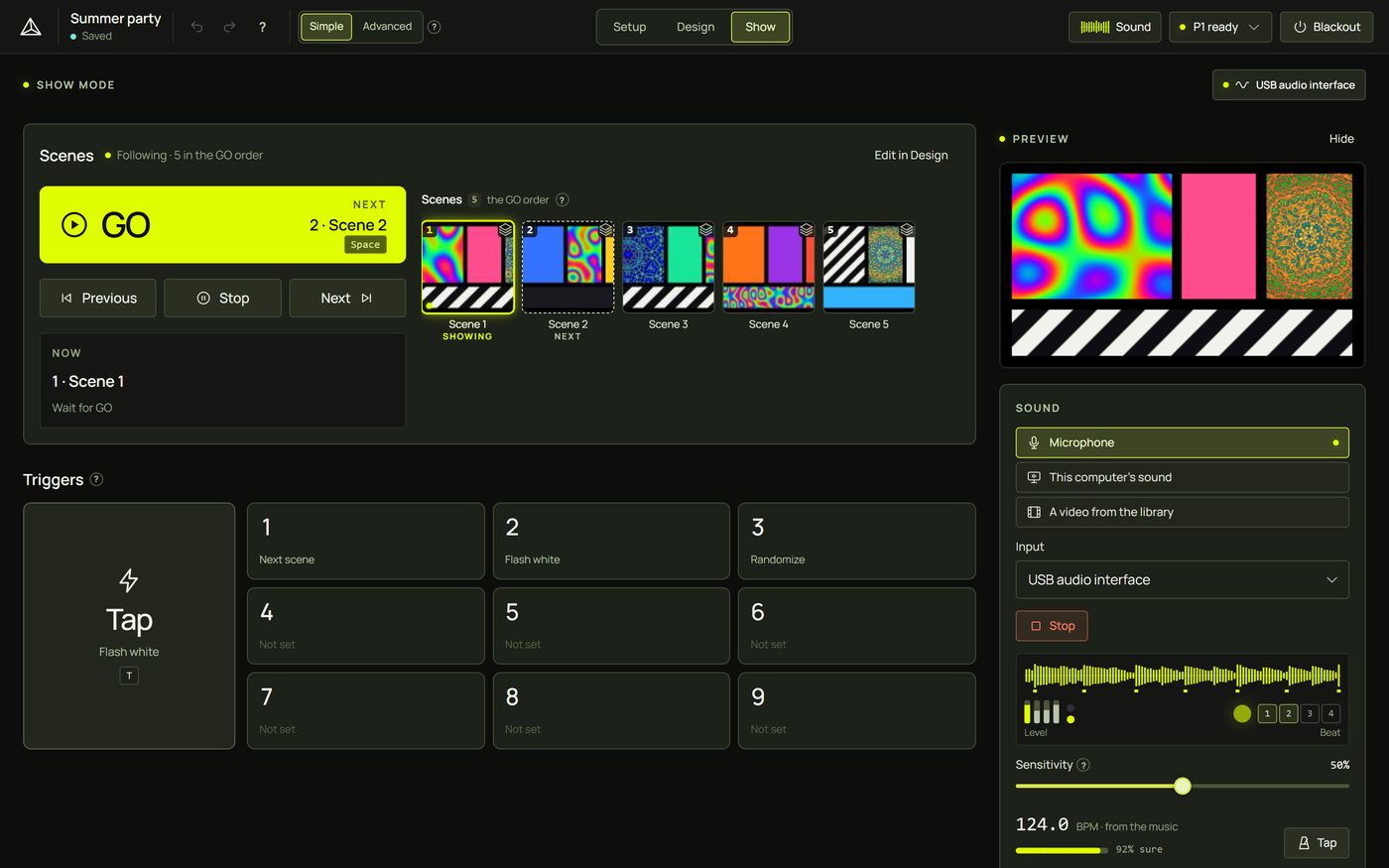
3Run the show
- Start listening if the show reacts to music: the Sound panel (Simple) or Sound and tempo's Set up (Advanced). Check the waveform moves and the tempo is right.
- Press GO (or Space). The first scene crossfades in and the show starts following: scenes set to move on after a time or a number of beats do so by themselves.
- Press GO for each next scene, or let the follows run. Use the pads for flashes and extras.
- To hold the current look, press Stop (or S); Play resumes.
- In an emergency, Blackout (or B).
4GO and what's next
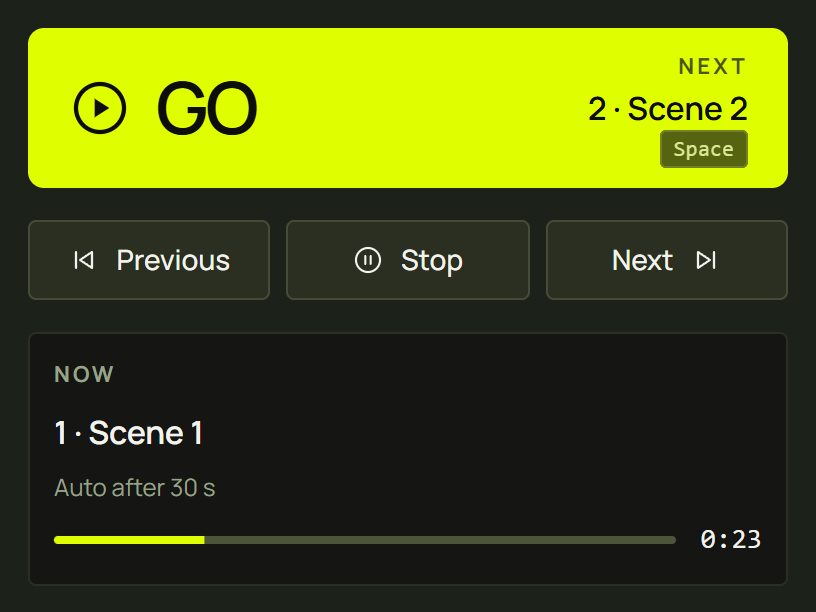
- GO fires the next tile of the GO order. When the list is empty it is greyed out.
- Previous and Next fire the neighbours of the tile that shows.
- Stop holds the look and stops the countdown; it becomes Play, which starts following again.
- Now shows the tile that shows (“Crossfading…” while it fades), what follows it (Wait for GO, Auto after 30 s, After 8 beats…) and the time or beats left.
- The status beside the heading says Following or Holding, and how many tiles the GO order has.
5Scenes and cues
The tiles are larger here (96 px) and only fire: a click fires a scene, or a cue on top of what shows. There are no menus. Each tile of the GO order has a small button, Fire step N next on GO, which makes it the next one GO fires.
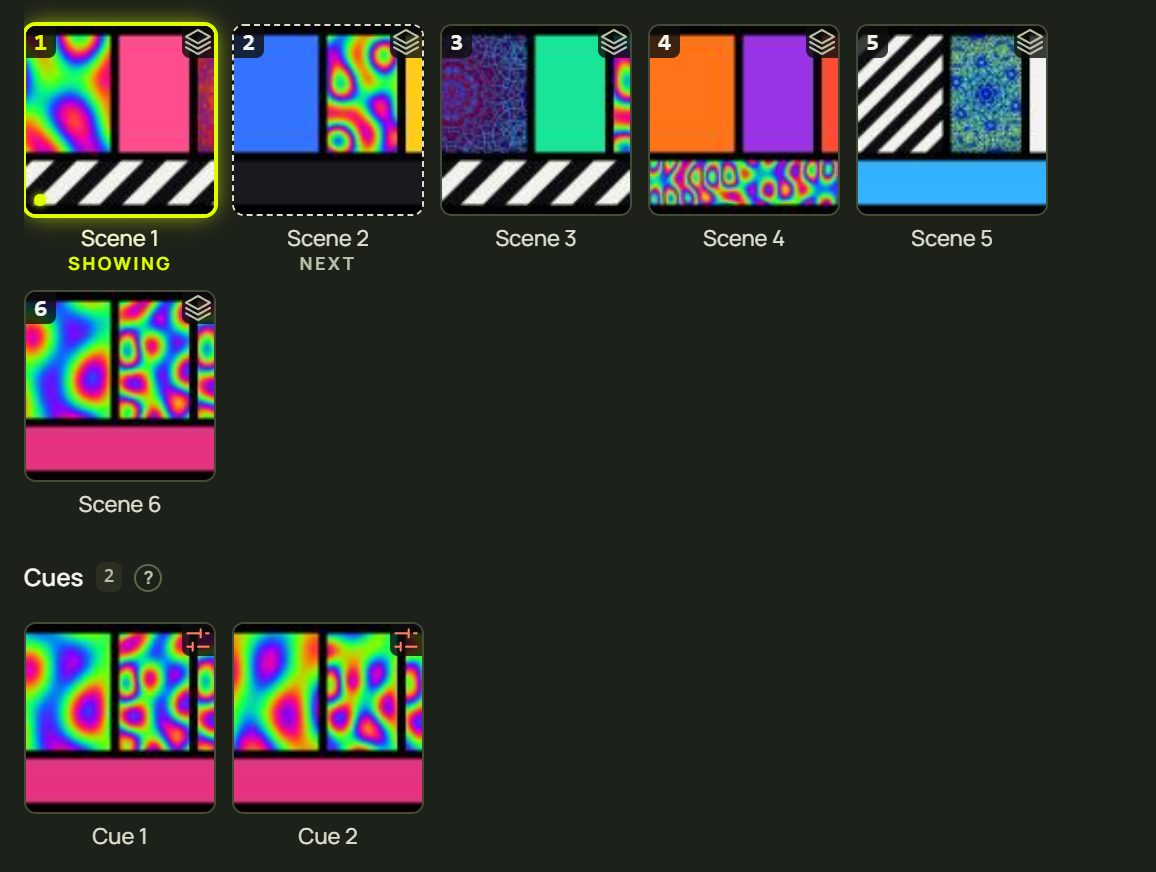
In Simple, the Cues row is a chip (“Advanced · 2 cues”); the cues still fire from their triggers.
6Trigger pads
Triggers has a big Tap pad and pads 1–9. Each shows what it does, or Not set; a pad flashes when it fires. Click a pad, or press T and 1–9.
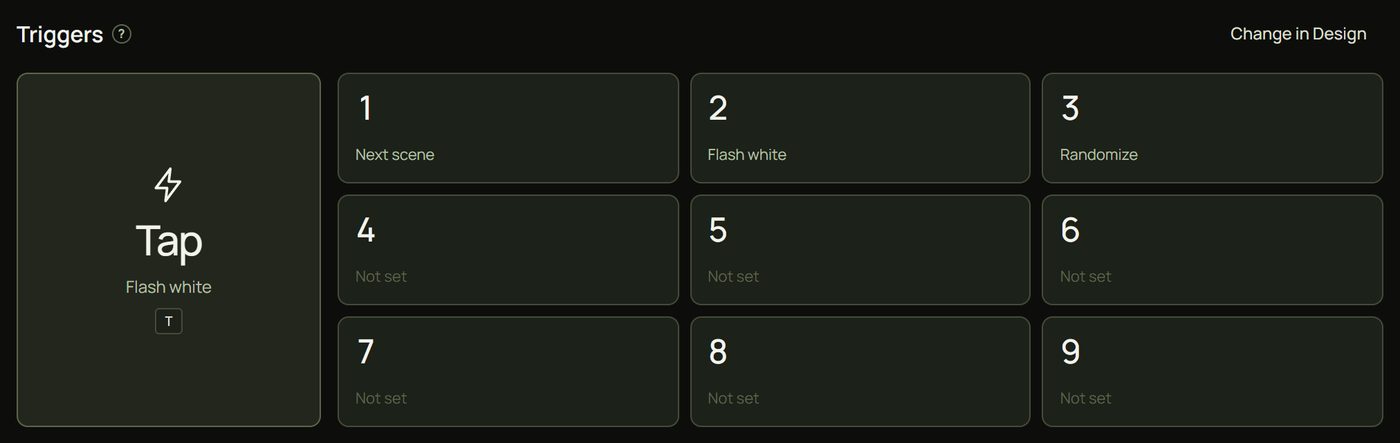
What each pad does is set in Design ▸ Live control ▸ Triggers (Change in Design); see Triggers. MIDI pads and OSC buttons fire their triggers here too.
7Sound and tempo
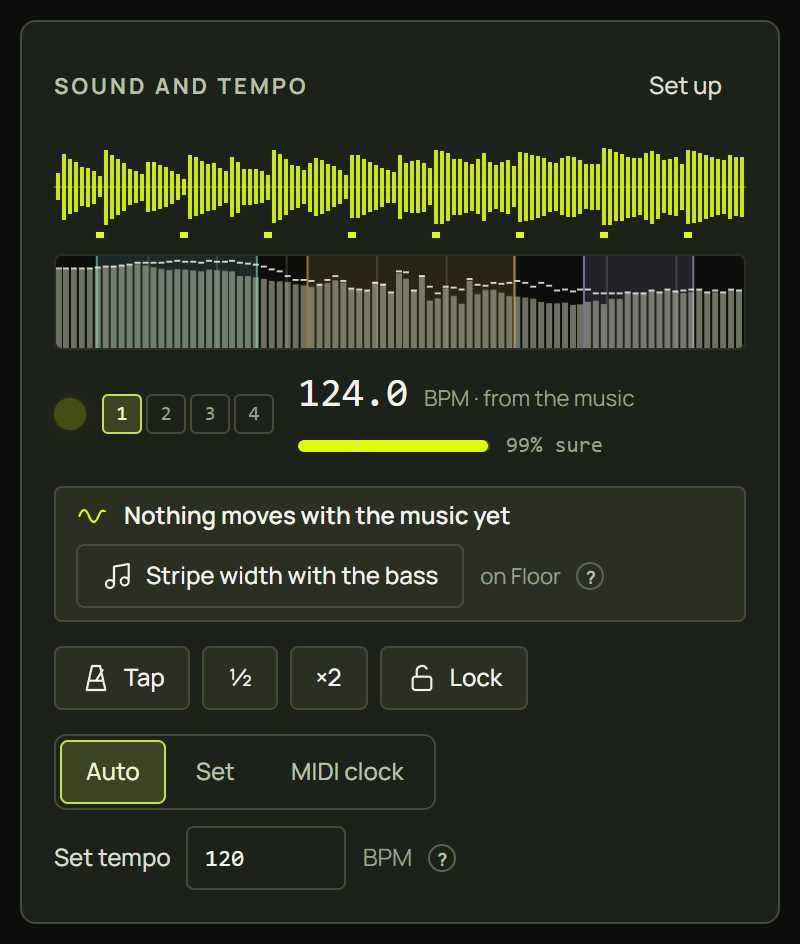
In Simple, this corner is the Sound panel: pick the source, Listen, watch the meter and beat lamp, and tap the tempo. See Sound and tempo.
8Blackout and brightness
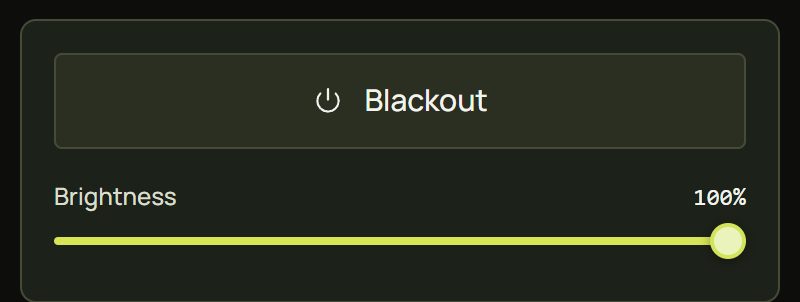
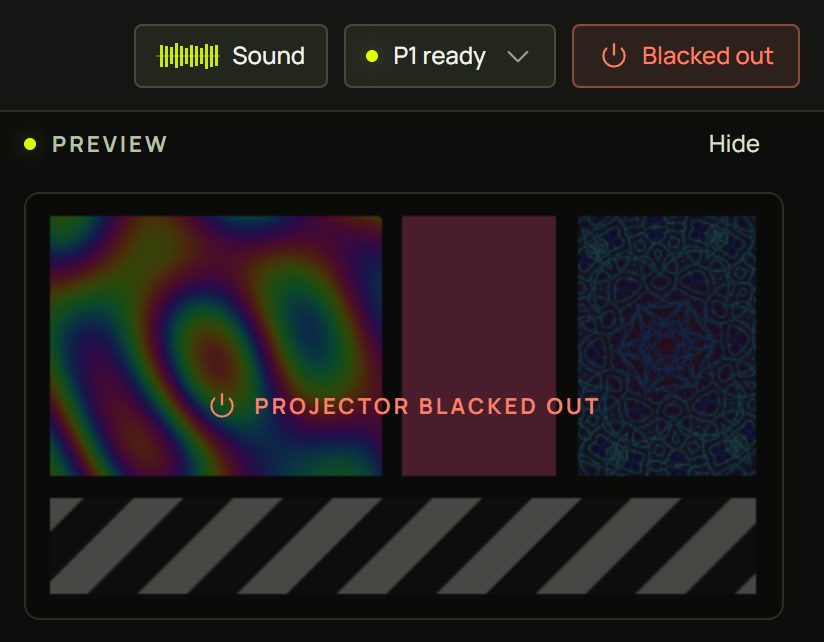
- Blackout turns every projector black at once. It is in the top bar in every mode (it reads Blacked out, in red, while on), as a big button in Show, and on B in Show and in a projector window. Press it again to bring the picture back.
- Brightness dims every projector together, from 0 to 100%, without touching the looks.
- Neither is an undo step. The preview shows Projector blacked out while it's on.
9Tips for live use
Before the doors open
- Projector window fullscreen on the projector, and the status light green (Projectors and outputs).
- Sound in and tempo right: the waveform moves, the beat lamp flashes on the kick, This is 1 on the downbeat.
- Loop on or off as the show needs, and the first scene ready (the dashed “next” tile).
- Flash limit on unless your audience has been warned (Flash safety).
- The laptop: on mains power, sleep and screen savers off, notifications off, other apps closed.
- Rehearse once with the real music, in Show mode.
During the show
- Stay in Show. The GO key always means GO here, even when a button has the focus, so a stray press can't click something else. Enter still presses buttons.
- Hold, don't panic. Stop (or S) freezes the look while you think; Blackout is one key away.
- Keep a safe scene. A calm scene you can fire any time (a tile, a pad, or Next on GO) gets you out of any moment.
- Use a controller. A MIDI pad for GO and another for Blackout are easier to hit than keys in the dark (MIDI, OSC, keys and triggers).
- Tap tempo if the beat drifts: a few taps put it back on the music.
10When something looks wrong
| You see | Why | Fix |
|---|---|---|
| GO is greyed out | The GO order is empty. | In Design, + Scene (Save scenes). |
| GO doesn't change the picture | The next scene looks the same, or a blackout is on. | Check the Now card and the top bar's Blackout. |
| The show moves on by itself | The scenes follow after a time or beats. | Stop (S) holds the look. |
| → or ← does nothing | A tile row or the mode switch has the focus (they use the arrows). | Click an empty part of the page, or use the Previous and Next buttons. |
| Pressing Esc left Show | Esc is Show's key for Design. | Click Show again; close popovers with a click instead. |
| Nothing reacts to the music | Sound isn't listening in this session. | The Sound panel or Set up: Listen. |
| A pad says Not set | No trigger uses that key. | Change in Design ▸ Triggers. |
| The projector is black but Blackout is off | Brightness is at 0%, or the projector window is closed. | Raise Brightness; check the status light. |
11Mouse and keyboard
Show lists its keys at the bottom of the screen: Space GO · → next · ← previous · S stop · T tap · B blackout · 1–9 triggers · Esc back to design. You can change them in Design ▸ Live control ▸ Keys.
| Action | Key |
|---|---|
| GO | Space: always GO in Show, even with a button focused |
| Next / previous | → / ← |
| Stop following | S |
| Tap trigger | T |
| Blackout | B |
| Triggers Key 1–9 | 1 … 9 |
| Back to Design | Esc |
| Tap tempo | No key by default: give it one in Live control ▸ Keys |
| Move between tiles | Tab to a row, then ← →; Enter fires |
Keys are ignored while you type in a field and with Ctrl, Alt or ⌘ held; a held key doesn't repeat.