Troubleshooting
The most common problems, what causes them and how to fix them, with links to the pages that go deeper. Start with the status light in the top bar: it says what prism thinks is wrong.
Start with Pre-show check & backups. It shows operational states and can copy a diagnostics report without project names or media. For an empty project list after changing address, see browser storage and addresses.
1The status light
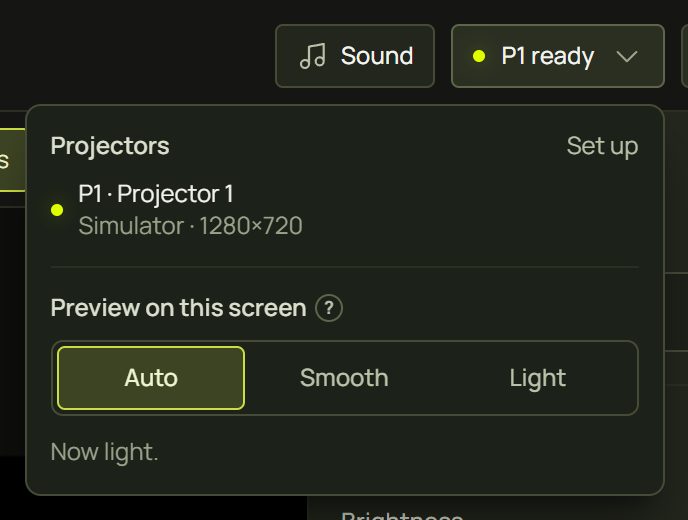
The light in the top bar (for example P1 ready) sums up the projectors and the phone. Click it for the details: each projector and its window, Set up, and Preview on this screen.
2No picture on the projector
| You see | Why | Fix |
|---|---|---|
| The projector shows the laptop's desktop | The displays are mirrored, or the projector window isn't open. | Windows: Win + P ▸ Extend. Then Setup ▸ Outputs ▸ Open window. |
| The window is on the laptop's screen | prism doesn't know which screen is the projector. | Drag the window onto the projector and click inside it. See Fullscreen on the right screen. |
| “Click to go fullscreen” on the projector | The window isn't fullscreen yet. | Click inside it, or press F in it. |
| Everything is black | Blackout is on, the brightness is at 0%, or the projector's output is switched off. | Check the top bar's Blackout; nothing selected ▸ Output ▸ Brightness; the projector card's Output on switch (in Simple, behind the card's More…). |
| One surface is missing | It is hidden, or belongs to another projector. | Its eye in the Surfaces list; with several projectors, check P1 / P2. |
| The picture is on the wrong projector | The windows are swapped. | Identify (or I in a projector window) and move them. See Several projectors. |
3The scan fails
- The phone can't connect: open prism on the laptop through its network or tunnel address (not localhost), then pair again.
- “Looking for the projection…”: point the phone at the whole projection, dim the room, and open the projector window.
- “Phone moved”: prop the phone firmly and start the scan from the laptop.
- Red or grey patches in the heatmap: too bright, too far, or dark and shiny surfaces. Dim the room and move the phone closer to the lens.
- It takes minutes on a wireless projector: each picture is waited for. HDMI is faster and more accurate.
Everything else is on Pair your phone and scan ▸ If it fails.
4A wireless projector lags
A Wi-Fi link (such as Epson iProjection) delays every picture, often by half a second. prism can't make the link faster, but it can plan around it:
- Let a scan measure the delay, or type it: Setup ▸ Outputs ▸ the projector's card ▸ Picture delay. Beat effects are then drawn early by that much (less 100 ms) and land on the beat.
- Prefer beat-based effects (Beat, beat pulse, beat-synced LFOs, timelines in beats): they are predicted. Levels and drum hits follow the sound and stay late by the link.
- Scan over HDMI if you can, even if the show then runs over Wi-Fi.
See Latency and wireless projectors and Wireless projectors.
5The beat feels late
| You see | Why | Fix |
|---|---|---|
| Flashes land just after the kick | The picture takes longer to reach the wall than the compensation allows. | Live control ▸ Audio ▸ Beat settings ▸ raise Latency compensation (60 ms by default) until the flashes land on the kicks. |
| Late on one projector only | Its link is slower. | Set that projector's picture delay. |
| Bass and kick reactions late; beat effects on time | Levels and hits can't be predicted. | Use Beat-based reactions for sharp moments. |
| Everything is on the off-beat | The tracker locked between the kicks (busy basslines). | Tap tempo along on the kicks; Nudge. |
| Scenes change a beat or two early or late in the bar | The bar's 1 is a guess. | Click This is 1 on the downbeat. |
6A look shows nothing
| You see | Why | Fix |
|---|---|---|
| Black, or mostly black | The look is see-through where nothing is lit (rain, sweeps, many wipes), or its layer sits on nothing. | Put another look on a layer below it. See Choosing looks. |
| A wipe or reveal stays black | It plays once, or waits: its Auto-play is off or already played. | Set Auto-play to loop, or turn on Restart on cue so each scene plays it from the start. |
| Black with a blend mode like Multiply | Multiply over nothing is black. | Put a surface or layer underneath, or use Normal. See Blend modes. |
| A sound look barely moves | No sound comes in. | Start listening (section 8). |
| Nothing at all | The layer's opacity is 0, the layer or surface is hidden, or it is a mask. | Check the layer's eye and opacity, and the surface's eye in the list. |
| A video is black | It hasn't loaded on that projector yet, or it was removed from the library. | Wait a moment; re-import it. See Images, video and text. |
7GO doesn't change anything
| You see | Why | Fix |
|---|---|---|
| No GO button | No scenes in the GO order. | + Scene. |
| GO fires, the picture stays | The next tile holds the same look, or it is a cue whose settings already show. | Check the dashed “next” tile; Update it with the look you want. |
| GO is greyed out in Show | The GO order is empty. | Add scenes in Design. |
| “End of the GO order…” | The last tile, with Loop off. | Turn Loop on, or fire a tile. |
| A tile shows a warning icon | Its scene or cue was deleted. | Take it out of the GO order, or undo the delete. |
| The projector stays black | Blackout is on. | The top bar's Blacked out: click it. |
| One setting ignores the scenes | A MIDI control, trigger or timeline holds it, or automation moves it. | Check it in Live control ▸ Automation; give a taken-over setting back to its timeline. |
See Scenes and cues.
8prism hears nothing
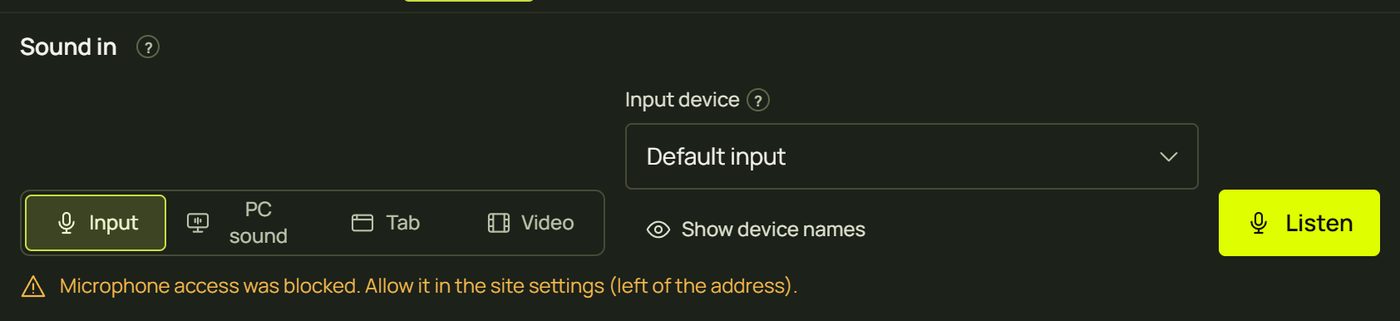
The browser decides who may listen, so most sound problems are permissions. The Sound panel and the Audio tab say what is wrong.


| You see | Why | Fix |
|---|---|---|
| “Click anywhere to start listening” (on a phone or tablet: “Tap anywhere to start listening”) | The browser waits for a click or tap before it plays or listens. On an iPhone or iPad the sound also pauses after a call or another app; tap again to resume. | Click or tap anywhere, or Start listening. |
| “Microphone access was blocked” | The permission was refused, now or earlier. | Click the icon left of the address ▸ allow the microphone, then Listen. |
| “No sound was shared” | The sharing picker was used without sound. | Share again: Entire screen with Share system audio (a tab: Share tab audio). |
| “This browser cannot capture system or tab sound” | Only Chrome and Edge share sound. | Use Chrome or Edge; on a Mac, a loopback input. |
| “No sound is arriving” | The source is silent or muted. | Play something; check the input's level (Windows: Settings ▸ Sound ▸ Input). |
| A loopback input hears nothing | It only hears the default playback device. | Play through the default device, or pick the computer's sound. |
| “The input is busy” | Another app holds the input. | Close it, or pick another input. |
| “No sound” in the strip after a while | The music stopped, or sharing ended. | Hover it for the advice; Listen again. |

See Sound and tempo.
9A big show runs slowly
prism is built and measured for about 150 surfaces and 100 scenes: a GO takes a few milliseconds. When the projector's picture stutters:
- Crossfades stutter: set Crossfade quality to Light for that tile, or for the whole show (Live control ▸ Scenes & cues ▸ … ▸ Crossfade). Auto does this for heavy looks.
- Let the preview run light: status light ▸ Preview on this screen ▸ Auto or Light, so the laptop's screen doesn't compete with the projector.
- Use the fast graphics card: on a laptop with two, set the browser to “High performance” in Windows' graphics settings.
- Fewer layers: every layer is drawn on every frame, so keep layers to what you need, and try a simpler look on a very large surface.
- Check the frame time: press P in the projector window for a performance overlay.
- Close other tabs and apps, especially other video and 3D pages.
10Strobes look dim
That is the flash limit: while it is on (the default), each projector shows at most 3 full-frame flashes a second, because faster flashing can trigger seizures in people with photosensitive epilepsy. Faster strobes, beat flashes and triggers are held back and look dim or flickery. Beat Strobe and a few other looks slow themselves down to stay under it.
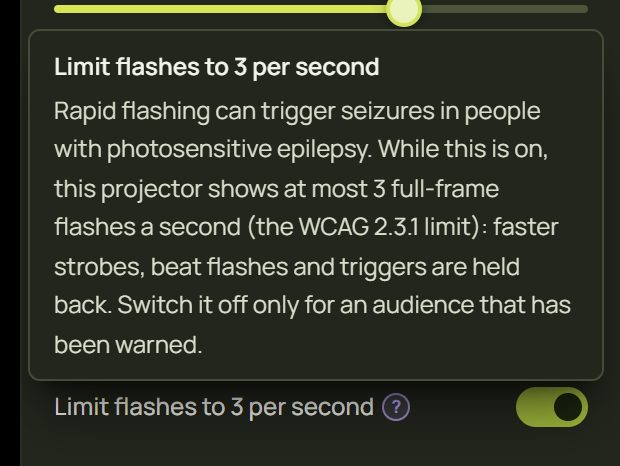
Switch it off only for an audience that has been warned. See Flash safety.
11Keys don't work
- You're typing in a field: keys don't fire there. Click the canvas or press Esc.
- Keys 1–9 and T fire triggers in Show mode only.
- → and ← nudge shapes in Design; they change the cue in Show.
- Simple's sheet lists fewer keys, but every key still works.
See Keyboard shortcuts.
12Your work
- prism saves as you go, in this browser: “Saved” under the project name. A reload keeps even the last second's edits.
- Undo anything: Ctrl + Z. Each step has a name; hover the undo button to see what it will undo.
- Another browser or computer doesn't see your projects: they live in this browser's storage. Clearing the browser's site data deletes them.
- A notice about an older tab: close the other prism tabs, then reload.