Images, video and text
Put your own pictures and videos on surfaces, or write words on them. Pictures and videos go into the library once and can then be used anywhere, as often as you like. Ordinary imports stay in this browser. Requested AI operations can send an applicable starting image; see Your data and AI.
Advanced all placement settings at once
1Add pictures and videos
- Select a surface and open the library from its look (see Open the library).
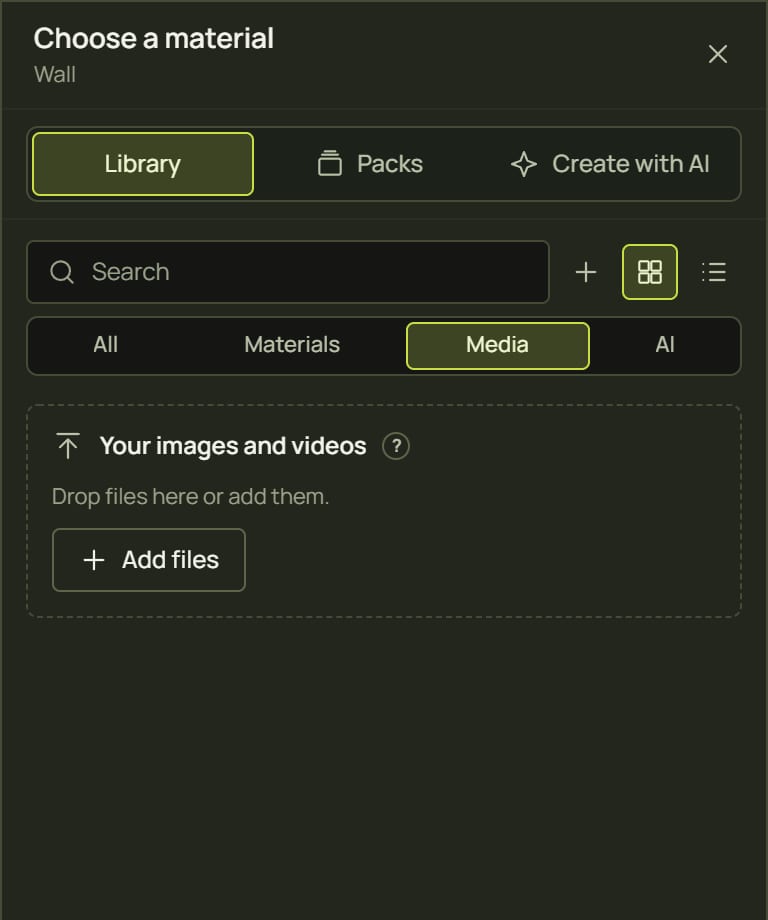
- Click Add images, videos or songs (the + next to the search box), or Add files when the library has none yet, and choose your files. You can pick several at once.
- Or drag the files from your desktop and drop them anywhere on the library: it says Drop to add to your library.
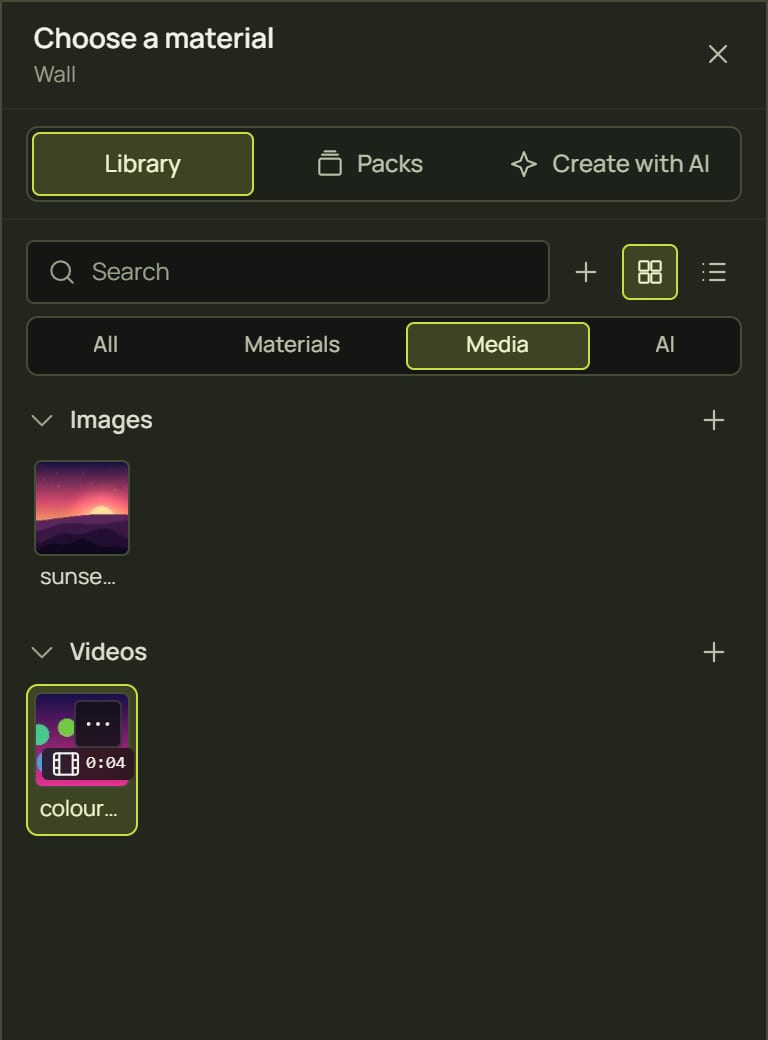
- They appear under Images and Videos. While they load, the library shows Adding 1 of 3 and the file's name.
Songs
Import MP3, WAV, OGG or M4A, up to 300 MB, when this browser can decode the file. Songs appear in the library and belong on a scene's timeline song lane, not on a surface as a visual look. You can also choose a file directly in Add a song or drop it onto the lane. See song controls and the practical lesson.
2Put one on a surface
- Click it in the library (opened from the surface's look): it becomes that layer's look, filling the surface (Cover). If the layer already shows a picture, only the file changes, and your pan, zoom and flow stay.
- Drag it onto a surface on the canvas or in the Surfaces list: it goes on as a new layer on top, so the look below stays.
- Drop it on Whole scene for one picture across all your surfaces (Whole scene).
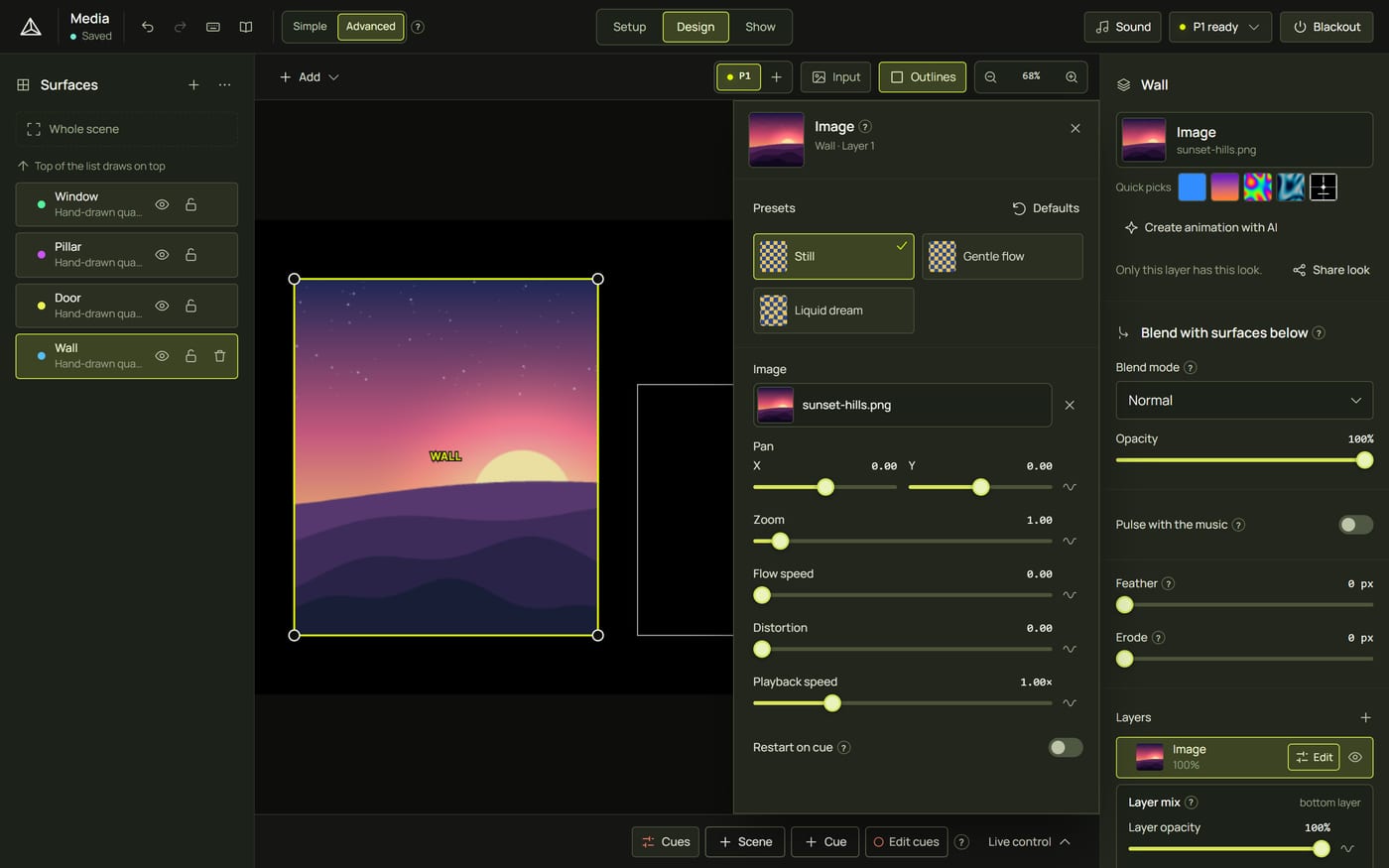
To change the picture later, click it in the look panel: the library opens with only pictures (Choose an image). The ✕ beside it (No image) takes the picture off but keeps the layer.
3Position and fit
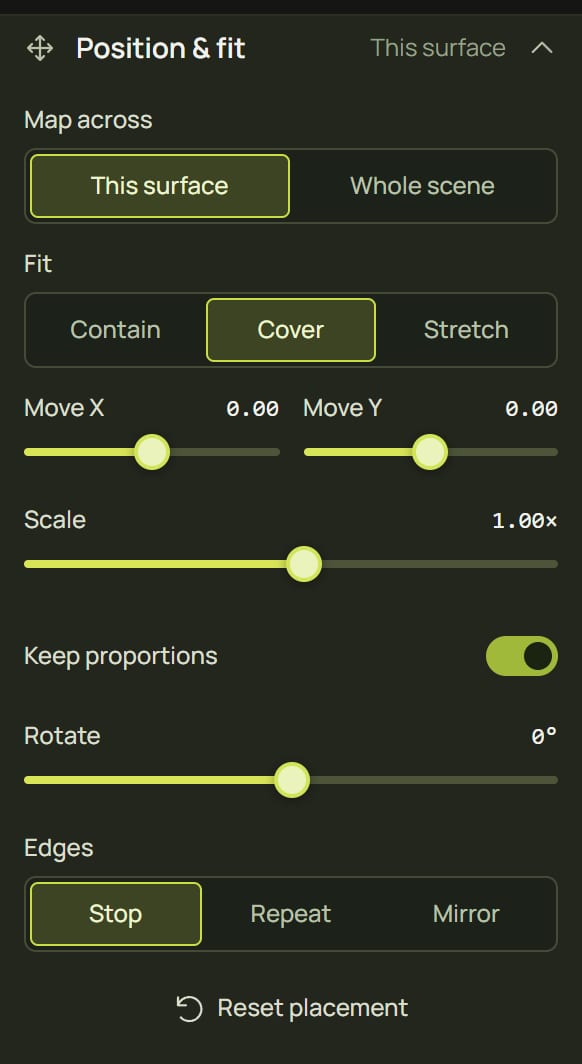
How a picture sits on its surface is set in the inspector, under Position & fit (click its heading to open it).
| Setting | What it does |
|---|---|
| Fit | Contain: show the whole picture. Cover: fill the surface, cropping the edges (the usual choice). Stretch: stretch it to the surface's box. Corners, on scanned four-cornered surfaces: pin the picture's corners to the object's corners, in perspective. |
| Map across | This surface, or Whole scene: one picture across every surface. |
| Move X, Move Y, Scale, Rotate | Slide, zoom and turn the picture on the surface. Keep proportions scales both ways together. |
| Edges | What shows past the picture's edge: Stop, Repeat (tiles) or Mirror. |
| Reset placement | Back to fitted, centred and upright. |
4Pictures: the Image look
| Setting | What it does |
|---|---|
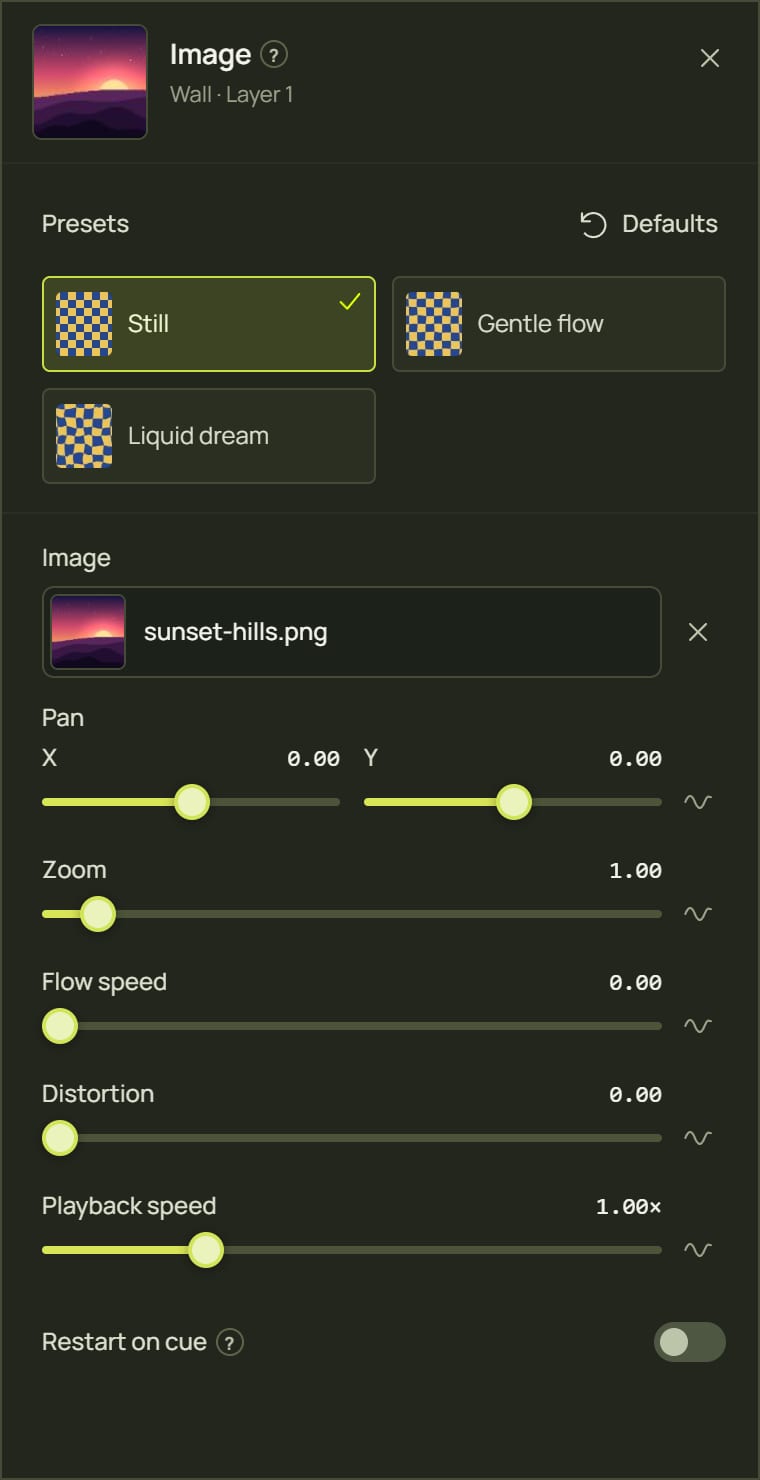
| Image | The picture. Click to choose another. |
| Pan | Slides the picture inside the surface. |
| Zoom | From 0.5× to 8×. |
| Distortion and Flow speed | Above 0, the picture drifts and ripples like liquid; Flow speed sets how fast. |
Presets: Still, Gentle flow and Liquid dream. Transparent parts of a PNG stay see-through, so a logo can sit over another look.
5Videos: the Video look
| Setting | What it does |
|---|---|
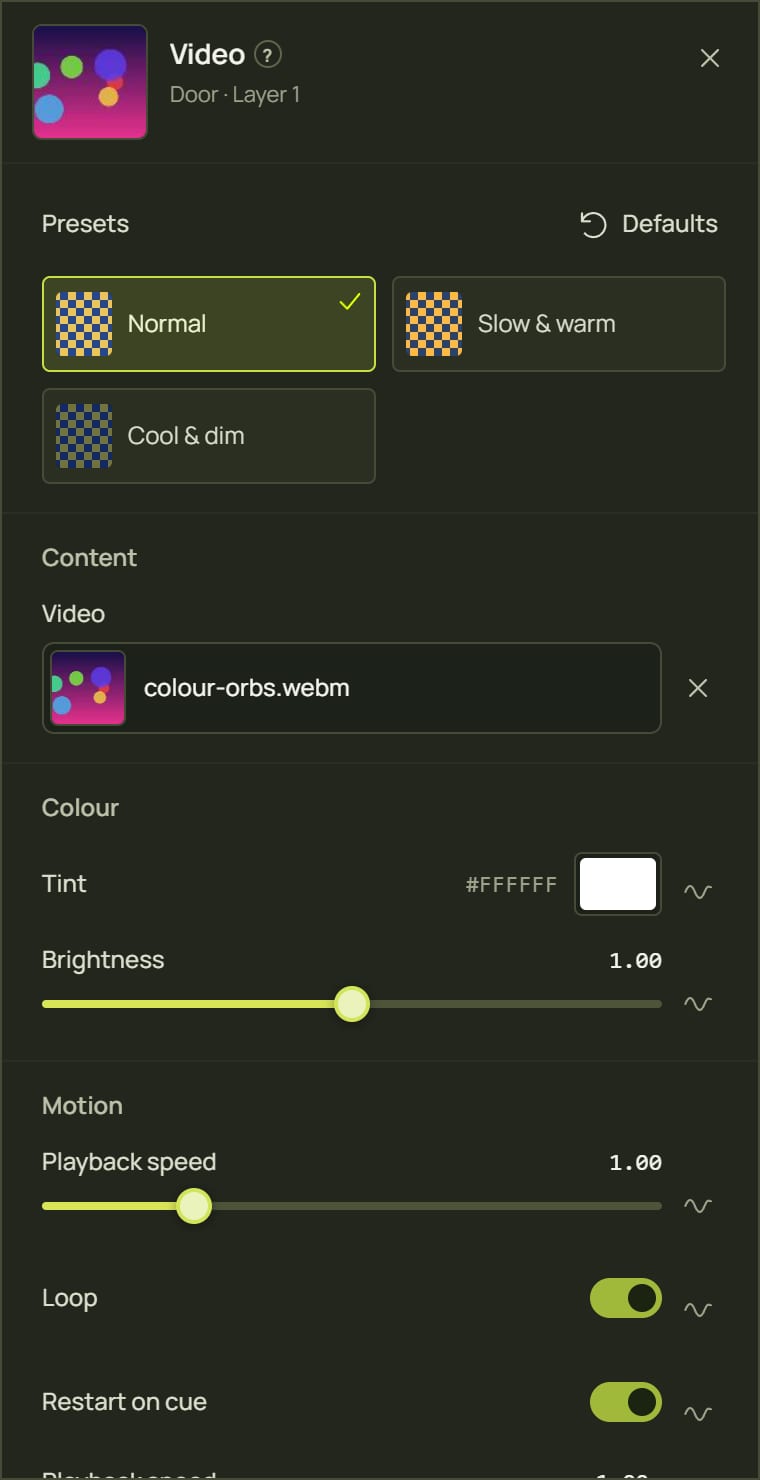
| Video | The clip. Click to choose another. |
| Clip speed | How fast the clip plays, from 0.1× to 4×. |
| Loop | Start again at the end (on by default). |
| Restart on cue | On (the default): a cue that brings the video in starts it from the beginning, on every projector at once. A video that was already showing keeps playing. |
| Tint, Brightness | Colour it, and make it darker or brighter (up to 2×). |
Presets: Normal, Slow & warm and Cool & dim. In Simple mode, Loop and Restart on cue are under More settings.
6Text
- Open the library from the surface's look, type text in the search box and click Text (in Media & text).
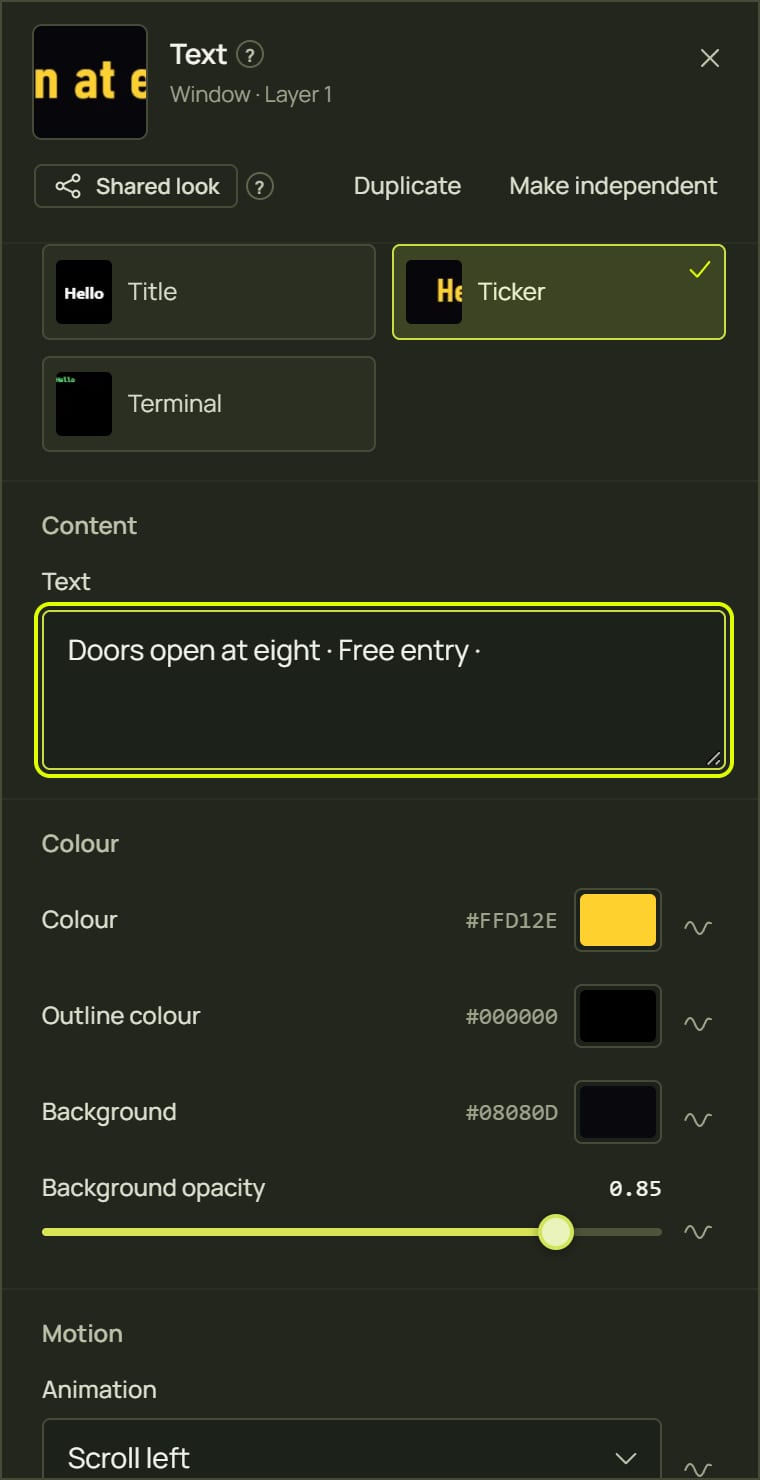
- In the look panel, type your words in the box (Type the text to show; up to 2,000 characters, and Enter starts a new line).
- Try the presets: Title, Ticker (a scrolling news band) and Terminal (green letters typed out).
| Settings | What they do |
|---|---|
| Font | Font, Weight and Italic: Manrope (built in), Sans, Serif, Mono, Condensed or Impact, from Light to Black. Only Manrope comes with prism; the others use your computer's fonts, and nothing is downloaded. |
| Size | Size (× surface height) is the letter size as a share of the surface's height; Shrink to fit keeps the text inside the margins. |
| Colours | Colour for the letters, an Outline round them, and a Background band behind them (raise Background opacity above 0 to see it). |
| Layout | Align, Vertical align, Margin, Line height and Letter spacing: where the text sits and how it is spaced. |
| Animation | None, Scroll left, Scroll right, Scroll up, Scroll down, Typewriter or Blink, with Scroll speed, Scroll gap, Typing speed (chars/s) and Blink rate (per s). The typewriter types the text, holds it for two seconds, then starts again. |
7Delete a file
- In the library, press Space on the picture or video (or right-click it) to see its details.
- Click the bin, Delete. prism asks first, Delete this file?, and says how many layers use it: those layers are removed too.
- Choose Delete, or Keep it.
8Hints and tips
- Size to fit the projector. A 1920 × 1080 picture or video is plenty for one projector; bigger files only take space.
- MP4 (H.264) or WebM play everywhere. If a video won't add, convert it to one of those.
- Logos with transparency. Use a PNG with a transparent background and put it on a layer over another look.
- One picture over several objects. Use Whole scene: the picture carries on from one surface to the next as the audience sees it.
- Make videos start on the beat of a show. Leave Restart on cue on, and give the video its own cue.
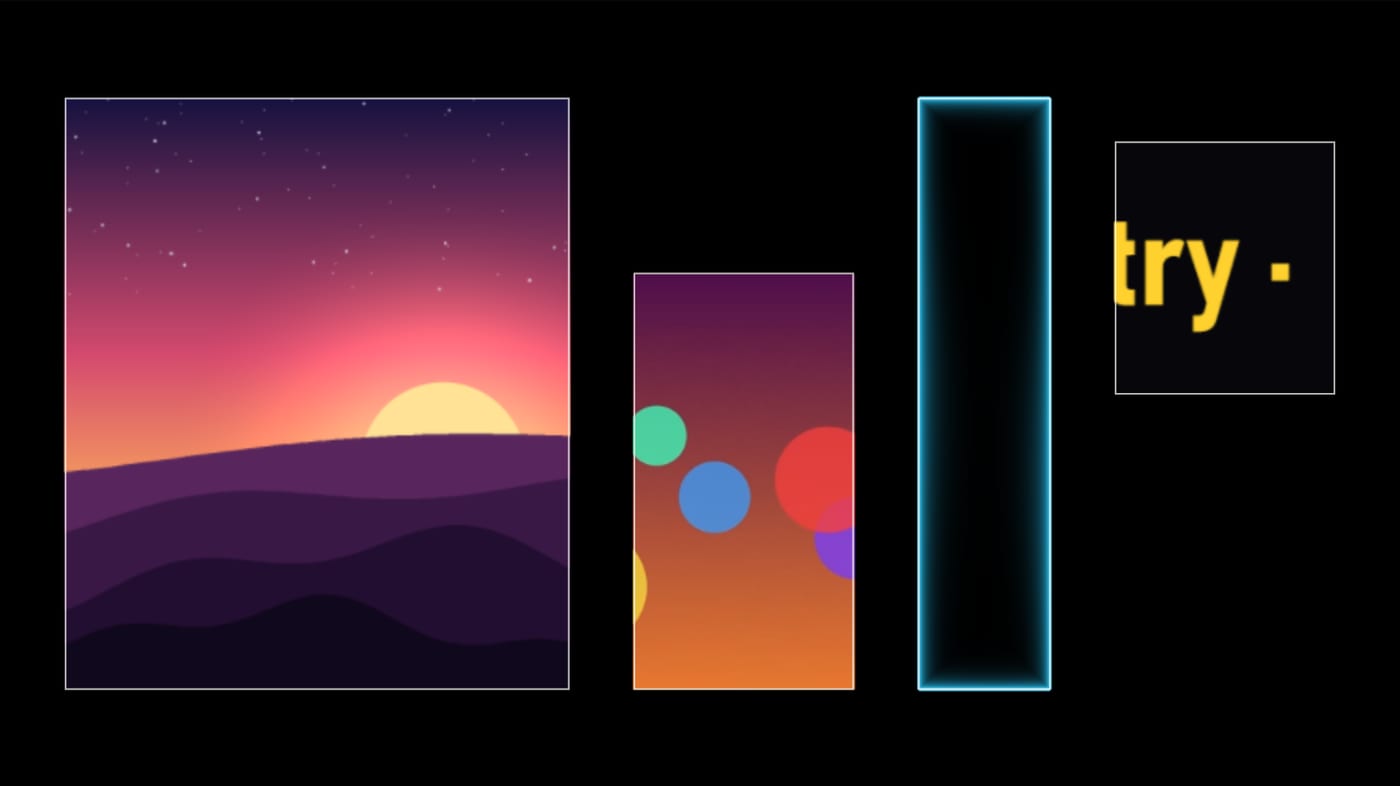
- Text for signs. A Ticker on a thin surface makes a news band; Terminal on a screen-shaped surface types out messages.
9When something looks wrong
| You see | Why | Fix |
|---|---|---|
| “only PNG, JPEG and WebP images are supported” | The picture is another format (such as HEIC or GIF). | Save it as PNG or JPEG first. |
| “is larger than 25 MB” / “1 GB” | The file is too big. | Make it smaller: a projector needs 1920 pixels across at most. |
| “this browser can't play … videos” | The browser can't decode that video. | Convert it to MP4 (H.264) or WebM. |
| The picture's edges are cut off | Fit is Cover, which fills the surface. | Choose Contain, or move and scale it. |
| Black bars beside the picture | Fit is Contain. | Choose Cover or Stretch. |
| Missing file | The picture or video was deleted from the library. | Click it and choose another. |
| The video doesn't start again on a cue | Restart on cue is off, or the video was already showing before the cue. | Turn it on; a video only restarts when a cue brings it in. |
| Scrolling text is cut off | Shrink to fit doesn't shrink along the scrolling direction. | Lower Size. |
10Mouse and keyboard
| Action | How |
|---|---|
| Add files | Add images, videos or songs · drop files on the library |
| Put a picture on this layer | Click it · Enter |
| Add it as a new layer | Drag it onto a surface · + in its details |
| Details | Space · right-click |
| Delete a file | Delete on its tile, or the bin in its details |