AI animations
Describe an animation and AI makes it for the surface you selected, knowing its shape and size: a video clip made by Google's Gemini (a hand reaching out, a car driving past, goo running down), or a live animation written by Claude that follows the outline and moves with the music. It can also make seamless textures and new looks.
1Before you start: credits
On Prism Mapper (app.prismmapper.com), AI uses credits from your plan: 2 to try on Free, 12 a month on Creator, 35 a month on Studio (the free trial includes none) and 100 a month on Pro. You can buy more at any time, in packs of 20, 50 or 100, from your account page.
- Each tab of Create with AI shows how many credits a generation uses, and your balance, before you press Generate. Video clips show their credits a second for each model. When you're short, Generate turns off and Buy credits shows.
- If a service fails, the credits come back. A shader's or live animation's automatic fixes are included.
See What it costs for rough amounts.
On your own prism server: the keys
A prism server you run yourself uses no credits: it calls each service with your own keys, and each service bills you directly. The keys stay on the server; the studio, your projects and the logs never see them. The owner of the server adds them once:
| Feature | Key on the server | Made by |
|---|---|---|
| Video clips | GEMINI_API_KEY | Google Gemini: Gemini Omni Flash, or Veo 3.1 Fast for seamless loops |
| Live animations and shaders | ANTHROPIC_API_KEY | Claude: Claude Opus 5 for animations, Claude Sonnet 5 for shaders |
| Textures | OPENAI_API_KEY | OpenAI's image model (gpt-image-1) |
- Get a key from each service you want (Google AI Studio, the Claude Console, the OpenAI platform). Each is billed to that account.
- The server operator stores credentials in the server environment and restarts their server. Follow Server setup for configuration and limits. Customers using someone else's server should ask that operator; do not enter provider keys into the studio.
- Restart the server. Each tab of Create with AI then works; until then it says what is missing.
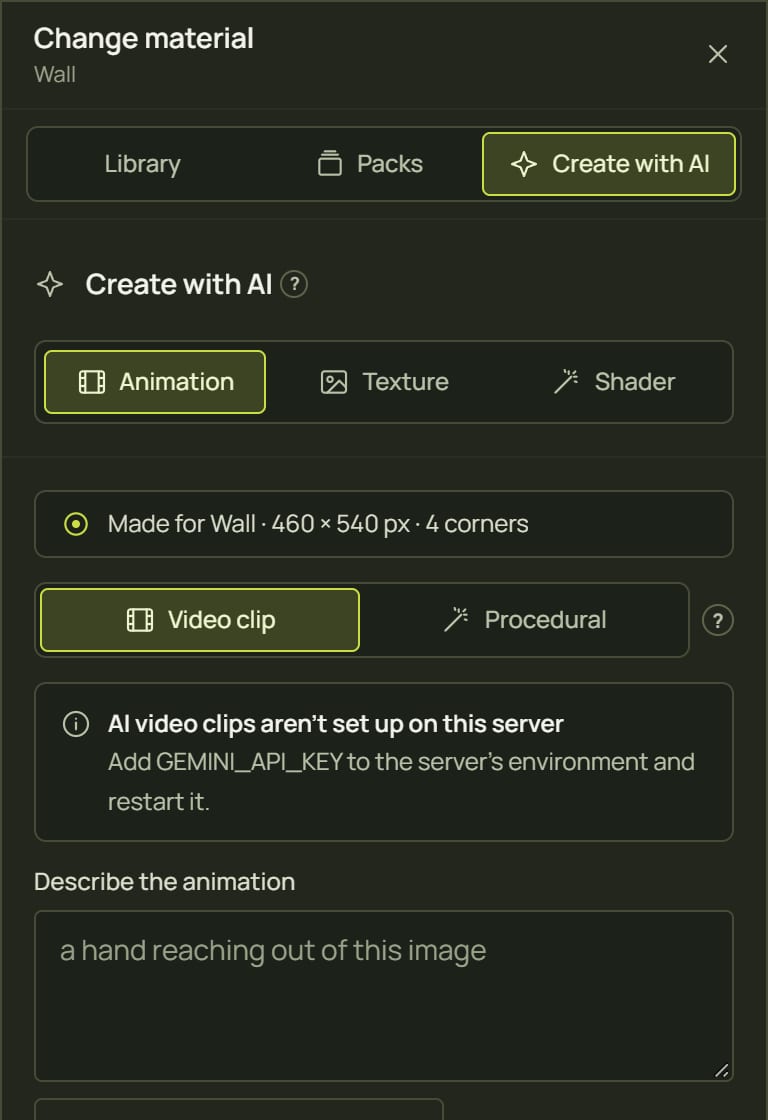
2Open Create with AI
- Select the surface the animation is for.
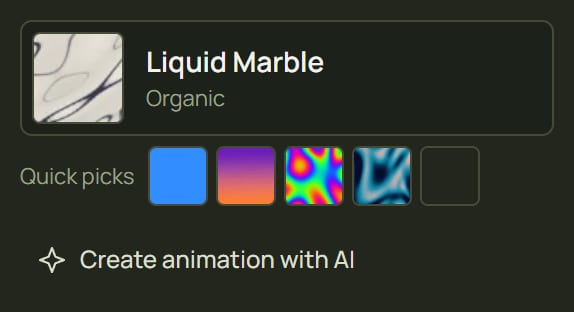
- Click Create animation with AI, under its look in the inspector. The library opens on Create with AI ▸ Animation. (Or open the library and click Create with AI at the top.)
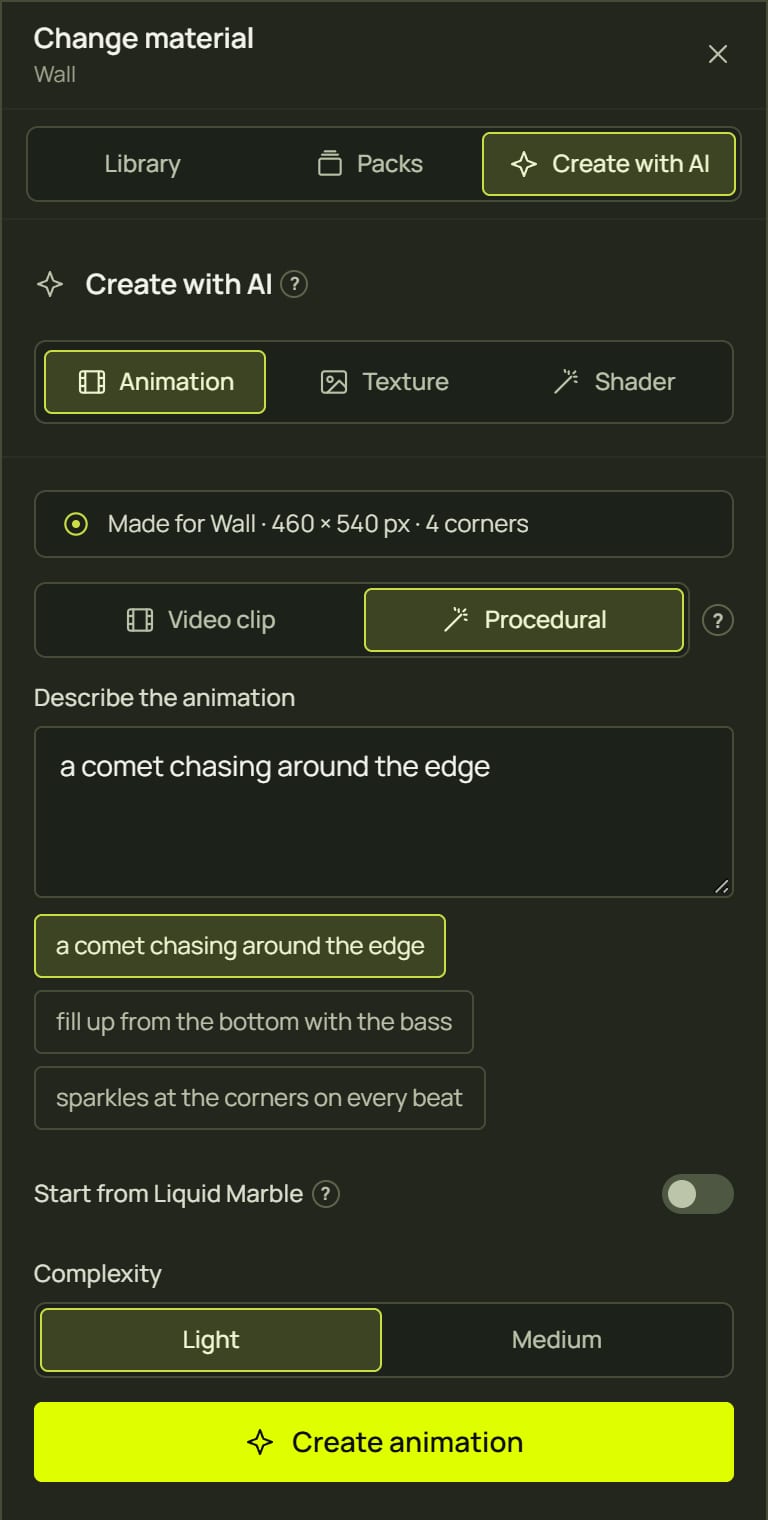
- The tab starts with what the AI will be told about the surface, for example Made for Wall · 460 × 540 px · 4 corners.
There are three tabs: Animation (clips and live animations made for this surface), Texture (a picture that tiles) and Shader (a new look for the library). Pick Video clip or Procedural at the top of the Animation tab:
| Video clip | Procedural | |
|---|---|---|
| Made by | Google Gemini | Claude |
| Best for | Things that move: a hand, a car, a creature, goo | Light along the edges, drips, cracks, fills, sparkles on the beat |
| Result | A video file, 4–10 seconds, looping | A live look: endless, sharp at any size, reacts to the music, has settings |
| Cost | Paid per second of video | Paid once to write it; free to play |
3A video clip (Gemini)
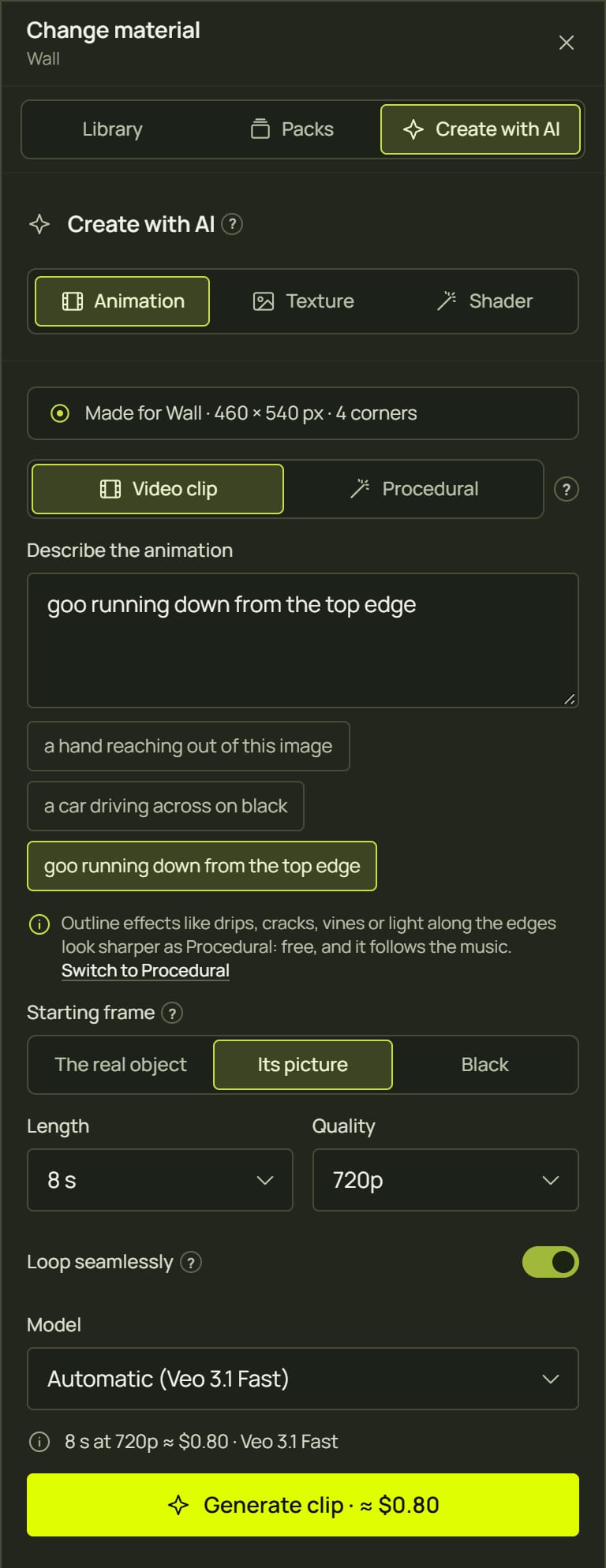
- Choose Video clip.
- Describe it under Describe the animation, or click an example: a hand reaching out of this image, a car driving across on black, goo running down from the top edge. If your words suit the other kind better, a line suggests switching.
- Choose the starting frame:
- The real object: starts from the scan photo of this surface, and the finished clip lines up with the real object. Needs a phone scan.
- Its picture: starts from what the surface shows now.
- Black: starts on black; only the moving thing shows, as light (the clip goes on with the Screen blend).
- Set Length (4, 6 or 8 s; 10 s on Gemini Omni Flash), Quality (Draft 360p on Omni Flash, 720p, 1080p), Loop seamlessly (it ends on its first frame) and, if you like, the Model.
- Read the cost line, for example 8 s at 720p ≈ $0.80 · Veo 3.1 Fast, and click Generate clip · ≈ $0.80.
- prism shows each stage: Starting frame, Sending it, Generating the clip (usually 1 to 3 minutes), Downloading, Making the loop when needed, and Saving to your media library.
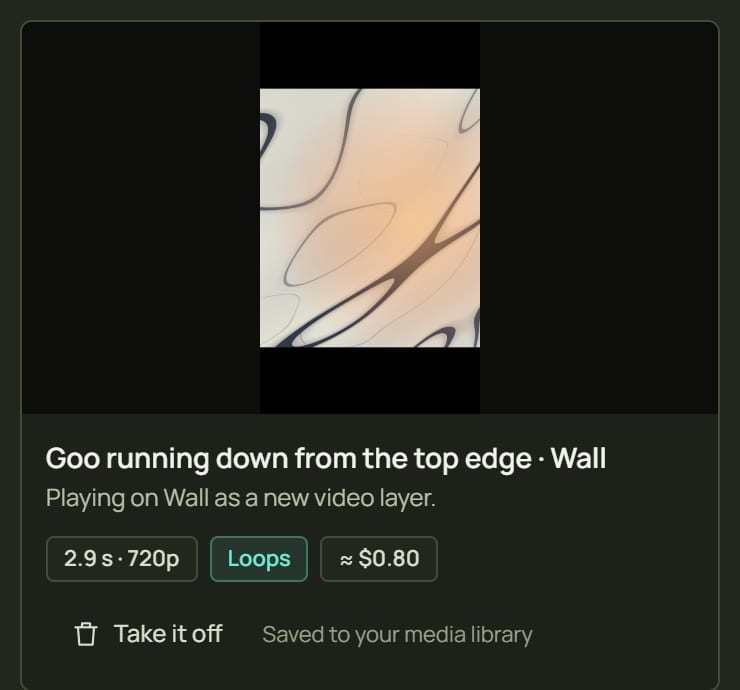
- The clip plays on the surface as a new video layer, lined up with the object if it started from it. It is saved in your media library (under Videos) and in My animations. Take it off removes it from the surface but keeps the file.
4A live animation (Claude)
- Choose Procedural.
- Describe it, or click an example: a comet chasing around the edge, fill up from the bottom with the bass, sparkles at the corners on every beat.
- Optionally tick Start from … (it names the look the surface shows now) to animate that look, and choose Complexity: Light (cheap enough for any projector laptop) or Medium (more detail).
- Click Create animation. It can take a minute or more. Then prism tests it on this computer before you see it: a rule check, compiling it on the graphics card, a speed test at 1080p and a check that it moves. If a test fails, prism asks for a fix, up to three times.
- It goes on the surface as a new layer, to try. Keep saves it to My animations; Refine it takes a note such as slower, and more blue; Discard takes it off; View code shows the shader.
5Adapt it to another surface
Everything AI makes is for one surface, but you can use it anywhere: find it in My animations. On a surface with another shape it fits as usual, and the inspector shows Adapt to this surface under the look.
- A live animation is rewritten for the new shape and size, from the same description.
- A clip is made again from the same description and the same kind of starting frame, for the new surface. That is a new clip, so it costs again: the button shows the price.
Either way it is one undo step, and only this surface's layer changes.
6Textures
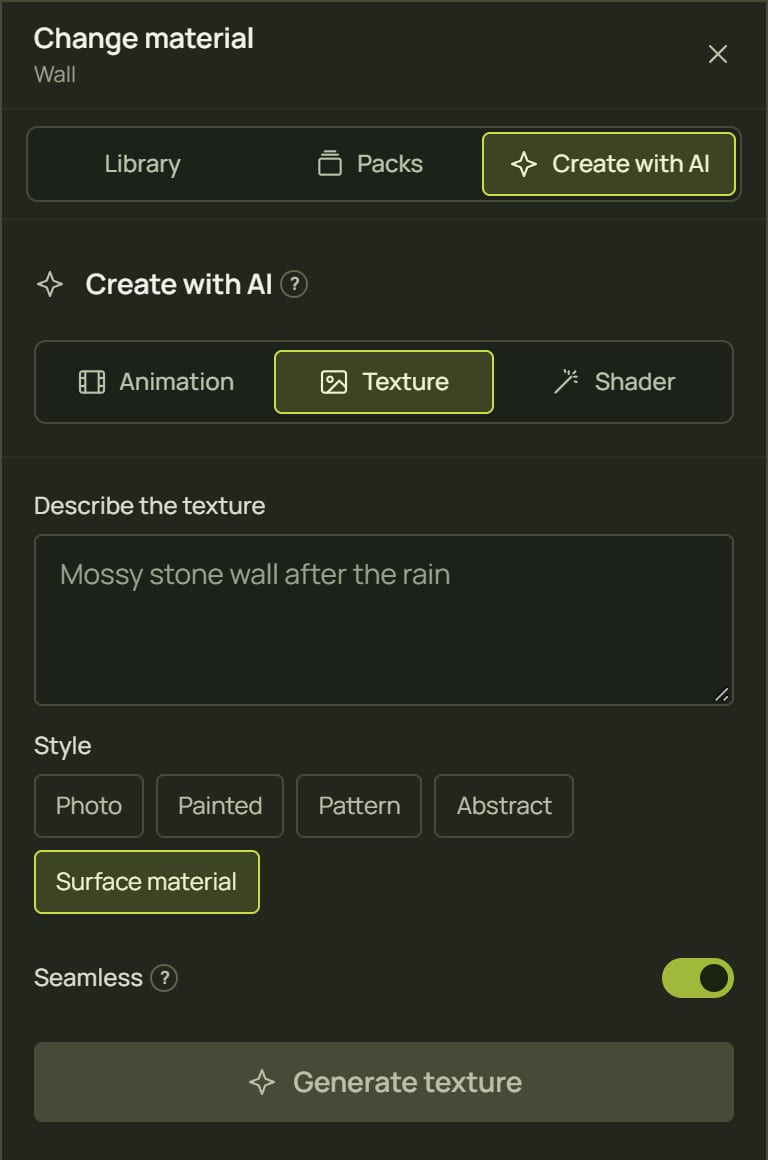
- Open Create with AI ▸ Texture.
- Describe it, for example Mossy stone wall after the rain, and choose a Style: Photo, Painted, Pattern, Abstract or Surface material.
- Leave Seamless on for a picture that tiles with no visible edges, and click Generate texture.
- The 1024 × 1024 picture is saved to your media (AI textures) with a gentle flow and distortion. Put it on with Add to Wall or Whole scene.
7Shaders
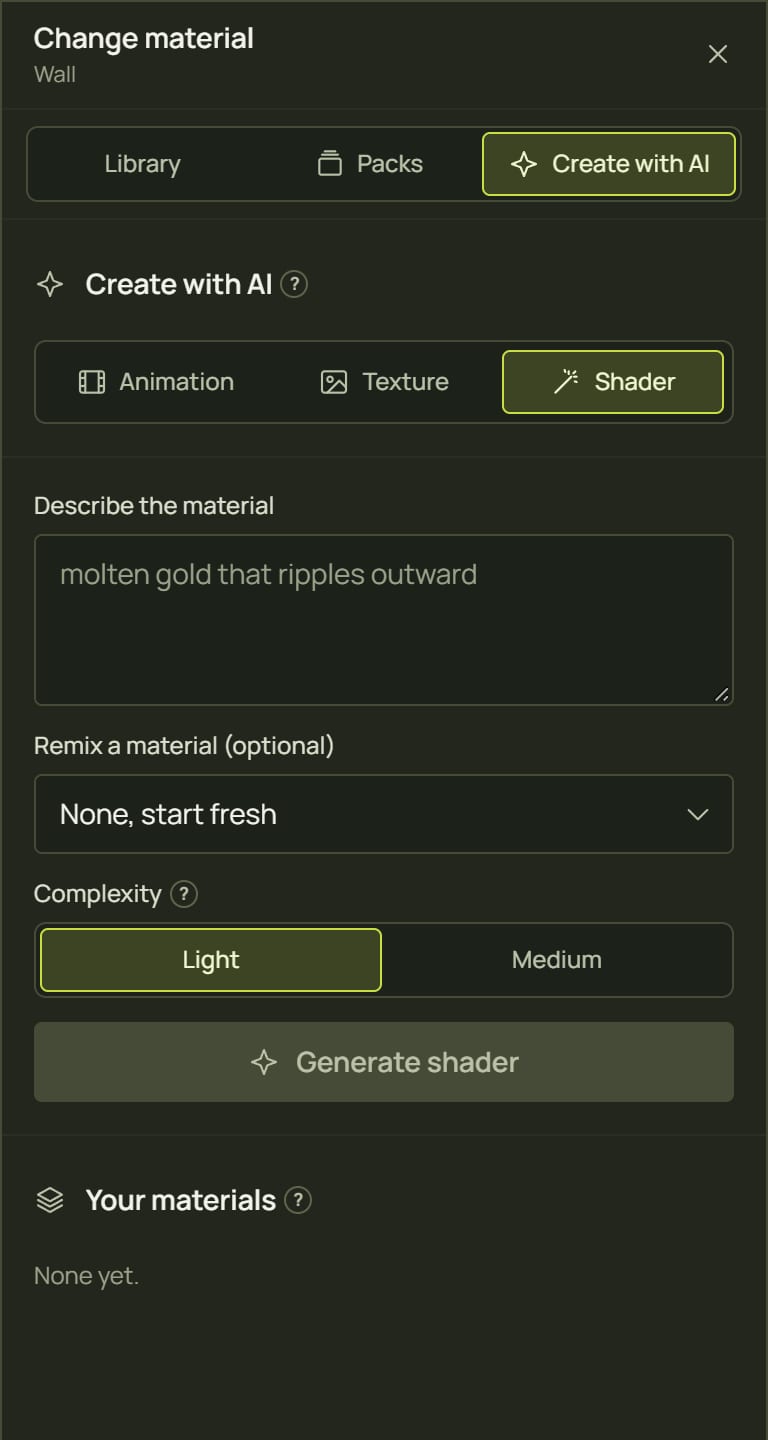
- Open Create with AI ▸ Shader.
- Describe a moving material, for example molten gold that ripples outward. Optionally Remix a material: start from a built-in look or one of yours.
- Choose Complexity and click Generate shader. prism checks it on your graphics card (Rule check, Compile on the GPU, Speed test at 1080p, Preview check) and fixes it up to three times.
- It is saved to Your materials (in the library under AI shaders), ready for any surface.
8What it costs
On Prism Mapper, a generation uses credits; the exact number shows before you generate. Roughly:
| What | About |
|---|---|
| Video clip, 8 s draft (360p) | 2 credits |
| Video clip, 8 s at 720p / 1080p | 7 / 10 credits |
| Live animation | 5 credits |
| Shader | 1 credit |
| Texture | 2 credits |
On your own prism server, each service bills the account whose key is on the server. Video prices are the ones prism shows before you generate (checked against Google's price list on 27 Sept 2026); the others are rough estimates, as prism doesn't show them.
| What | Rough cost |
|---|---|
| Video clip, Gemini Omni Flash | about $0.03 a second at 360p (an 8 s draft ≈ $0.24), $0.10 at 720p (8 s ≈ $0.80), $0.15 at 1080p |
| Video clip, Veo 3.1 Fast (loops) | $0.10 a second at 720p, $0.12 at 1080p |
| Video clip, Veo 3.1 Lite / Veo 3.1 | $0.05–$0.08 / $0.40 a second |
| Live animation (Claude Opus 5) | roughly $0.20–$0.50 a try, more if it needs fixes (estimate) |
| Shader (Claude Sonnet 5) | roughly $0.05–$0.15 a try (estimate) |
| Texture (OpenAI) | a few cents to about $0.20 a picture, depending on OpenAI's current prices (estimate) |
9Hints and tips
- Pick the right kind. Anything along the edges or on the beat: Procedural. Anything with a real object in it (a hand, a car, an animal): Video clip.
- Start from black for light-only effects. A clip made on black goes on with the Screen blend, so only the moving thing shows over what is below.
- Start from the real object for illusions. A clip that starts from the scan photo lines up with the object, so the goo seems to come out of the real door. Curved surfaces are lined up by their four corners, so they fit less exactly.
- Describe movement, not just things. “A crack spreads from the bottom left and splits the door” works better than “a crack”.
- Keep what works. Kept animations and every clip land in My animations, ready for other surfaces and other projects.
10When something looks wrong
| You see | Why | Fix |
|---|---|---|
| “… aren't set up on this server” | The server has no key for that service. | Add the key it names and restart the server (the keys). |
| “Hourly limit reached” | This room used its allowance for the hour. | Wait the time it shows, or raise AI_RATE_LIMITS on the server. |
| “Two AI jobs are already running” | A room makes two at a time. | Wait for one to finish; Try again comes back after 30 s. |
| “Can't reach the server” | The prism server isn't running or can't be reached. | Start it, then try again. |
| “The AI service had a problem” | Google, Anthropic or OpenAI returned an error (or a safety filter stopped it). | Try again, or change the description. |
| A starting frame is greyed out | The surface has no scan photo, or shows nothing yet. | Choose another frame, or scan with your phone first. |
| “No working shader after 3 fixes” | The description was too hard to turn into a fast, working look. | Try a simpler description, or Light complexity. |
| “It rendered completely black in the test” | The result was too dark to see. | Ask for brighter colours, or generate again. |
| “It loops with a cut” | The model can't end on its first frame and this browser can't record the crossfade. | Choose Veo 3.1 Fast (Automatic does this when Loop is on). |
11Mouse and keyboard
| Action | How |
|---|---|
| Open Create with AI | Create animation with AI under the look · the library's Create with AI |
| Generate | The Generate button · Ctrl+Enter in the description |
| Take a result off | Take it off or Discard · Ctrl+Z |