Animation packs
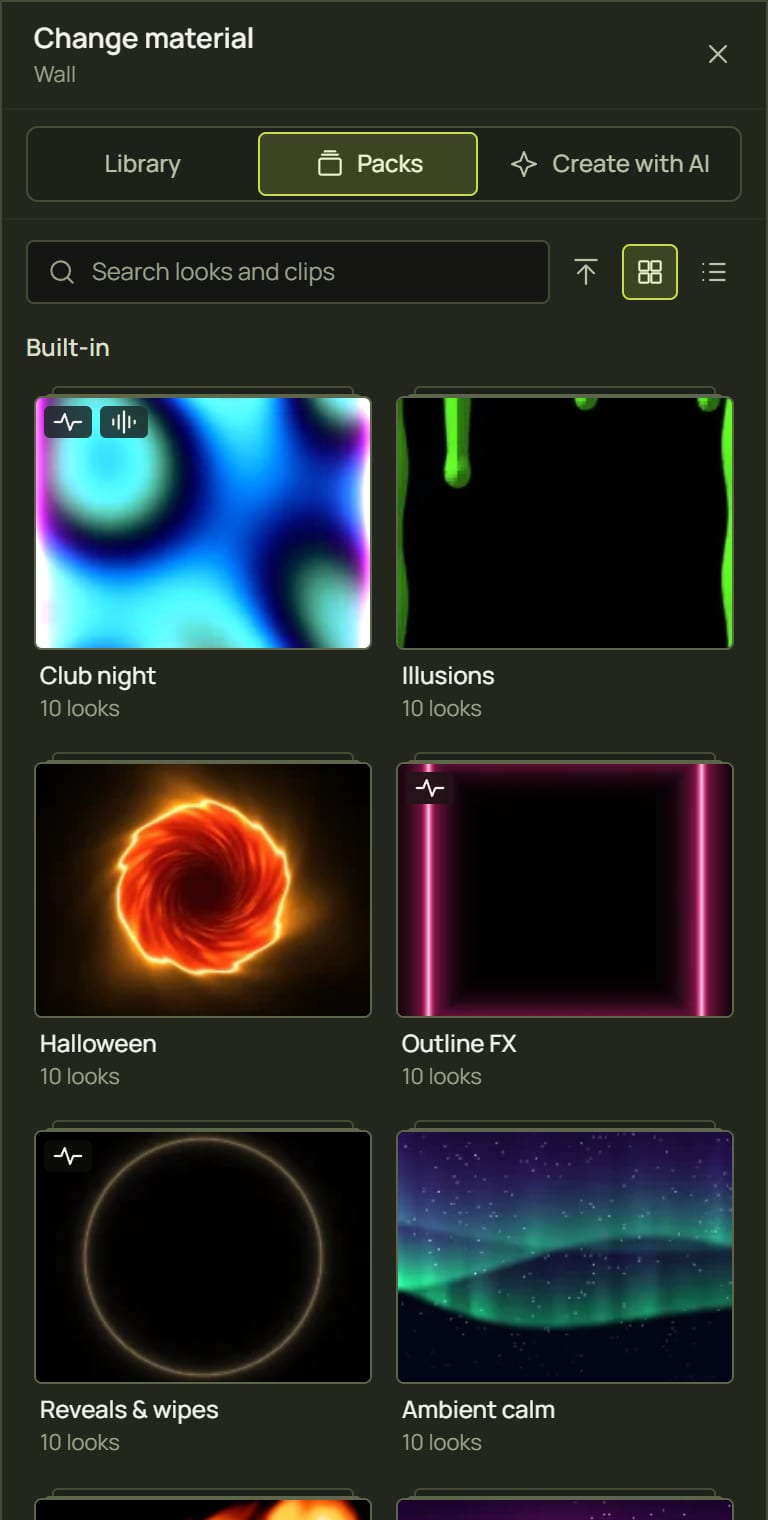
A pack is a themed set of ready-made looks, many with their movement already set up so they pulse with the beat or swell with the bass, plus video clips. prism comes with ten packs of ten looks. You can save your own looks into packs, and pass them on as files.
1What's in a pack
- Looks. One to four layers, each a look with its settings, speed and blend, plus the automation that moves them: the LFOs and the music reactions. Put a pack look on a surface and it arrives moving, exactly as it was made.
- Clips. A video from your media library with how it plays: its speed, loop, fit and blend.
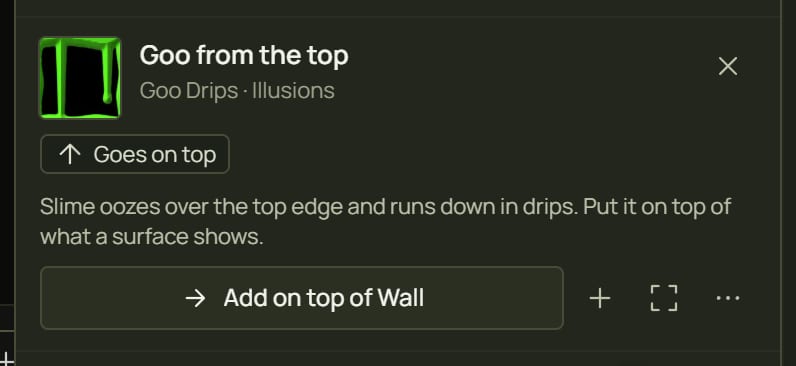
- Overlays. Some items are made to sit on top of what a surface already shows (rain, reveals, goo, cracks, clips on black). They say Goes on top and go on as a new layer instead of replacing one.
2Open the packs
- Select a surface and open the library from its look (see Open the library).
- At the top of the library, click Packs, between Library and Create with AI.
- Click a pack's card to open it. All packs takes you back.
3The built-in packs
| Pack | What it's for | Looks |
|---|---|---|
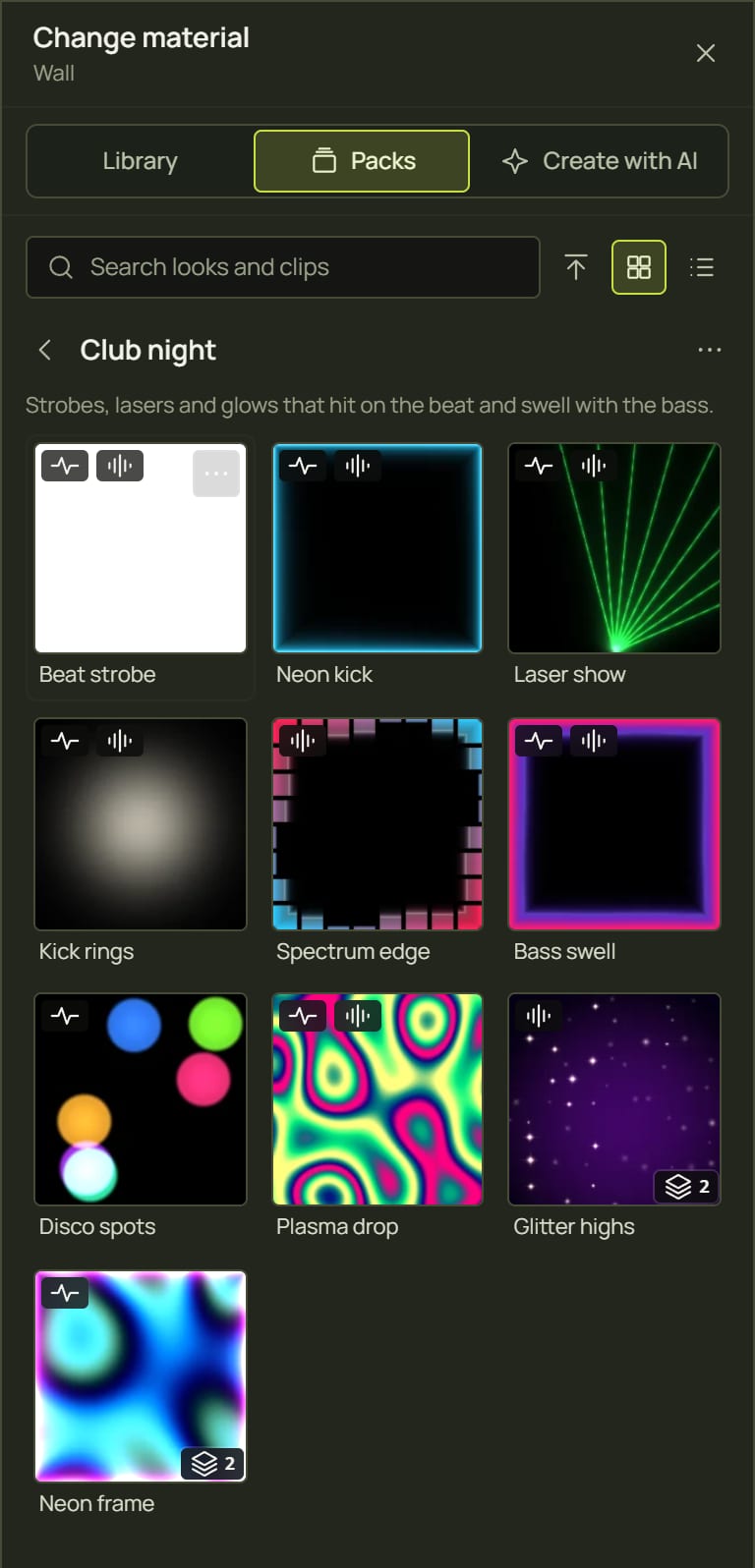
| Club night | Strobes, lasers and glows that hit on the beat and swell with the bass. | Beat strobe, Neon kick, Laser show, Kick rings, Spectrum edge, Bass swell, Disco spots, Plasma drop, Glitter highs, Neon frame |
| Illusions | Goo running from the edges, cracks spreading, vines growing, water rising. Put them on top of a picture or a surface's look. | Goo from the top, Glowing cracks, Cracked wall, Growing vines, Burning edges, Water rising, Frost creeping in, Disintegrate, Portal, Hologram |
| Halloween | Blood drips, a hell gate, a thunderstorm, slime and failing lights. | Blood drips, Hell gate, Thunderstorm, Cauldron fire, Ghostly fog, Apparition, Rising slime, Hellfire edges, Failing light, Slime pour |
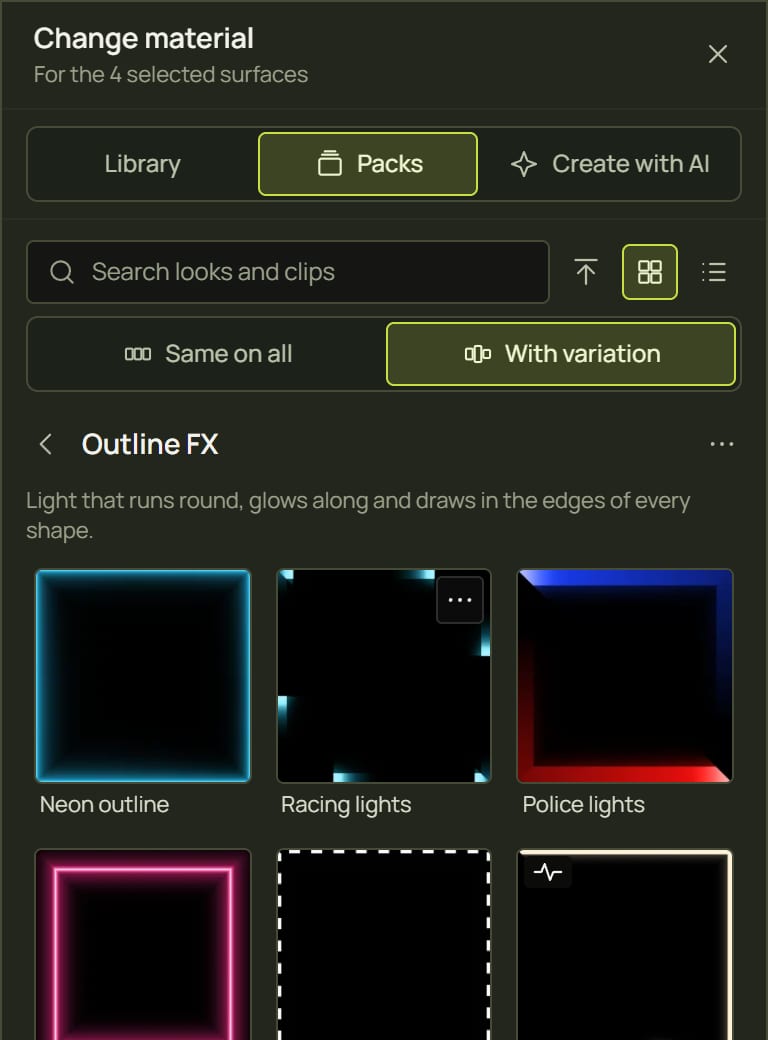
| Outline FX | Light that runs round, glows along and draws in the edges of every shape. | Neon outline, Racing lights, Police lights, Neon tube, Marching ants, Pen stroke, Sonar ripples, Soft halo, Breathing edge, Line and fill |
| Reveals & wipes | Openings for a show; the reveals go on top of a surface's look and uncover it. | Reveal from black, Spotlight open, Countdown reveal, Venetian reveal, Burn away, Glass shine, Colour sweep, Diamond pop, Shutters, Outline drawn in |
| Ambient calm | Slow, soft movement for lobbies, dinners and chill-out rooms. | Deep sea, Aurora, Lava lamp, Carrara drift, Pool light, Sunset glow, Colour wash, Starlight, Summer sky, Ocean calm |
| Nature | Fire, rain, snow, water and sky. | Campfire, Snowfall, Rain shower, Pink dawn, Pool caustics, Blossom, Deep space, Witch fire, Embers, Jade river |
| Retro & glitch | CRT lines, code rain, static, synthwave sunsets and digital corruption. | Synthwave, Code rain, Dead channel, Corrupted plasma, CRT lines, Demo plasma, Pop art, Green terminal, Checker flip, Amber terminal |
| Geometric motion | Tunnels, spirals, stripes and tiles in steady motion. | Neon tunnel, Hypno spiral, Op-art wave, Kaleidoscope, Turning gradient, Honeycomb, Warning tape, Breathing stripes, Circus rays, Endless floor |
| Architecture classics | The building-mapping basics: washes, outlines, sweeps and lit windows. | Alignment grid, Warm wash, White outline, Light sweep, Windows at night, Colour chase, Marble facade, Black & gold, Outline and wash, Drafting paper |
4Put a pack look on a surface
- Open a pack and click a look (or press Enter on it). It replaces the look of the layer you opened the library from, and keeps that layer's place, blend and opacity.
- Its automation comes with it: a look that pulses on the beat goes on pulsing. (The music looks need a sound source; see Sound and tempo.)
- An overlay goes on top as a new layer instead: its button says Add on top of Wall.
- The look panel opens so you can adjust it. One Ctrl+Z takes the whole thing off again, layers and automation.
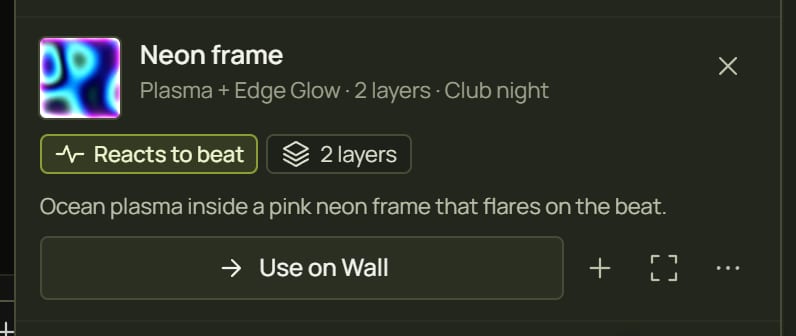
Press Space on a pack look (or click its ⋯) for its details: what it does, Reacts to beat, Reacts to sound, how many layers it has, Goes on top, and the buttons to put it on, + (Add it as a new layer on top instead) and Whole scene: across every surface.
5Several surfaces: the same or varied
Select several surfaces before you open the packs, and a switch appears under the search box: Same on all or With variation. The library's title then says For the 4 selected surfaces.
| Choice | What you get |
|---|---|
| Same on all | Every surface shows the look the same, in step: one shared look and one set of automation. Best for big shows. |
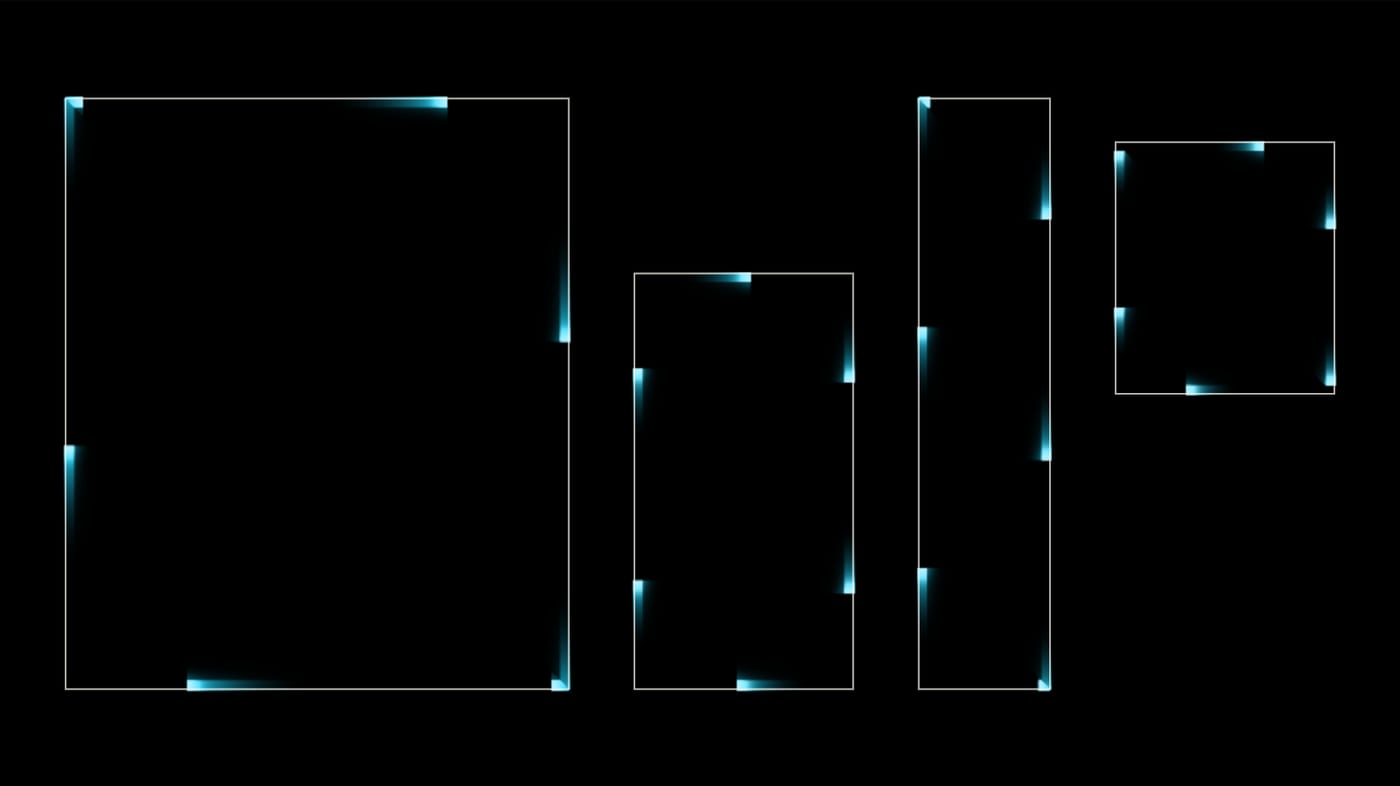
| With variation | Left to right, each surface a little different: its movement shifted in time so a chase runs along the row, its colours turned a little (up to 30° round the colour wheel across the row), random patterns reshuffled and comets moved on. Each surface gets its own copy. |
6Save your own looks
- Make a look you like on a surface: its layers, settings and any automation.
- Right-click the surface (on the canvas or its row) ▸ Save look to pack ▸ New pack…, or one of your packs listed under Your packs.
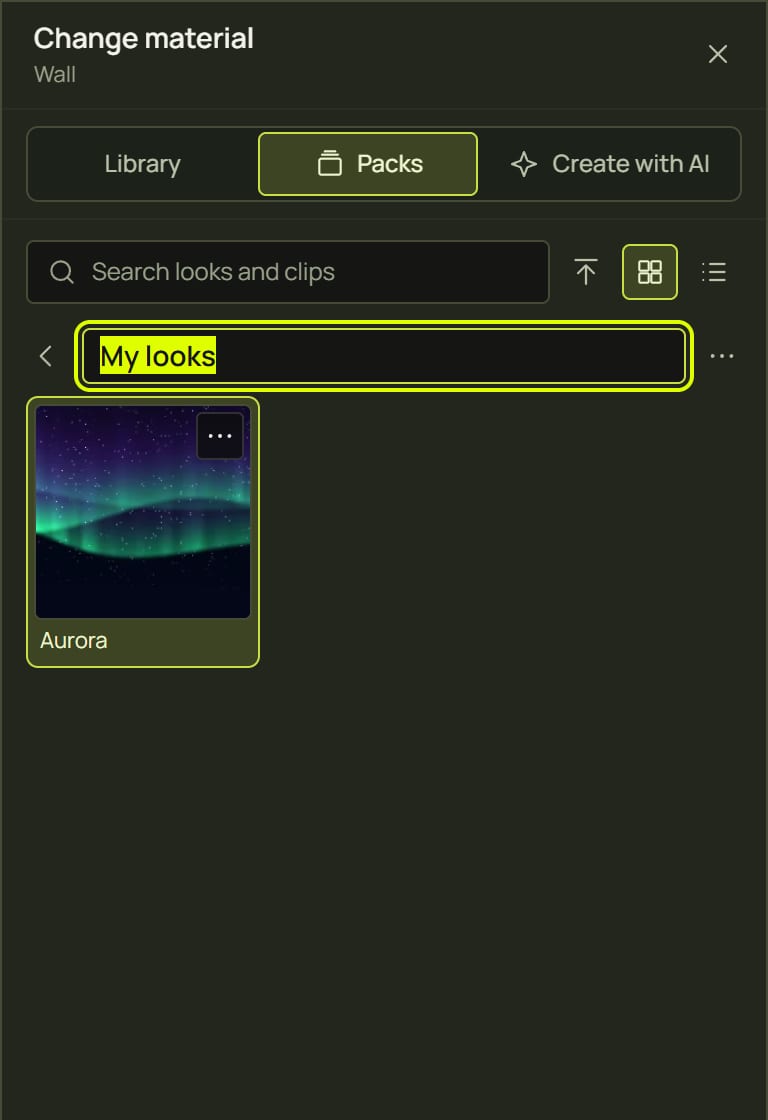
- With New pack…, prism makes a pack called My looks and opens it in the library with its name ready to type: type a name and press Enter.
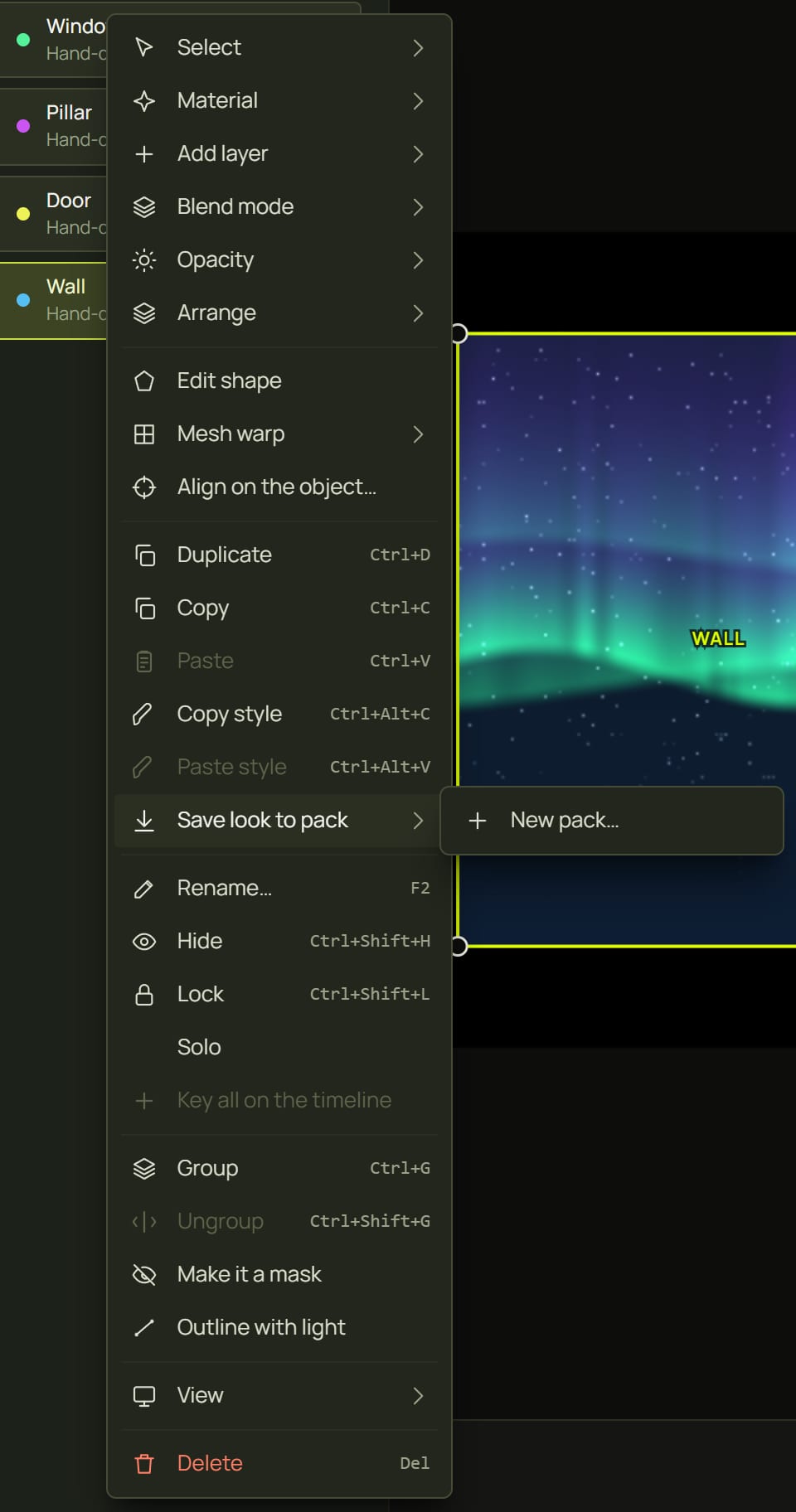
- From a surface's menu the whole surface is saved (all its layers); from a layer's menu, just that layer. A single video layer is saved as a clip.
- The item keeps the looks, their settings and speed, the blends and opacity, and the automation that moves them. Your own and AI-made materials go inside the pack, so it works on another computer.
- It is named after the shared look (Aurora) or its materials (Plasma + Sparkle).
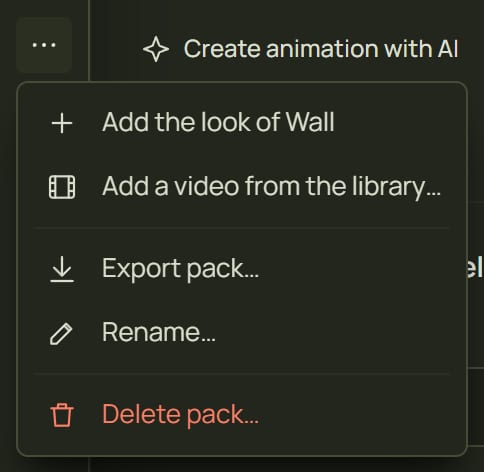
- Inside one of your packs you can also use Add the look of Wall (the selected surface) and Add a video from the library….
7Organise your packs
| To… | Do this |
|---|---|
| Rename a pack | Its ⋯ (or right-click its card) ▸ Rename… |
| Rename a look in it | Its details ▸ the pencil, or right-click ▸ Rename… |
| Change the order | Alt+← / Alt+→, or Move earlier / Move later |
| Choose the cover picture | Right-click a look ▸ Use as the pack's cover |
| Copy a look to another pack | Right-click it ▸ Copy to pack ▸ (from a built-in pack: Copy to my packs ▸) |
| Change a built-in pack | Its menu ▸ Copy to my packs makes Club night (mine), which is yours to change |
| Delete | A look: Delete or Delete from the pack…. A pack: its menu ▸ Delete pack… |
8Export and import
- Export: open the pack's menu ▸ Export pack…. prism saves Pack name.pmpack. A pack with pictures or clips carries them inside the file.
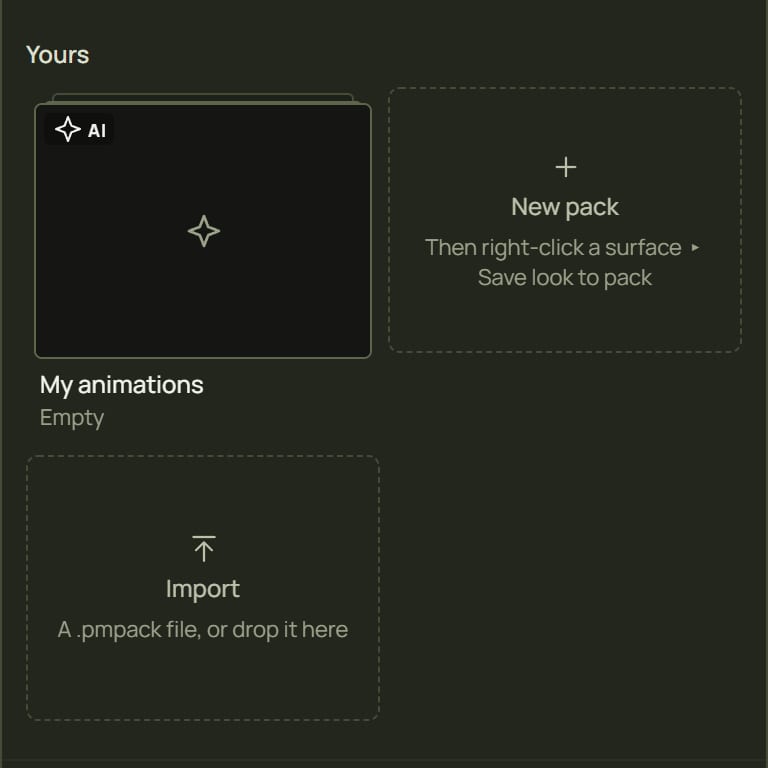
- Import: click the Import card or the Import a pack (.pmpack) button, or drop .pmpack files onto the Packs view (or the library).
- An imported pack is added next to yours; it never replaces one. If the name is taken it becomes Name (2).
- Pictures and clips inside it go into your media library (one you already have is reused).
- Built-in packs can be exported too, for example to hand a friend the exact looks you used.
| Message | What it means |
|---|---|
| “This isn't an animation pack.” | The file is something else, such as a project (open those from the start page). |
| “This pack was made by a newer version of prism.” | Update prism to open it. |
| “This pack file is damaged and can't be opened.” | The file was cut short or changed; export it again. |
9My animations
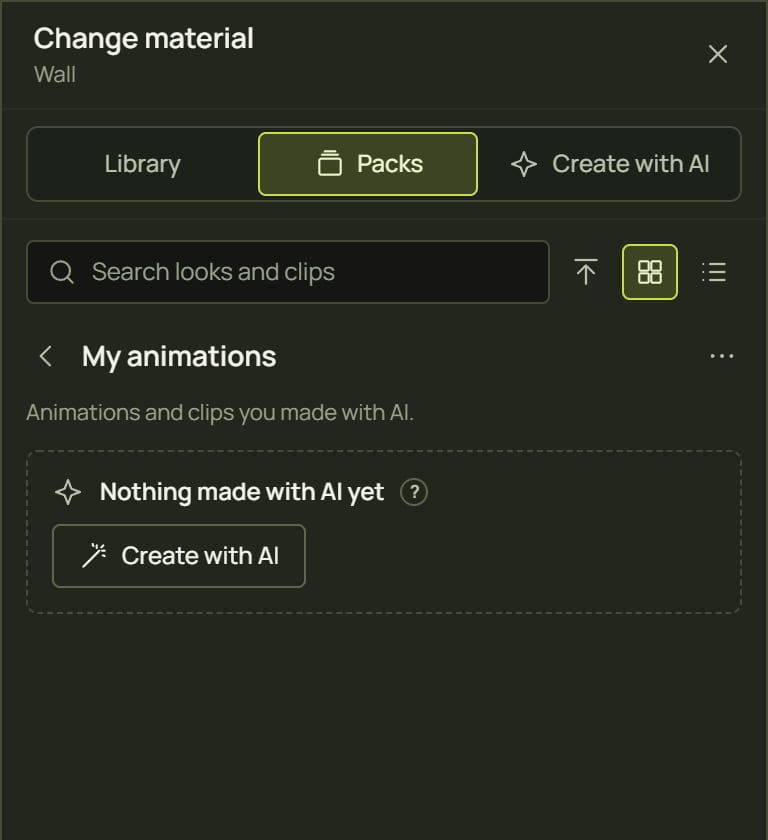
My animations fills itself: every AI animation you kept and every AI video clip, newest first. Nothing is stored twice: delete one in the library and it goes from here too. You can open, export and copy it like any pack, but not rename or delete it.
- A clip put back on the surface it was made for lines up with the real object again.
- On another surface it fits as usual; the details offer Adapt to Wall…, which puts it on and opens Create with AI to remake it for that shape.
10Hints and tips
- The fastest show. Select every surface, open a pack, choose With variation and click a look: in two seconds the room moves.
- Reveals on cue. The reveals play by themselves; to play one exactly once when a cue fires, set its Auto-play to once and turn on Restart on cue in the look panel.
- Keep your favourites. Save the looks you like into a pack: they are then there in every project.
- Back them up. Packs live in this browser: clearing its site data removes them. Export the ones you care about.
- Hand over a show's looks. Export a pack and send the file; the other person imports it and gets the looks with their automation.
11When something looks wrong
| You see | Why | Fix |
|---|---|---|
| A pack look doesn't react to the music | No sound is coming in. | Start a sound source: Sound and tempo. |
| It went on top instead of replacing | It is an overlay (Goes on top). | That is on purpose: it sits over the look below. Delete the lower layer if you don't want it. |
| Only some layers went on | A surface holds four layers at most. | Remove a layer, then put it on again. |
| “Needs a material this prism doesn't have” | It was made with a look that isn't installed here. | Those layers are left out; update prism, or ask for a pack exported with its materials. |
| “Its video isn't in your library” | The clip's video was deleted. | Import the video again, or re-import the pack. |
| Your packs are missing on another computer | Packs are kept per browser. | Export them here and import them there. |
12Mouse and keyboard
| Action | How |
|---|---|
| Open a pack | Click its card · Enter |
| Move between looks | Arrow keys · Home / End |
| Put a look on | Click · Enter · drag it onto a surface |
| Details | Space · the ⋯ in a tile's corner |
| Reorder (your packs) | Alt+← / Alt+→ |
| Delete a look (your packs) | Delete |
| Search | Start typing |