Sound and tempo
prism listens to music so your looks can pulse with it, scenes can move on after a number of beats, and beat effects land on the kick. This page is about the listening part: where the sound comes from, how to see that it arrives, and how prism finds the tempo. What the music then moves is on React to the music.
Live control ▸ Audio
Show ▸ Sound and tempo
Advanced the Audio tab: bands, tempo range, latency
1Where the sound comes from
prism listens to one source at a time. The browser has to allow it, so the first time you pick a source it asks you. Nothing is recorded or sent anywhere: the sound is analysed on this computer.
| Source | What it hears | What the browser asks |
|---|---|---|
| Microphone Input in Advanced | A microphone, a line input from a mixer or DJ controller, or a loopback such as “Stereo Mix” or a virtual audio cable, which carries whatever the PC plays. | Permission to use the microphone. Allow it once. |
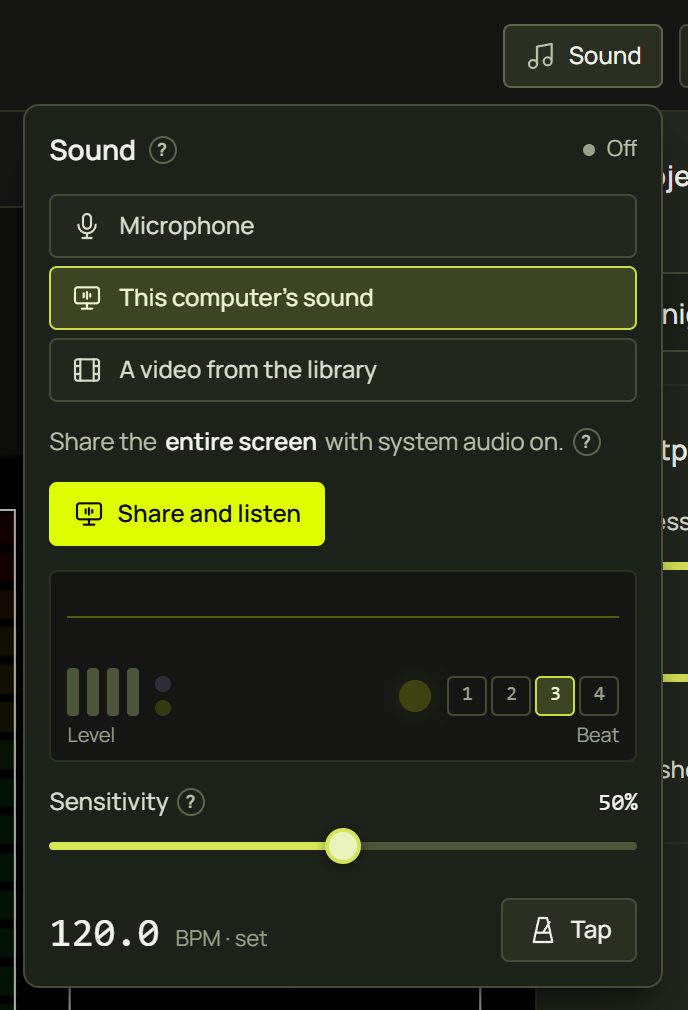
| This computer's sound | Everything this PC plays: Spotify, a DJ app, a video. | The screen-sharing picker. Choose Entire screen and switch on Share system audio (Chrome and Edge on Windows). Only the sound is used; the picture is dropped at once. |
| Tab Advanced | One browser tab: a web player or a stream. | The picker again. Choose the tab and keep Share tab audio on. |
| A video from the library Video in Advanced | The soundtrack of a video in your media library, for example a music video. | Nothing. |
2The Sound panel
The Sound button in the top bar opens a small panel in every mode, Simple and Advanced, in Setup, Design and Show. It is the quickest way to start listening and to see that sound arrives.
- Click Sound in the top bar.
- Pick where the sound comes from: Microphone, This computer’s sound or A video from the library. With more than one input, choose it under Input; if the inputs have no names yet, Show the inputs’ names asks for microphone access so they get their real names.
- Click Listen (for the computer's sound: Share and listen) and answer the browser's question.
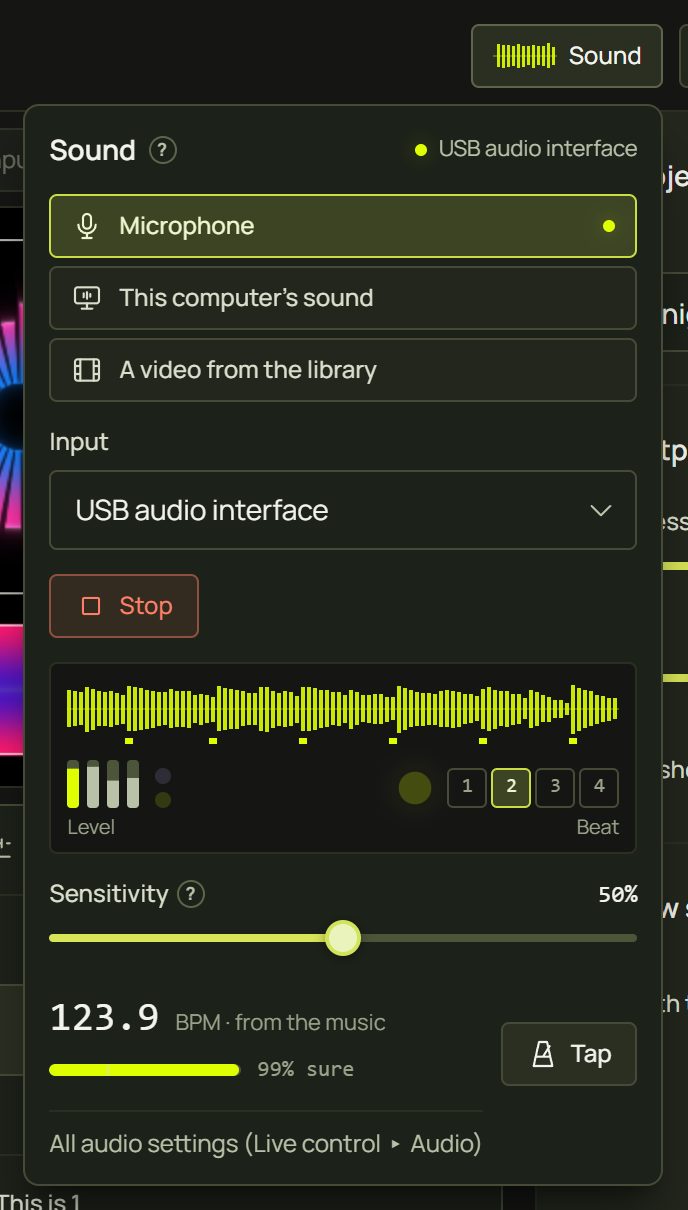
- Play some music. The box under the button shows what arrives: a moving waveform, a level meter and the beat lamp, which flashes on every beat with its 1-2-3-4 count.
- Check the tempo at the bottom, for example 124.1 BPM · from the music. Tap along with Tap tempo if it hasn't found the beat.
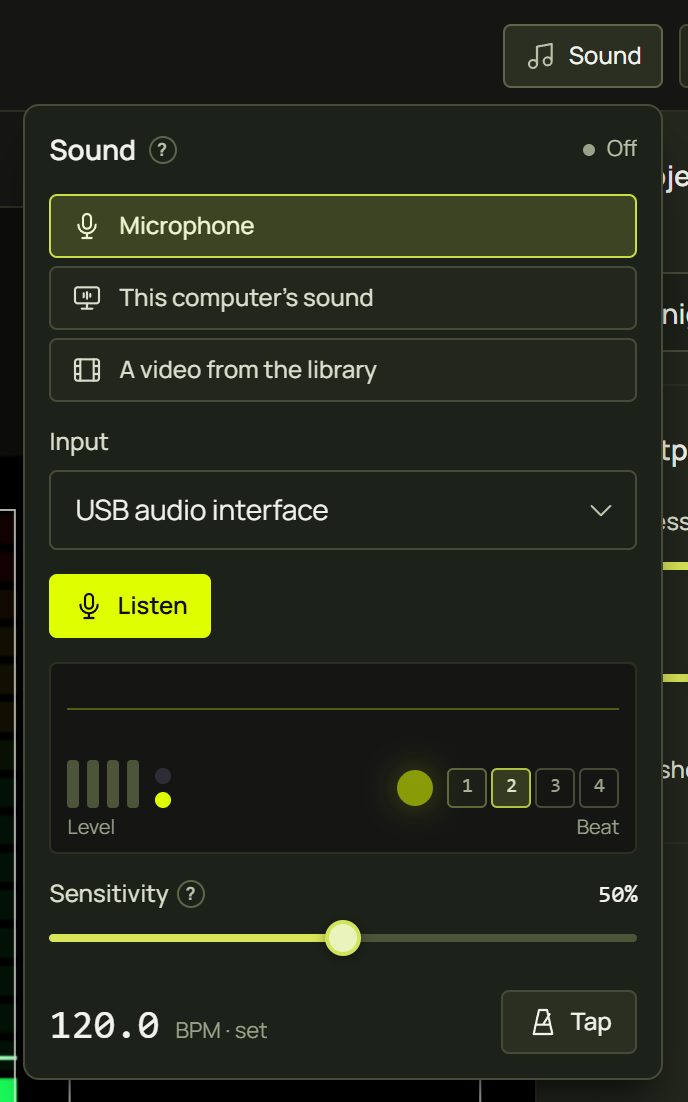
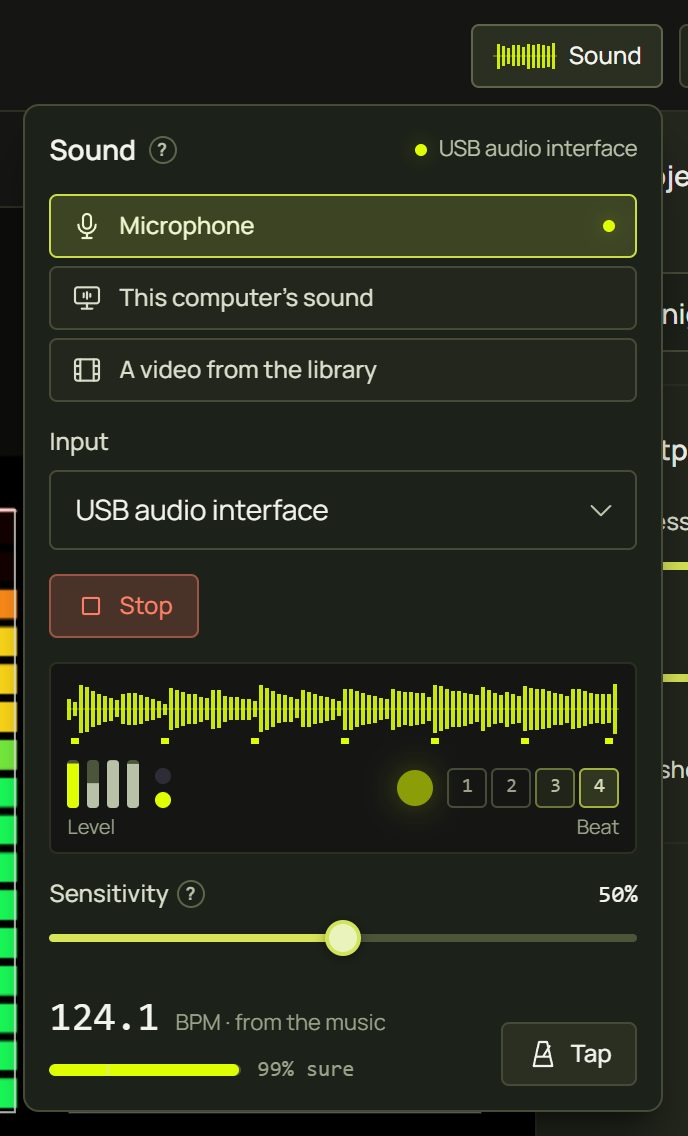
Sensitivity is how readily beats and hits are picked up: raise it when the beat lamp misses the kicks, lower it when room noise sets it off. It is the same setting as in the Audio tab. Stop stops listening.
3The Audio tab Advanced
The full audio settings live in Design ▸ Live control ▸ Audio. Live control is the button in the strip under the canvas; it opens a drawer whose top edge you can drag to make it taller.
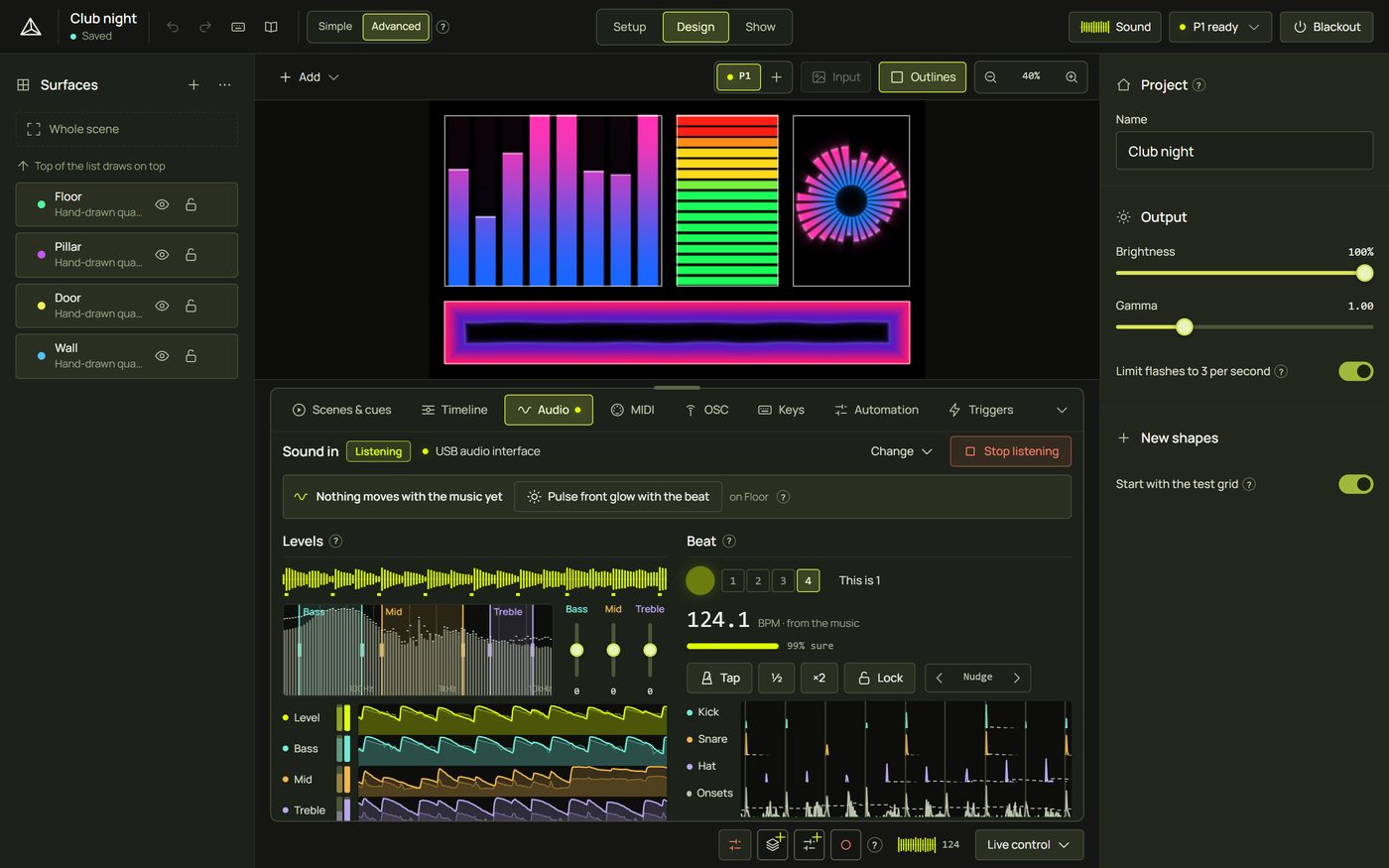
- Open Live control ▸ Audio.
- Under Sound in, pick Input, This computer’s sound, Tab or Video.
- For Input, choose the Input device. For Video, choose the video, and switch on Play its sound on this computer if you want to hear it here (the projector shows the video muted).
- Click Listen (or Share and listen). While it listens, Change picks another source and Stop listening stops.


4Check that sound arrives
prism always shows whether sound is coming in, so you never wonder why nothing moves.
- The top bar's Sound button shows a small moving waveform while it listens, amber when nothing arrives.
- The strip's sound indicator Advanced sits beside Live control: a two-second waveform and the tempo. A click opens the Audio tab. When something is wrong it says Click to start, No sound, No signal or Sound stopped; hover it for the advice.
- A note in the Audio tab explains what is wrong and what to do, for example “No sound is arriving” with advice for the source you picked (see When something looks wrong).

5Levels and bands Advanced
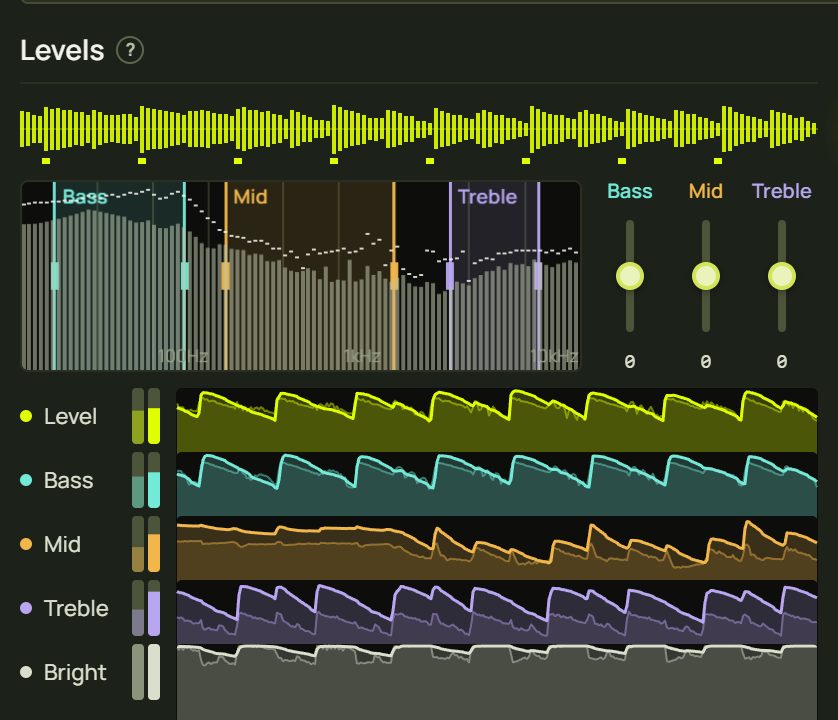
Levels shows the sound as it arrives. What moves your looks is taken from here.
- The waveform: the last four seconds, with the beats ticked underneath.
- The spectrum: low notes on the left, high on the right, with three coloured bands: Bass (30–150 Hz), Mid (250 Hz–2 kHz) and Treble (4–12 kHz). Drag a band's edges on the spectrum to change it.
- The band faders beside it are each band's gain, from −12 to +12 dB, like an EQ. Double-click a fader for 0 dB.
- The traces: Level, Bass, Mid, Treble and Bright (how much high end the sound has). Dim is the sound coming in; bright is what looks that read the sound themselves react to. The dashed line is the noise gate.
6The beat and the tempo
The tempo clock is prism's metronome. It drives beat effects, scenes that move on “after beats”, beat-synced automation and timelines in beats. It runs at 120 BPM until it knows better.
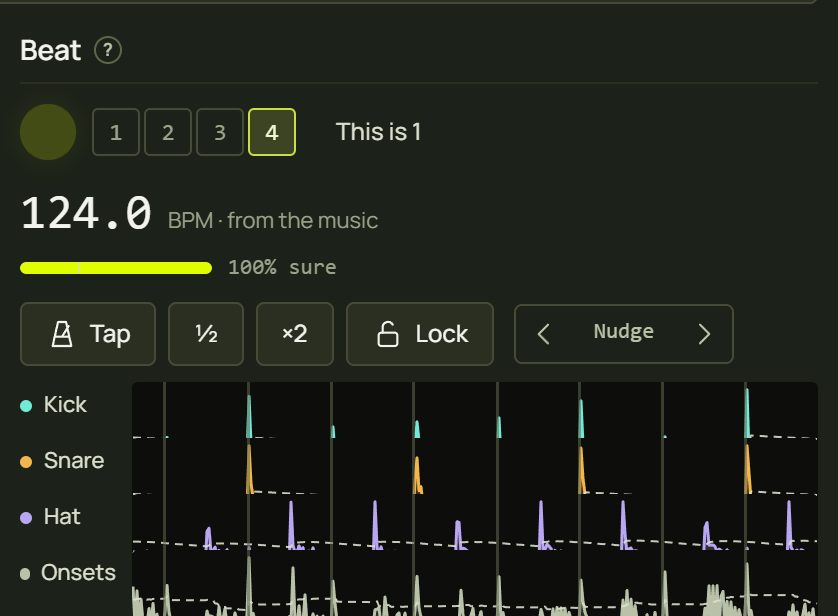
- The beat lamp flashes on every beat. The cells 1 2 3 4 show where in the bar you are.
- This is 1: click it on the first beat of a bar to put the count right. prism guesses the bar's start from the kicks and the chords; in four-to-the-floor music it can be two beats off.
- The tempo, with where it comes from: from the music, holding the beat (the drums stopped, in a breakdown: the beat carries on), locked, MIDI clock, or set (set · finding the beat… while Auto listens for one, set · waiting for a MIDI clock with the MIDI clock source). While listening, a bar shows how sure the tracker is, for example 99% sure.
- Tap tempo: tap on every beat. It sets the tempo from your last few taps (a gap of two seconds starts again), and while listening it puts the beat on your taps. Tap tempo is the cure for a noisy room.
- ½ and ×2 halve or double the tempo, when the tracker counts in half time or double time.
- Lock holds the tempo the tracker found (the beat is still followed). It then shows the number with a padlock; click it to follow the music again.
- Nudge ◀ ▶ move the beat 10 ms earlier or later, when it is steady but slightly off.
7Beat settings Advanced
| Setting | What it does |
|---|---|
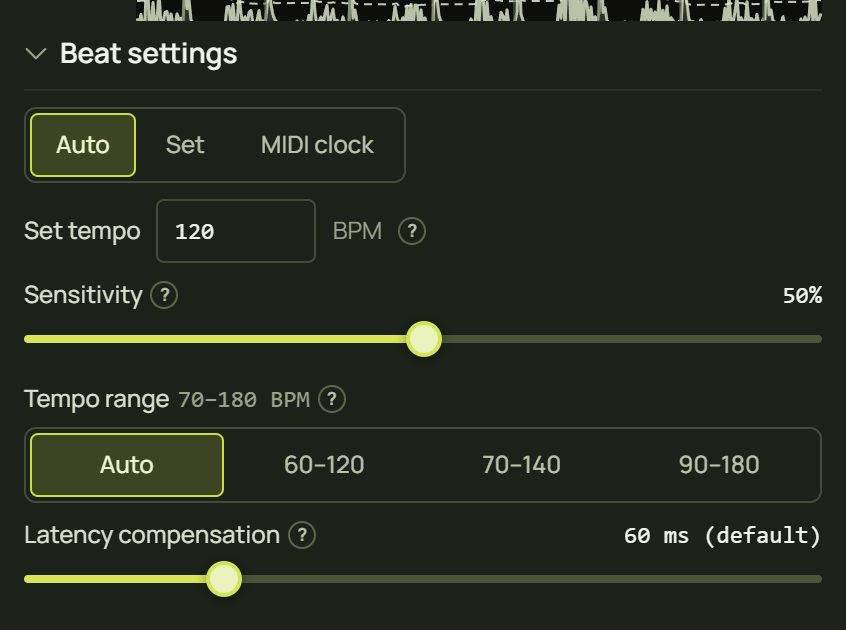
| Tempo source | Auto (default): the beats found in the music, and the set tempo while there are none. Set: always the tempo typed or tapped. MIDI clock: follow a MIDI clock, for example from a DAW or DJ software (turn on MIDI first, in Live control ▸ MIDI; two seconds after the clock stops, prism goes back to the set tempo). |
| Set tempo | The tempo in BPM (20–300) when there is no music or the source is Set. Tapping changes it too; emptying the field keeps the tempo it had. |
| Sensitivity | 50% by default. Higher: quieter hits count and the beat locks on less. Lower it when room noise counts as hits; raise it when kicks are missed. |
| Tempo range | The tempos the tracker looks for. Auto: 70–180 BPM, preferring 120 (most music). 60–120: slow music. 70–140: hip-hop, pop and house. 90–180: techno, drum and bass, fast music. |
| Latency compensation | 60 ms by default (0–250 ms). Beats, and everything that follows the tempo, fire this much early, to make up for the time the picture takes to reach the wall. See the next sections. |
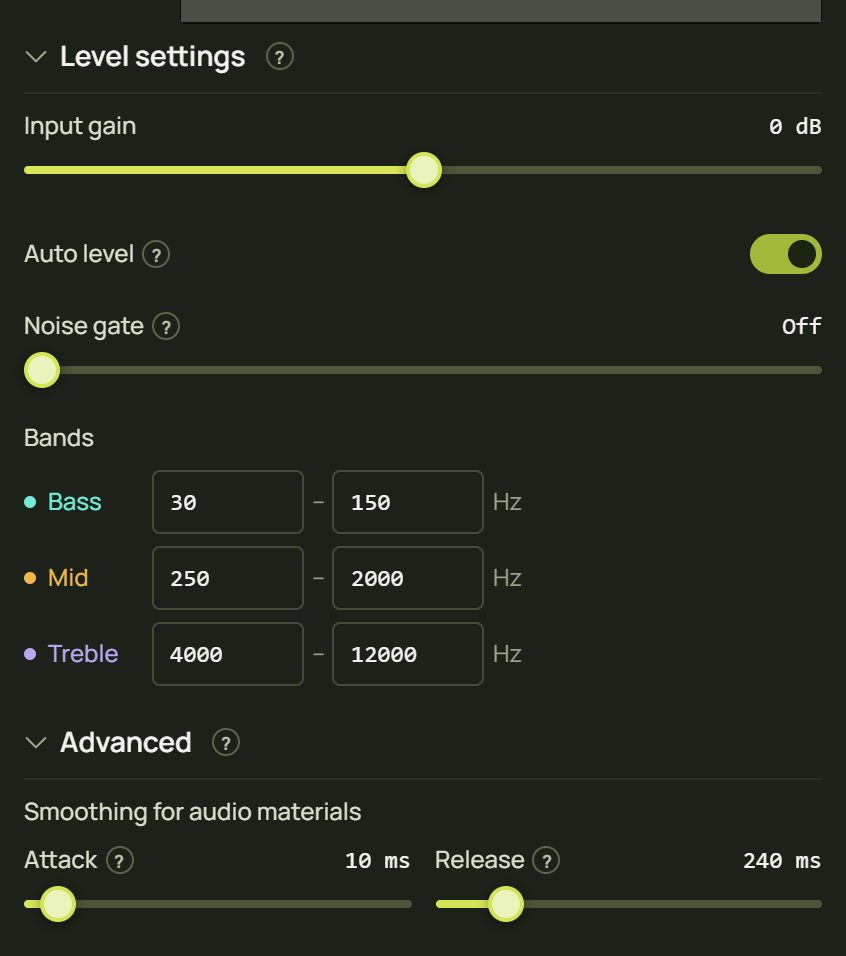
8Level settings Advanced
| Setting | What it does |
|---|---|
| Input gain | Boosts or cuts the sound before everything else, from −24 to +24 dB. |
| Auto level | On by default. Follows the loudness, so quiet and loud inputs both move your looks. |
| Noise gate | Off by default. Sound quieter than this counts as silence, so hiss and room noise move nothing. It is the dashed line on the traces. |
| Bands | The Bass, Mid and Treble ranges in Hz: the same edges you drag on the spectrum. |
| Advanced (folded) | Smoothing for audio materials: the Attack (10 ms) and Release (240 ms) of the levels that looks such as VU Fill and Spectrum Bars read by themselves. Your own automation has its own attack and release (see the Response block). |
These settings are saved with the project. Each change is one undo step, so Ctrl + Z puts it back.
9Latency and wireless projectors
Light always arrives a little after the music: sound takes a moment to reach the analyser, and the picture takes a moment to be drawn and to travel to the projector. prism makes up for it in two steps.
- Latency compensation (Beat settings, 60 ms by default) covers a projector on a cable. Because prism predicts the beat, it can fire beat effects this much early so they land on the kick. If flashes still land after the kicks, raise it a little at a time.
- The picture delay covers a slow link such as a wireless projector. Each projector has one: Setup ▸ Outputs, on the projector's card (in Simple, behind the card's More…). A scan measures it; you can also type it in milliseconds.
- Each projector's window then draws beat effects early by its picture delay minus 100 ms (the cable part the latency compensation already covers). The card's “?” says how early, for example “Beat effects on this projector are drawn ~340 ms early”.
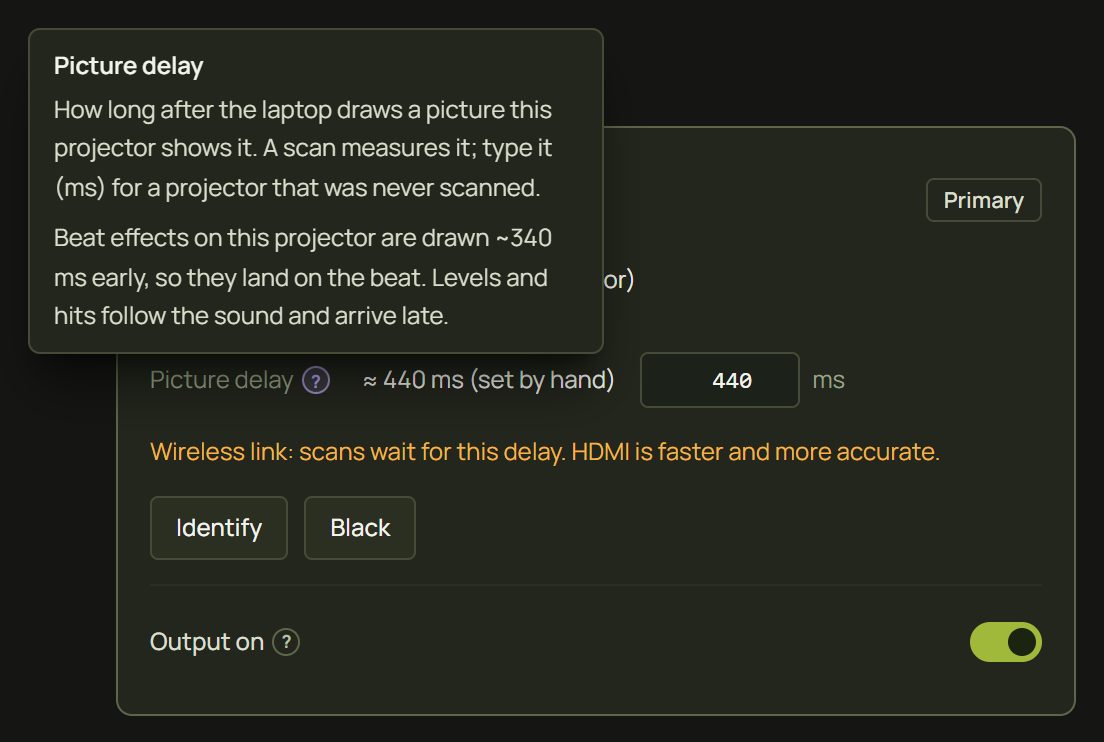
What the beat lead covers: beat pulses, beat and bar ramps, beat-synced automation, timelines in beats, and looks that follow the tempo. What it can't cover: levels and drum hits (bass, kick, snare…). They follow the sound as it arrives and can't be predicted, so on a slow link they stay late.
10Hints and tips
- A line input beats a microphone. A cable from the mixer or DJ controller gives a clean signal; a room microphone hears the crowd and the echo, and locks late or not at all.
- In a noisy room, tap. Three or four taps on Tap tempo anchor the tempo and the beat, and the tracker keeps following your taps.
- Watch the lamp against the kicks. If the lamp flashes after the kick you hear, raise Latency compensation; if before, lower it.
- Lock the tempo for a steady track. Once the tempo is right, Lock stops it wandering in breakdowns and busy passages.
- Fix the bar with “This is 1”. Scenes that move on after 4 or 16 beats and bar ramps follow the bar count, so it's worth getting right at the start of a set.
- Test without music. Beat looks and “after beats” scenes run on the clock at the set tempo, so you can rehearse a show silently.
11When something looks wrong
| You see | Why | Fix |
|---|---|---|
| “Click anywhere to start listening” (on a phone or tablet: “Tap anywhere to start listening”) | The browser holds the sound until you click, tap or press a key on the page. | Click or tap anywhere, or Start listening. |
| “Microphone access was blocked” | You (or the browser) refused the microphone. | Allow it in the site settings: the icon left of the address. Then Listen again. |
| “No sound was shared” | The picker was used without sharing sound. | Share again: Entire screen with Share system audio on (for a tab: Share tab audio). |
| “No sound is arriving” | The source is silent: nothing plays, the input is muted, or a loopback listens to another playback device. | Play something; check the input isn't muted (Windows: Settings ▸ Sound ▸ Input). A loopback only hears the default playback device: play there, or pick the computer's sound. |
| “Sound stopped” | Screen sharing ended (the browser's Stop sharing). | Pick the source and listen again. |
| The tempo is half or double | The music is ambiguous (drum and bass, trap). | ×2 or ½, or a narrower Tempo range. |
| The 1 of the bar is on the wrong beat | The bar's start is a guess. | Click This is 1 on the first beat. |
| The tempo wanders or never locks | A room microphone, noise or reverb. | Use a line input; Tap tempo along; adjust Sensitivity or the Noise gate. |
| Beat flashes land after the kick | The picture takes longer to reach the wall than the compensation allows. | Raise Latency compensation; on a wireless projector set its picture delay. |
| Bass and kick reactions are late on a wireless projector | Levels and hits follow the sound and can't be predicted. | React to the Beat instead; see Latency. |
| A video's sound isn't heard on the laptop | Its sound is only analysed by default. | Advanced: switch on Play its sound on this computer (Audio ▸ Video). |
| The tempo reads “set” while music plays | The tempo source is Set: the typed tempo wins (with MIDI clock it reads “set · waiting for a MIDI clock” until a clock arrives). | Switch the tempo source to Auto to follow the music. |
12Mouse and keyboard
| Action | How |
|---|---|
| Open the Sound panel | Click Sound in the top bar · Esc or a click outside closes it |
| Open the Audio tab | Click the strip's sound indicator, or Live control ▸ Audio |
| Tap tempo from the keyboard | Give Tap tempo a key in Live control ▸ Keys (none by default; it works in Show). T in Show is the Tap trigger, not tap tempo. |
| Band faders | ↑ ↓ 1 dB · PgUp PgDn 3 dB · Home End the ends · double-click 0 dB |
| Band edges | Drag them on the spectrum, or type them under Level settings ▸ Bands |
| Undo a setting | Ctrl + Z (tapping, nudging, and ½ / ×2 while following the music are live actions, not undo steps) |