Projectors and outputs
To your laptop, a projector is just a second screen. prism draws each projector's picture in a window of its own, which you open on that screen and make fullscreen. This page covers opening that window, checking it with Identify, reading the status light, and what changes with a wireless projector.
Advanced more projectors
1Connect the projector
- Connect the projector to the laptop, with HDMI if you can (USB-C and DisplayPort adapters work the same way).
- Make it an extended display, not a mirror of the laptop: on Windows press Win + P ▸ Extend; on a Mac, turn off mirroring in Displays settings.
- In the projector's own menu, switch off auto-keystone, auto-focus and eco / dynamic dimming. Each of these changes the picture by itself, which would move or dim your mapping.
- Aim it at your scene and focus the lens by hand.
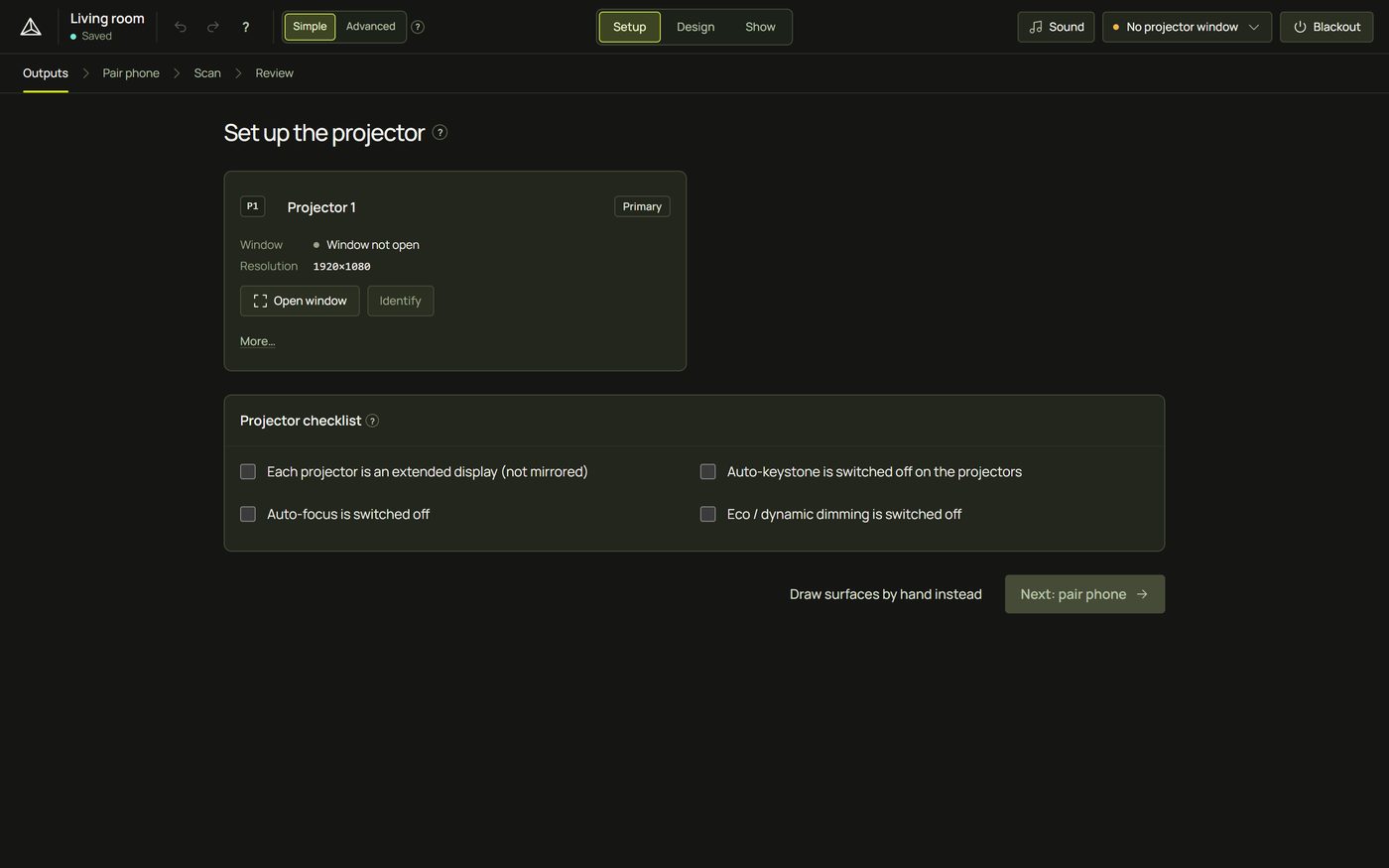
The Projector checklist at the bottom of the Outputs step lists the same four things; tick them as you go.
2Open the projector window
- On the card, click Open window. A new browser window opens: this is what the projector will show.
- Drag the window onto the projector's screen. (Or let prism put it there: see Find screens.)
3Fullscreen on the right screen
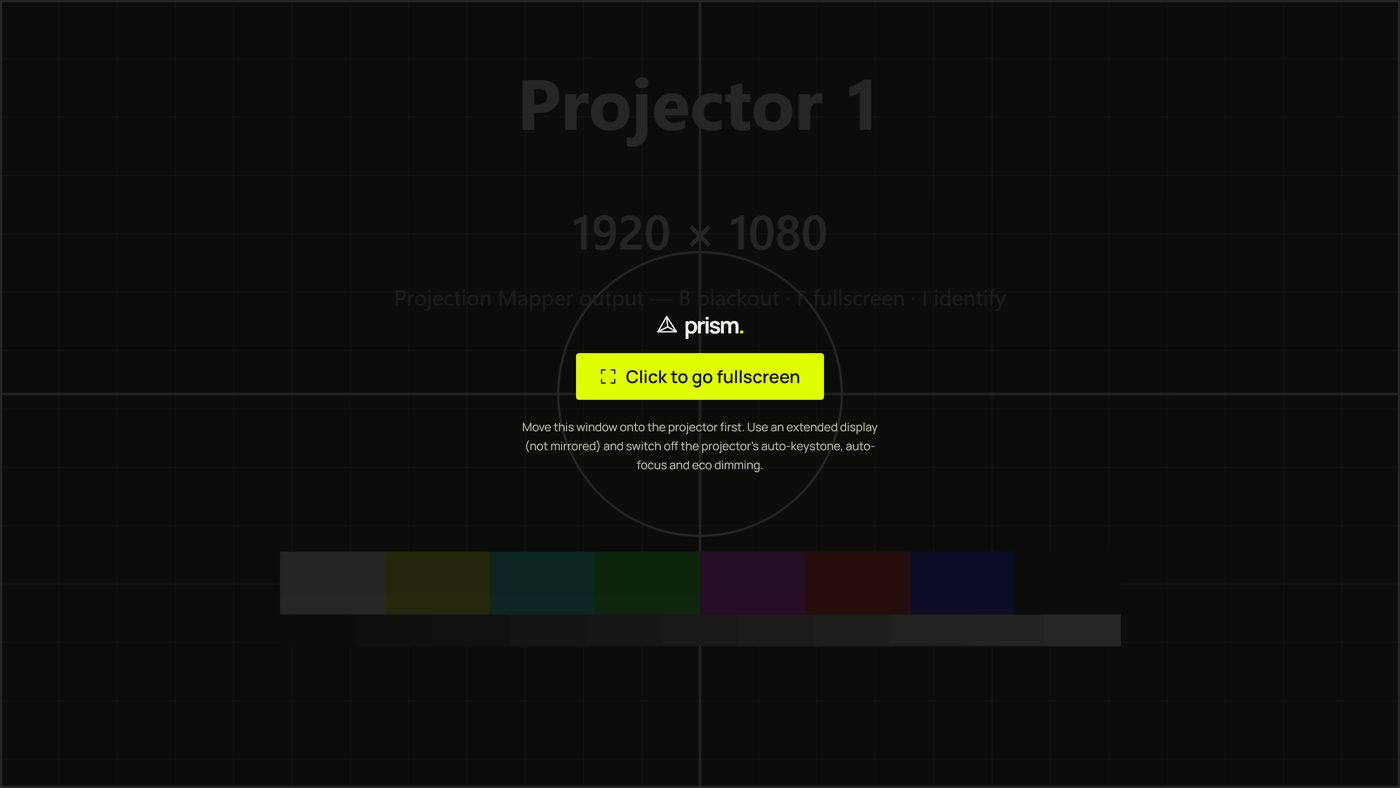
- With the window on the projector, click inside it (or press F in it). It fills the projector's screen and hides the mouse pointer.
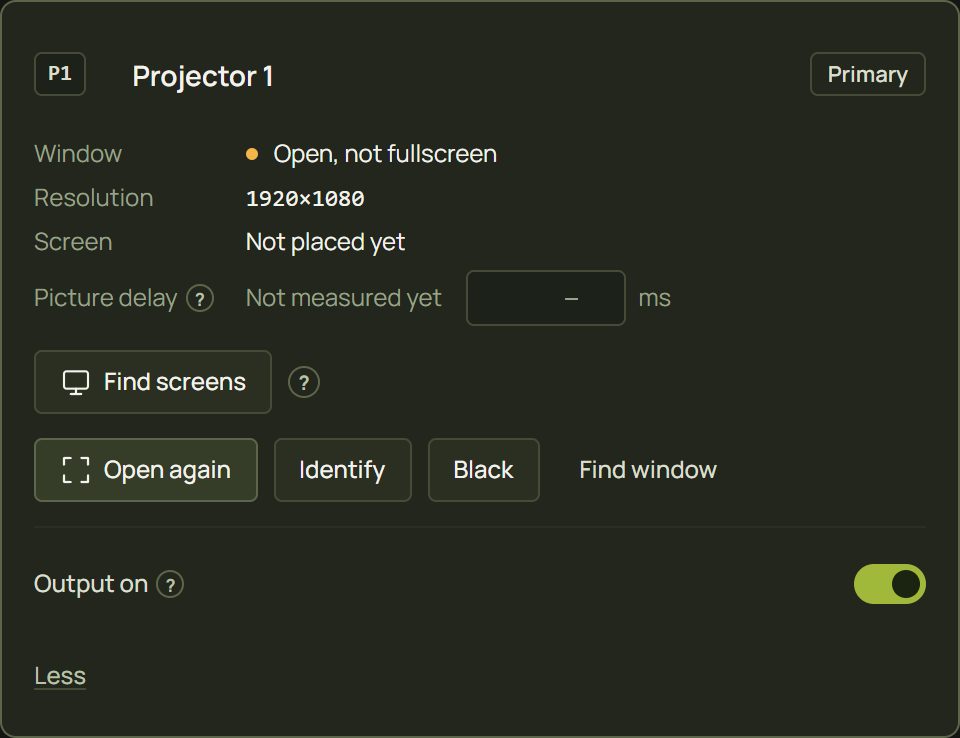
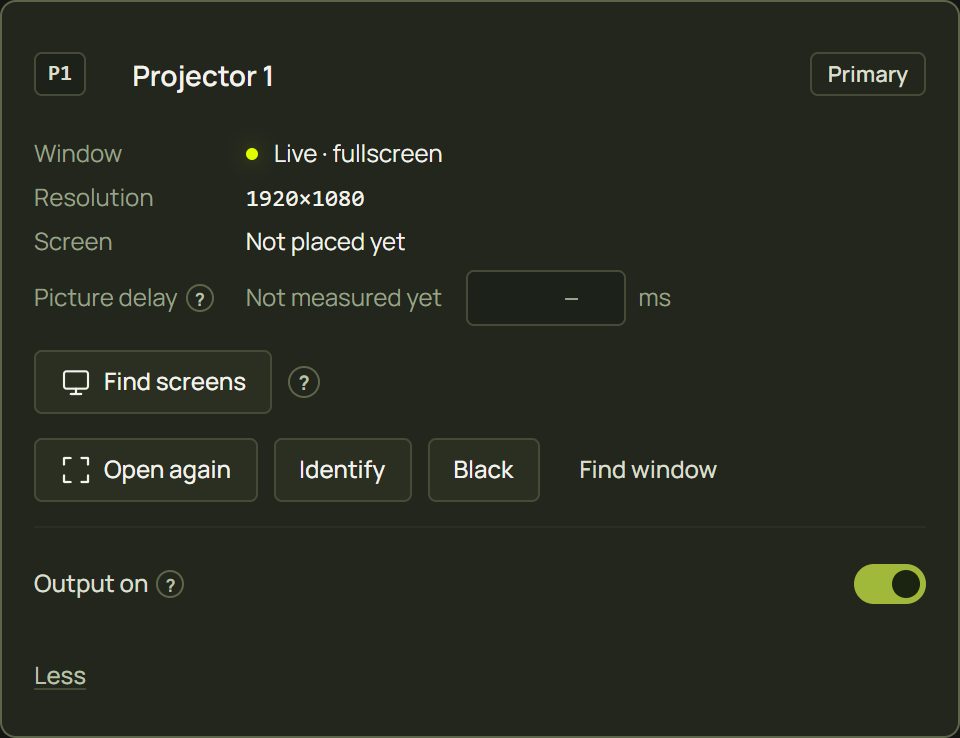
- The card changes from Open, not fullscreen (amber) to Live · fullscreen (green).
- The card's Resolution is now the projector's own: the window's size in real pixels.
4Identify
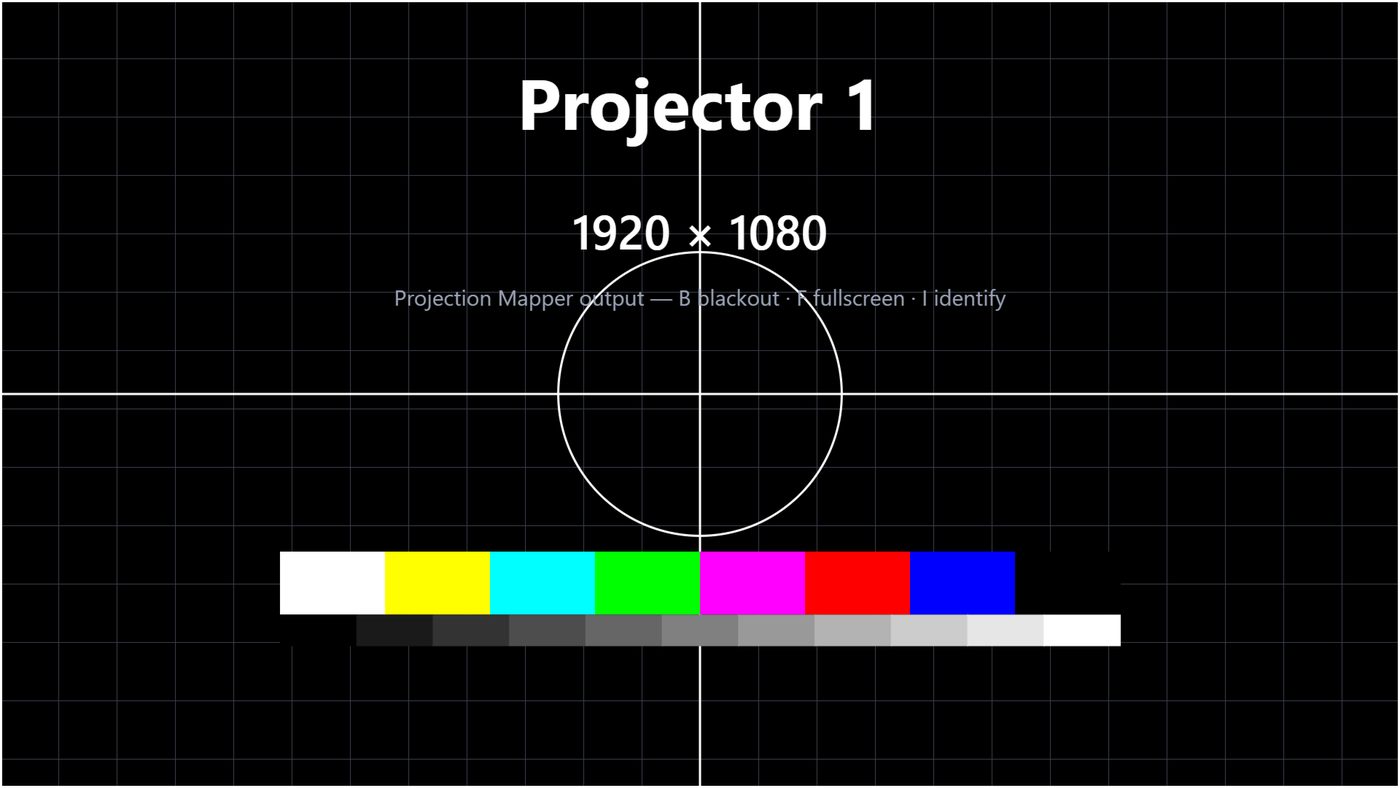
Identify shows a test pattern on that projector: its name, its resolution, a grid, a crosshair with a circle, colour bars and a grey ramp.
| Check | What it tells you |
|---|---|
| The grid fills the whole picture | The window covers the projector exactly. |
| The circle is round and the grid square | No keystone correction is bending the picture (switch keystone off in the projector). |
| The lines are sharp | The lens is focused. |
| The name is right | With several projectors: which window is on which projector. |
| The grey ramp shows every step | Brightness and contrast are sensible; the darkest steps shouldn't all merge into black. |
5The status light
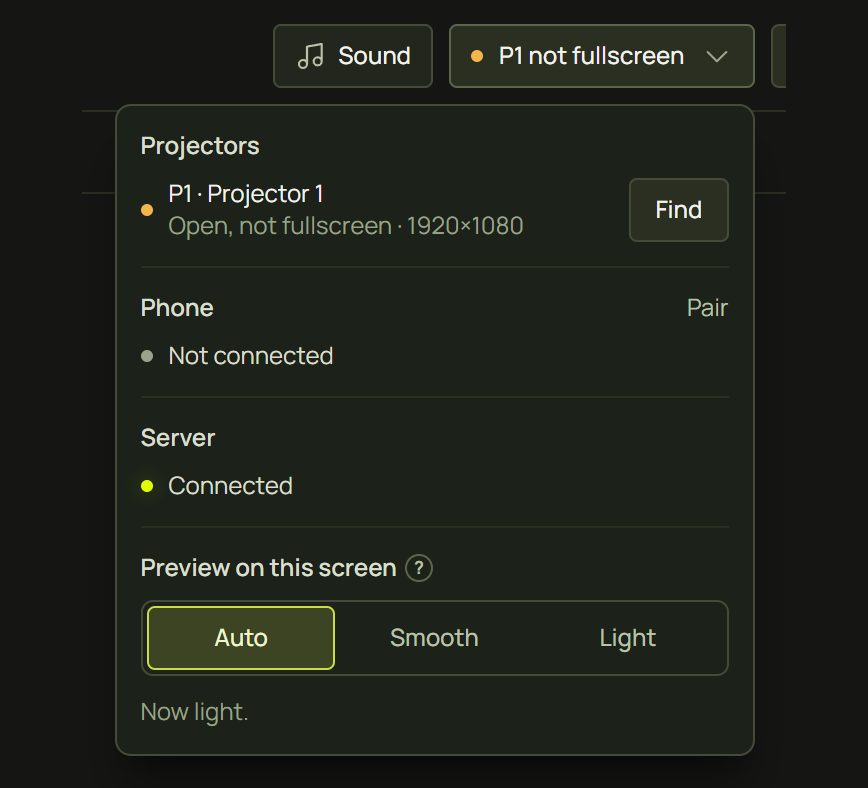
The light in the top bar sums up everything in one dot and a few words, the worst thing first. Click it for the details.

| It says | Meaning | Do |
|---|---|---|
| P1 ready · 2 projectors ready | Every projector window is open and fullscreen. | Nothing: all good. |
| No projector window | The window isn't open. | Open window on the card (or Open in the popover). |
| P1 not fullscreen | The window is open but not fullscreen. | Click inside it on the projector. |
| P2 window not open | With several projectors: one of them isn't open. | Open that one. |
| No projector switched on | Every projector's Output on is off. | Switch one on (card ▸ More…). |
| Phone not connected | While setting up a scan: the phone's page isn't open. | Setup ▸ Pair phone. |
| Server offline | The laptop lost its link to the prism server; pairing a phone needs it. | Check the network, then reload. |
| Opened in another tab | The same project is open in another tab, which took over. | Close one of them. |
| Mapping failed | The scan's mapping couldn't be rebuilt. | Reload the project; if it stays, rescan. |
6The card's More…
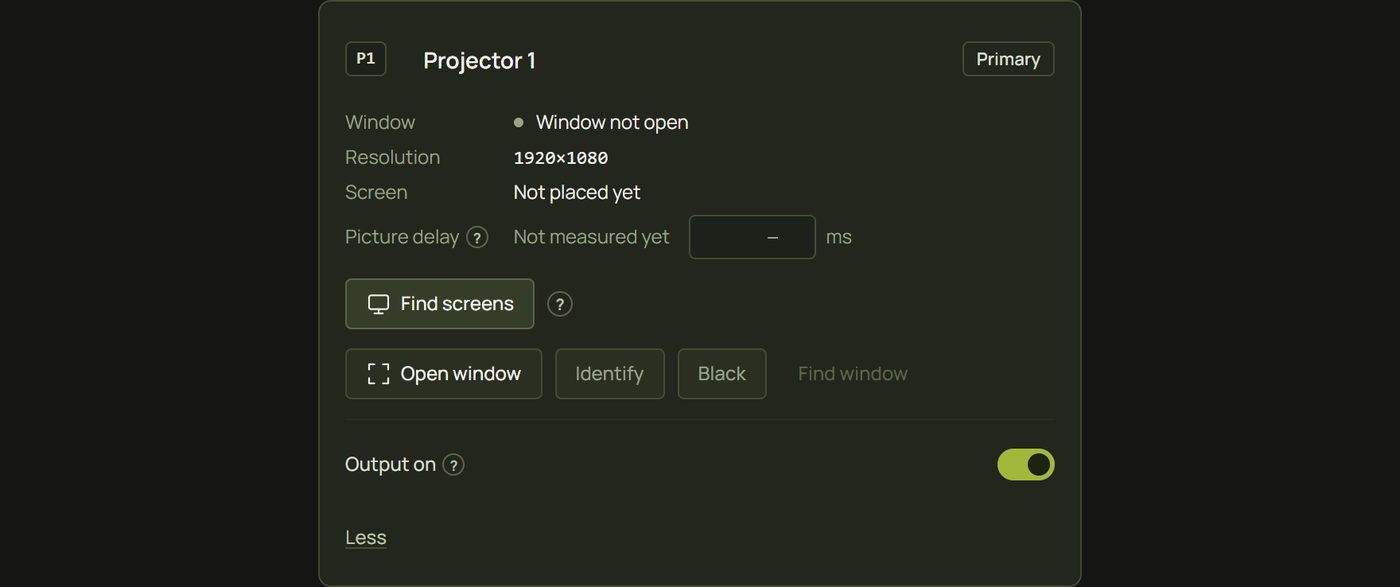
In Simple the card shows only what you need to get going. More… at the bottom shows the rest (Advanced always shows it):
| Item | What it does |
|---|---|
| Screen | Which screen the window goes on (“Not placed yet” until you pick one). |
| Find screens | Lists the connected screens so the window can open straight on the projector's. The browser asks once whether prism may place windows on your screens. Chrome and Edge only. |
| Picture delay | How late this projector shows each picture: see below. |
| Black | Shows black on this projector, to see what else lights the room. |
| Find window | Brings the projector window to the front. |
| Output on | Off: nothing is drawn for this projector; its surfaces stay. |
| The name | Click “Projector 1” at the top of the card to rename it (“Stage left”). |
7Wireless projectors
Some projectors take their picture over Wi-Fi, for example through Epson iProjection. To Windows the projector then looks like an extra screen, and every picture is compressed and sent over the network. prism works with this, but each picture arrives late: typically 0.2 to 1.5 seconds, with the odd pause of several seconds.
- prism notices. A window on a screen whose name says wireless (such as Epson's “EPSON IDD”) makes the card say “Wireless display: scans wait for its delay. HDMI is faster and more accurate.” The phone also measures the delay while it frames.
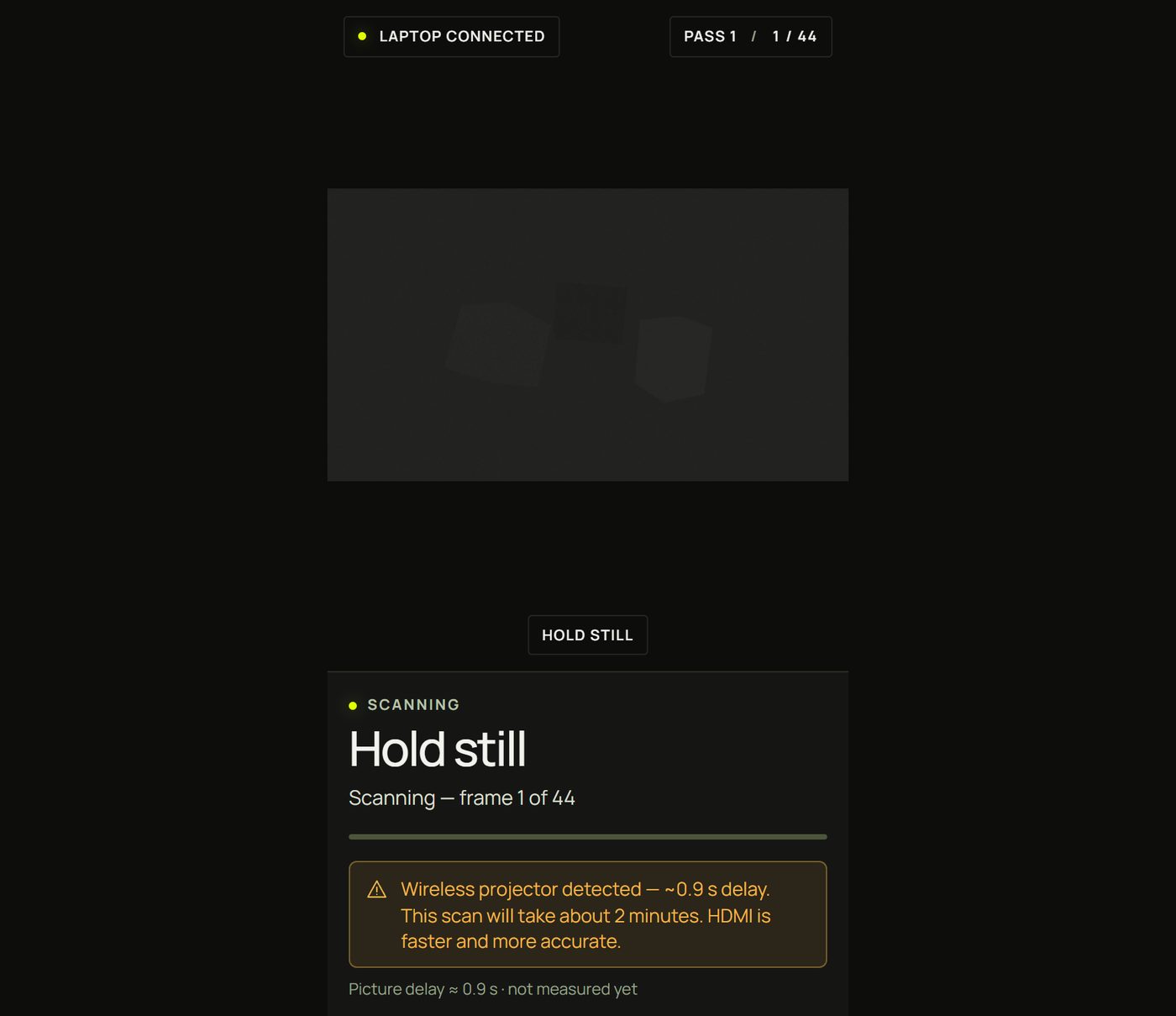
- The scan waits for every picture, so it takes about 2 minutes instead of half a minute. The phone and the laptop both show “Wireless projector detected — ~0.9 s delay. This scan will take about 2 minutes. HDMI is faster and more accurate.”
- If the link stalls for good, the scan stops with a message that says so, and suggests HDMI.
8The picture delay and the beat
The picture delay is how long after the laptop draws a picture this projector shows it. A scan measures it and keeps it with the projector (“≈ 0.9 s (measured by the last scan)”); for a projector that was never scanned you can type it in milliseconds (“set by hand”). Clear the field to forget it.
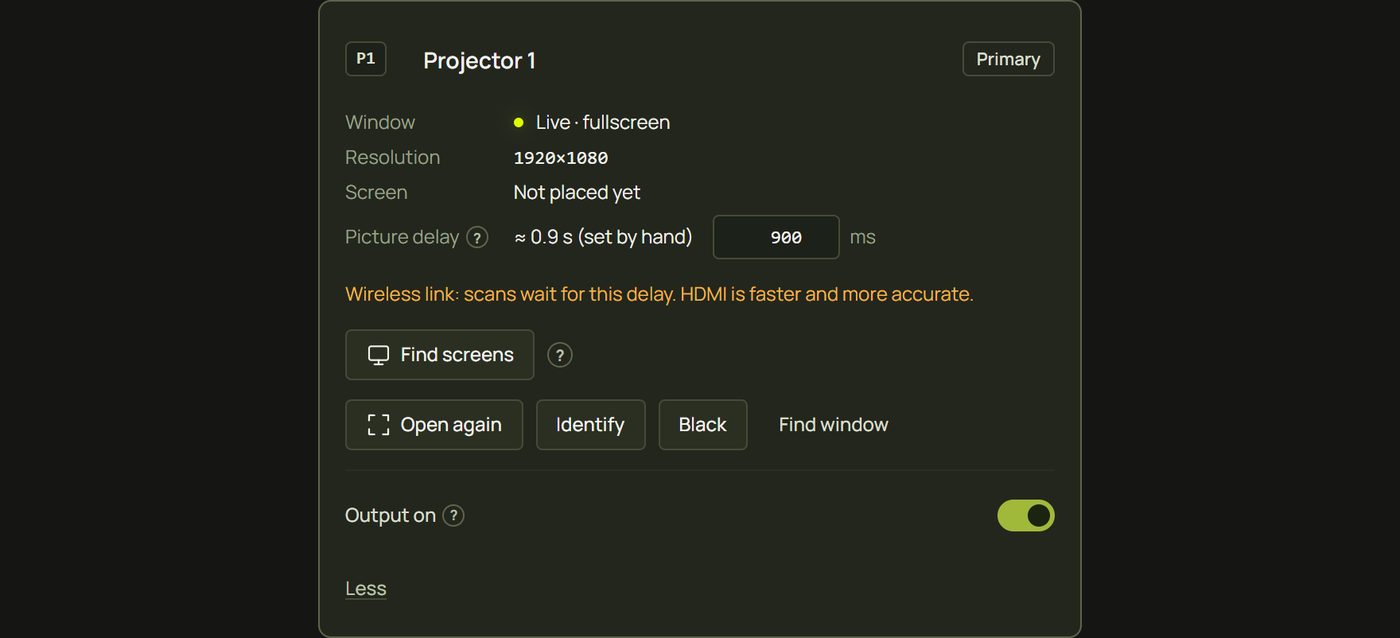
Why it matters for music: on a slow link, a flash on the beat would land late. So prism draws beat effects on that projector early, by its delay less the tenth of a second a cable already has, and they land on the beat. The ? beside Picture delay tells you by how much. Levels and drum hits follow the sound as it happens, so they can't be drawn early and still arrive late.
Hints and tips
- Use the projector's native resolution in the computer's display settings: the window then draws every projector pixel one to one.
- Name your projectors when there are several; the names appear in Identify and everywhere else.
- Keep the laptop awake. The projector window keeps its screen on, but check the laptop's own sleep settings before a long show.
- Blackout in the top bar (or B in the projector window) darkens every projector at once.
- Stuttering? Press P in the projector window for a small performance display (frame times). Smooth numbers with a stuttering picture point at the display link rather than prism.
When something looks wrong
| You see | Why | Fix |
|---|---|---|
| Next: pair phone is greyed out | No projector window is open. | Click Open window. |
| The window opened on the laptop's screen | prism doesn't know which screen is the projector. | Drag it across, or use More… ▸ Find screens. |
| The projector shows the laptop's desktop | The displays are mirrored. | Win + P ▸ Extend. |
| “Screen access was blocked” | You refused the browser's window-management question. | Allow “Window management” in the site settings (the icon left of the address), or place the window by hand. |
| “This browser can't place windows on other screens” | The browser has no window placement. | Use Chrome or Edge, or drag the window and click inside it. |
| The identify circle is an oval, or the grid is a trapezium | The projector's keystone correction is on. | Switch keystone off; move the projector to square it up instead. |
| The picture brightens and dims by itself | Eco or dynamic dimming. | Switch it off in the projector's menu. |
| “The projector is now … The mapping was scaled to match — check the alignment.” | The projector's resolution changed while its window was fullscreen (a window that isn't fullscreen never rescales). | Check the alignment on the real objects. Ctrl + Z undoes it, except on a scanned projector. |
| “…, a different shape. The mapping is kept and shown scaled to fit…” | The projector now runs at another shape than the one mapped (4:3 instead of 16:9, say). | Set the projector back to its old resolution; if it really changed, rescan or redraw the surfaces. |
| Beats land late, only on one projector | A wireless link delays its pictures. | Check its picture delay (card ▸ More…); a scan measures it. |
Mouse and keyboard
| In the projector window | Key |
|---|---|
| Fullscreen on or off | Click inside it · F |
| Identify pattern | I |
| Blackout on or off | B |
| Performance display | P |