React to the music
Once prism hears the music, you decide what moves with it. There are three ways, from the simplest to the most precise: turn up a look's own Audio amount, switch on Pulse with the music or a one-click reaction in the look panel's Music area, or tie any single setting to the sound with automation. You can use all three at once.
Advanced 3, and the one-click card
Playing a song inside prism? Its timeline can feed the analyser and drive show timing. See A show to one song and the song lane.
1Three ways, which to use
| Way | What moves | Good for |
|---|---|---|
| A look's Audio settings Simple | The look itself, the way its author designed it: Plasma's rings bloom, Kaleidoscope's zoom pulses, Tunnel's rings flare. | The quickest good-looking result. Start here. |
| Pulse with the music and the one-click reactions Simple | Pulse: the surface's brightness (or opacity) dims in the quiet parts and lights up on the loud ones, following the volume, the beat, the bass or a drum. The reactions: a flash on every beat, new colours on every beat or bar, more speed while the music is loud, a size that grows with the bass. | Any look, including ones without audio settings: a colour, a picture, a video. |
| Audio automation Advanced | Any setting you choose, with exactly the range, speed and curve you want. | Precise shows: the kick flips a switch, the bass moves the scale, the hi-hat turns the hue. |
2A look's Audio settings
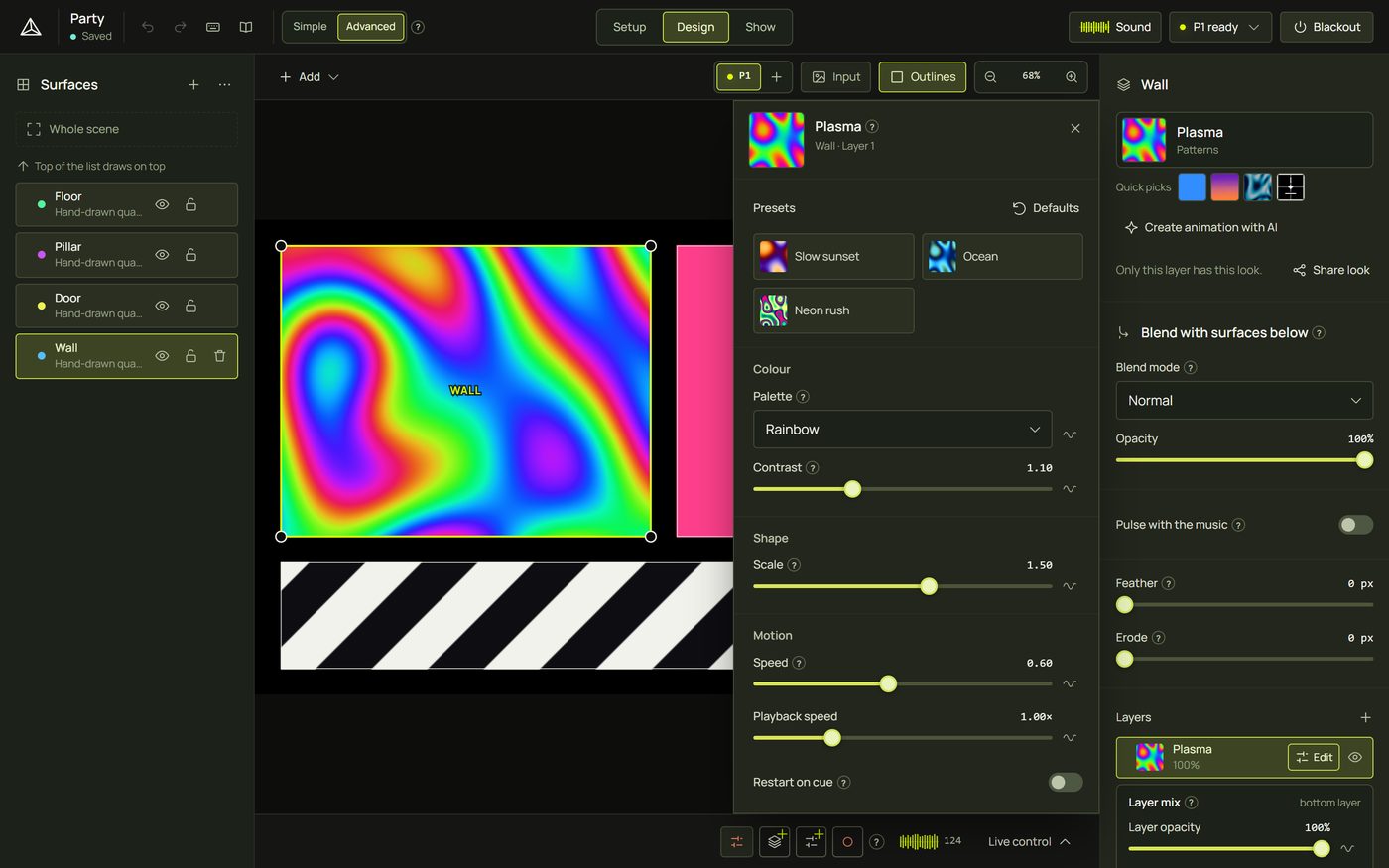
Many looks have their own Audio settings, at the top of the look panel's Music area. It is always shown, in Simple mode too.
- Select a surface and open its look panel (Edit on its layer, or E). See The look panel.
- Find the Music area, after the look's other settings.
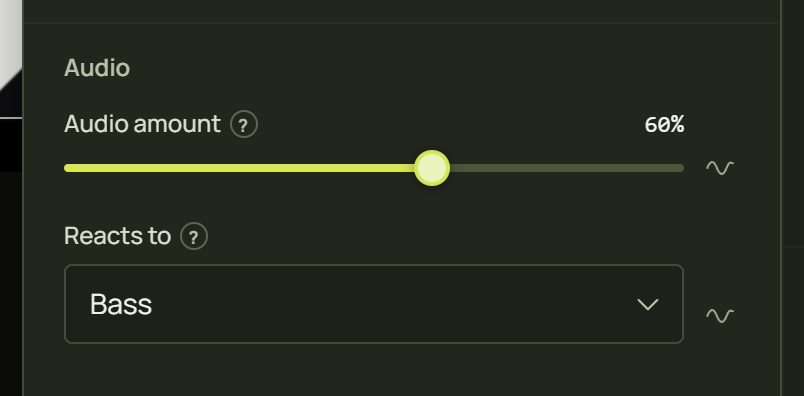
- Raise Audio amount. At 0% (the default) the look ignores the music; at 100% it reacts as strongly as it can.
- Choose what it Reacts to: Level (how loud), Bass, Mid, Treble, Kick, Snare, Hi-hat or Beat (a pulse on every beat of the tempo, with or without music).
3Which looks react
Looks with an Audio amount
These looks have Audio amount and Reacts to. The amount starts at 0% (Beat Particles at 60%), so they look the same as ever until you raise it. They start out reacting to:
| Reacts to | Looks |
|---|---|
| Bass | Plasma, Spotlights, Laser Fan, Sunburst, Tunnel, Bevel Relief, Scene Wave, Voronoi Cells, Metaballs, KIFS Fractal, Smoke, Beat Particles |
| Kick | Kaleidoscope, Electric Edge, Marquee Bulbs, Recessed Box, Shatter, Surface Chase |
| Level | Colour Cycle, Stripes, Line Patterns |
Looks made for sound
The library's Audio-reactive looks read the sound themselves. They have their own audio settings (a gain, what they follow, how much they move in silence):
| Look | What it shows |
|---|---|
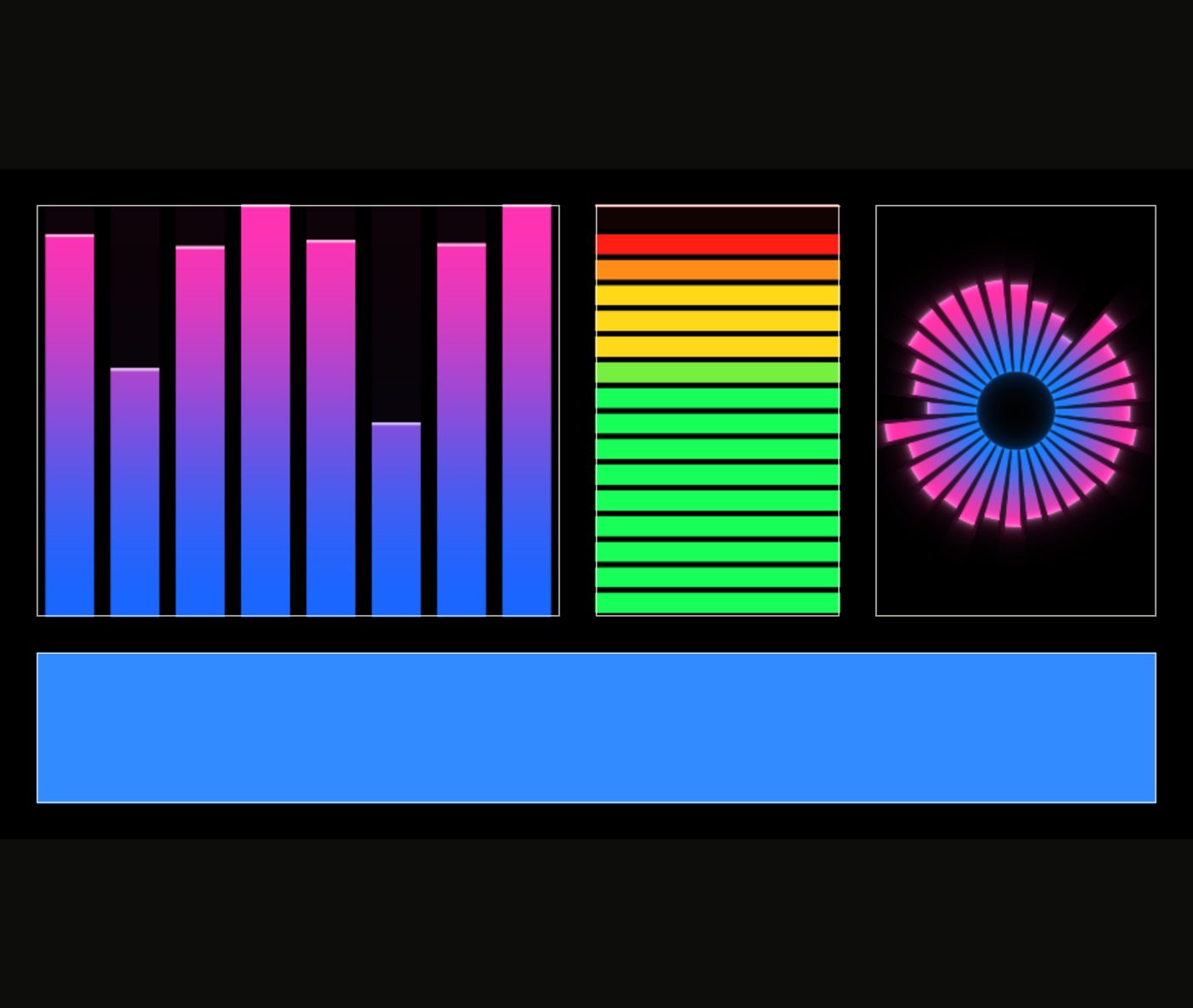
| Spectrum Bars | Bars for eight frequency bands, low to high. |
| Edge Spectrum | The eight bands along the surface's outline. |
| Radial Spectrum | The spectrum as a ring of rays, with the kick and the beat. |
| VU Fill | Fills the surface like a level meter; Follows Level, Bass, Mid or Treble, with a peak line. |
| Bass Swell | Swells with the bass and breathes on the beat. |
| Kick Ripple | A ring for each of the last kicks. |
| Beat Strobe | Flashes every beat, every 2 beats, every bar, twice a beat, or on kicks, snares or hi-hats (held to the flash limit). |
| Oscilloscope | The live waveform, or the spectrum. |
| Step Sequencer | Steps through cells on the beat, lit by the kick, snare and hi-hat. |
| Beat Particles | Particles that burst with the sound and breathe on the beat in silence. |
On the tempo: some looks follow the beat clock rather than the sound: Marquee Bulbs, Line Patterns, Scene Wave and Surface Chase have BPM sync; Voronoi Cells has Beat lights; Outline Draw can time itself in bars; Shape Grid has a beat wave; Fireworks has Bursts on kicks. The catalogue of every look marks all of them.
4Pulse with the music
Pulse with the music works on any look, including a plain colour, a picture or a video. The surface dims while the music is quiet and lights up on the loud parts.
- Select the surface and open its look panel (E).
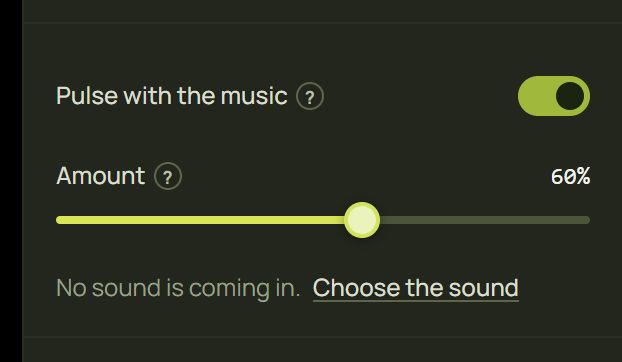
- In its Music area, switch on Pulse with the music.
- Choose what it Follows: Volume (how loud, the default), Beat (every beat of the tempo, with or without music), Bass, Kick, Snare or Hi-hat.
- Set the Amount: how far it dims in the quiet parts (60% by default; 100% goes dark between the loud parts).
- If no sound comes in yet, it says so: Choose the sound opens the Sound panel.
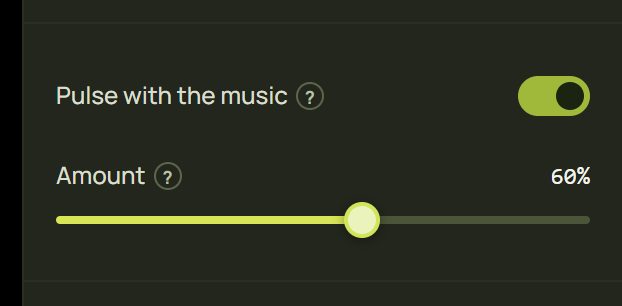
How it works: the sound's level moves the look's brightness, or the layer's opacity when the look has no brightness. It acts on the layer the look panel shows, and only on this surface, even when the look is shared with others. Switching it on or off, each change of Follow and each change of Amount is one undo step.
One-click reactions
Under it, the Music area has a switch for each reaction the look can do. Each shows only where the look has something to move:
- Flash on the beat: the look's brightness jumps on every beat and falls back within a third of it. Looks already at full brightness, and looks without one, are at full on the beat and dimmer in between.
- Change colour with the beat: the look's colours jump a quarter of the way round the colour wheel on Every beat or Every bar (white turns colourful; dark backgrounds stay dark). A look whose colours come from a palette steps to the next palette.
- Speed up with the music: the look moves up to twice as fast while the music is loud.
- Size with the bass: the look's scale, zoom or size grows with the bass.
The beat and the volume are on every plan; following the bass or a drum is on the Creator plan. Each switch is one undo step and, in Advanced, ordinary automation: the wave button beside it opens its route.
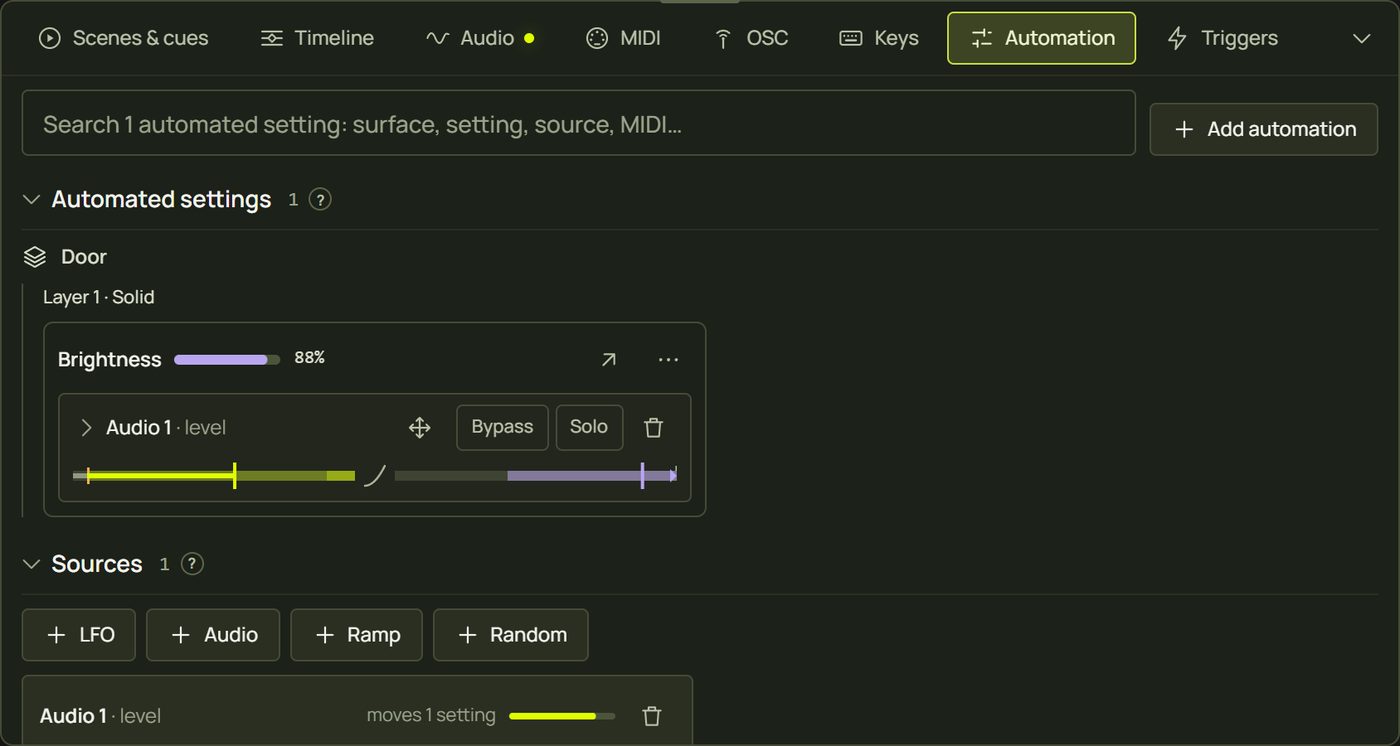
5The one-click card Advanced
While prism listens and nothing uses the sound yet (no audio automation or beat trigger, no look with its Audio amount above 0 or made for sound), the Audio tab offers a shortcut: Nothing moves with the music yet, with buttons for the selected surface (or the first one with a fitting setting). They are the look panel's one-click reactions:
- Flash on the beat: the brightness (or the opacity) flashes on every beat;
- Change colour with the beat: the look's colours jump on every beat;
- Size with the bass: a size-like setting that grows with the bass.

6Audio automation on any setting Advanced
Any setting with a wave button can follow the sound: a number, a colour, a switch, a choice, a position, the layer's opacity or its playback speed.
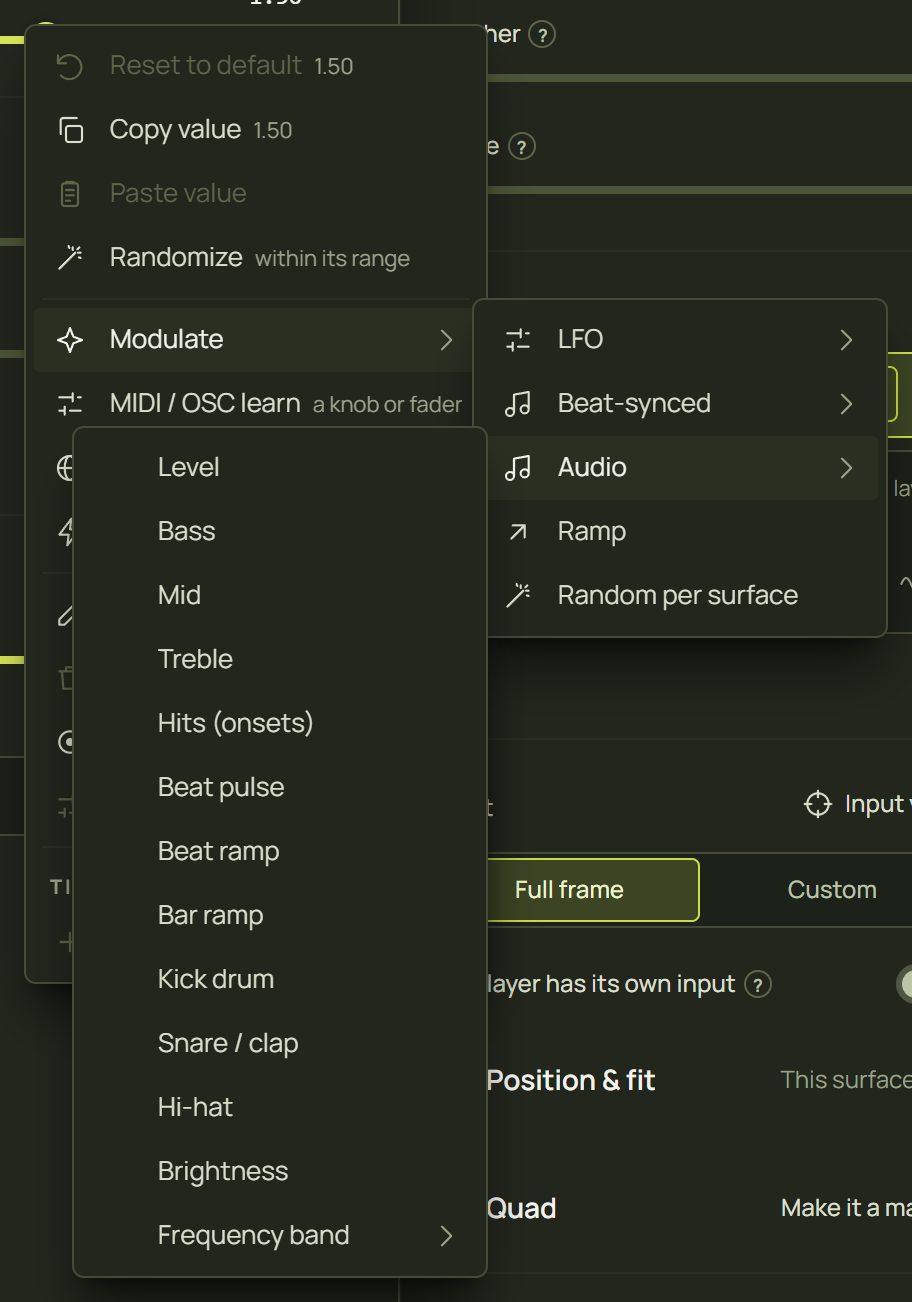
- Right-click the setting in the look panel or the inspector.
- Choose Modulate ▸ Audio ▸ and what it listens to: Level, Bass, Mid, Treble, Hits (onsets), Beat pulse, Beat ramp, Bar ramp, Kick drum, Snare / clap, Hi-hat, Brightness, or one of eight bands under Frequency band.
- The setting's popover opens on the new route. Shape how it responds: which part of the sound counts, how far the setting moves, how fast it rises and falls, and the curve. Or pick a preset: Punchy, Smooth, Breathing, Gate on kick, Slow swell.
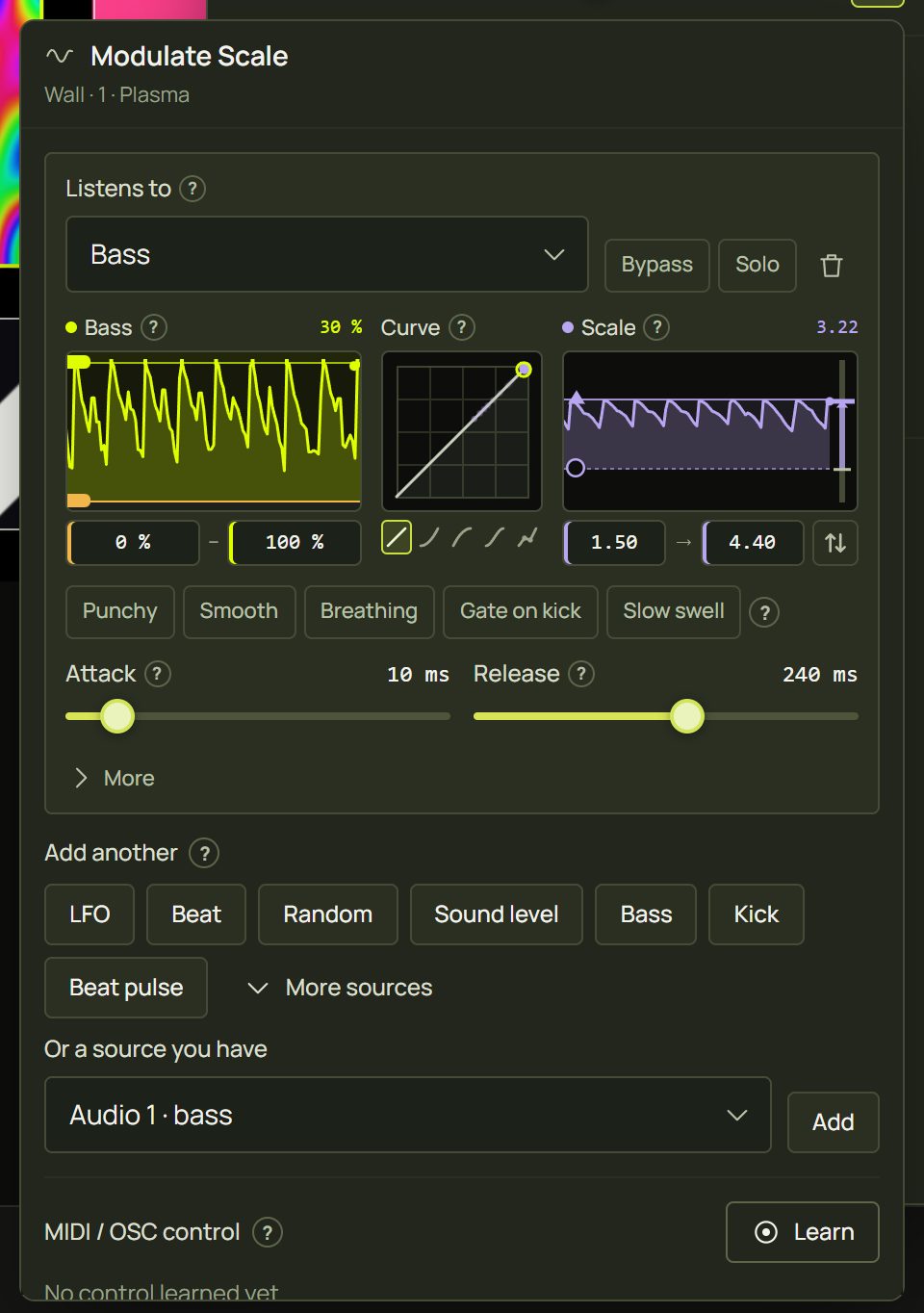
The wave button beside the setting does the same with quick buttons: Sound level, Bass, Kick and Beat pulse. Everything about routes, the Response block and presets is on Automation.
7Levels, hits and the beat
Sound features come in two kinds, and it matters on a slow projector link:
- Levels and hits (level, bass, mid, treble, bands, kick, snare, hi-hat, onsets) follow the sound as it arrives. They are exact, but they can't be predicted, so they reach the wall a little after the music.
- The beat (Beat, beat pulse, beat and bar ramps) comes from the tempo clock, which predicts the next beat. prism draws it early by the latency compensation and each projector's picture delay, so it lands on the beat. See Latency and wireless projectors.
8Hints and tips
- Less is more. Two or three surfaces reacting strongly read better than everything pulsing a little.
- Mix the kinds. One surface on the kick, one on the bass, one breathing with the level gives a show with depth.
- Save it in scenes. Audio amounts and Pulse with the music are part of the look, so every scene keeps its own. See Scenes and cues.
- Rehearse without music. Set a look to react to Beat: it pulses on the tempo clock even in silence.
- Strobes respect the flash limit. Fast beat flashes are held to 3 a second while the flash limit is on.
- Tune the input first. If everything reacts too little or too much, change the sound (Sensitivity, or in Advanced the input gain), not every look.
9When something looks wrong
| You see | Why | Fix |
|---|---|---|
| Nothing reacts | No sound comes in, or the Audio amount is 0%. | Top bar ▸ Sound ▸ Listen and watch the meter; raise Audio amount. |
| A look has no Audio group | Not every look reacts by itself. | Switch on Pulse with the music, or (Advanced) automate one of its settings. |
| “No sound is coming in” under Pulse | prism isn't listening. | Choose the sound, then Listen. |
| The surface is too dark with Pulse | A high Amount dims it far in the quiet parts. | Lower Amount. |
| Other surfaces with the same look don't pulse | Pulse acts on this surface only. | Switch it on for each surface. |
| Reactions are late on a wireless projector | Levels and hits can't be predicted. | React to Beat instead; see Levels, hits and the beat. |
| A strobe flickers dimly | The flash limit holds fast flashes back. | Expected; see Flash safety. |
| Everything reacts all the time | Room noise, or the input is too loud. | Lower Sensitivity; in Advanced raise the Noise gate or narrow the route's input range. |
10Mouse and keyboard
| Action | How |
|---|---|
| Open the look panel | E with a surface selected, or Edit on its layer |
| A setting's menu | Right-click it, press and hold, or Shift + F10 on a focused control |
| Undo a reaction | Ctrl + Z: each switch, amount and route is one step |