Draw and Pen
When none of the ready-made shapes fits, make your own. Draw lets you sketch a shape in one stroke and tidies it into a clean surface. The Pen places points one by one, with smooth curves wherever you drag. Afterwards you can curve the edges of any shape.
Advanced the Pen, the Curves section
1Draw a shape freehand
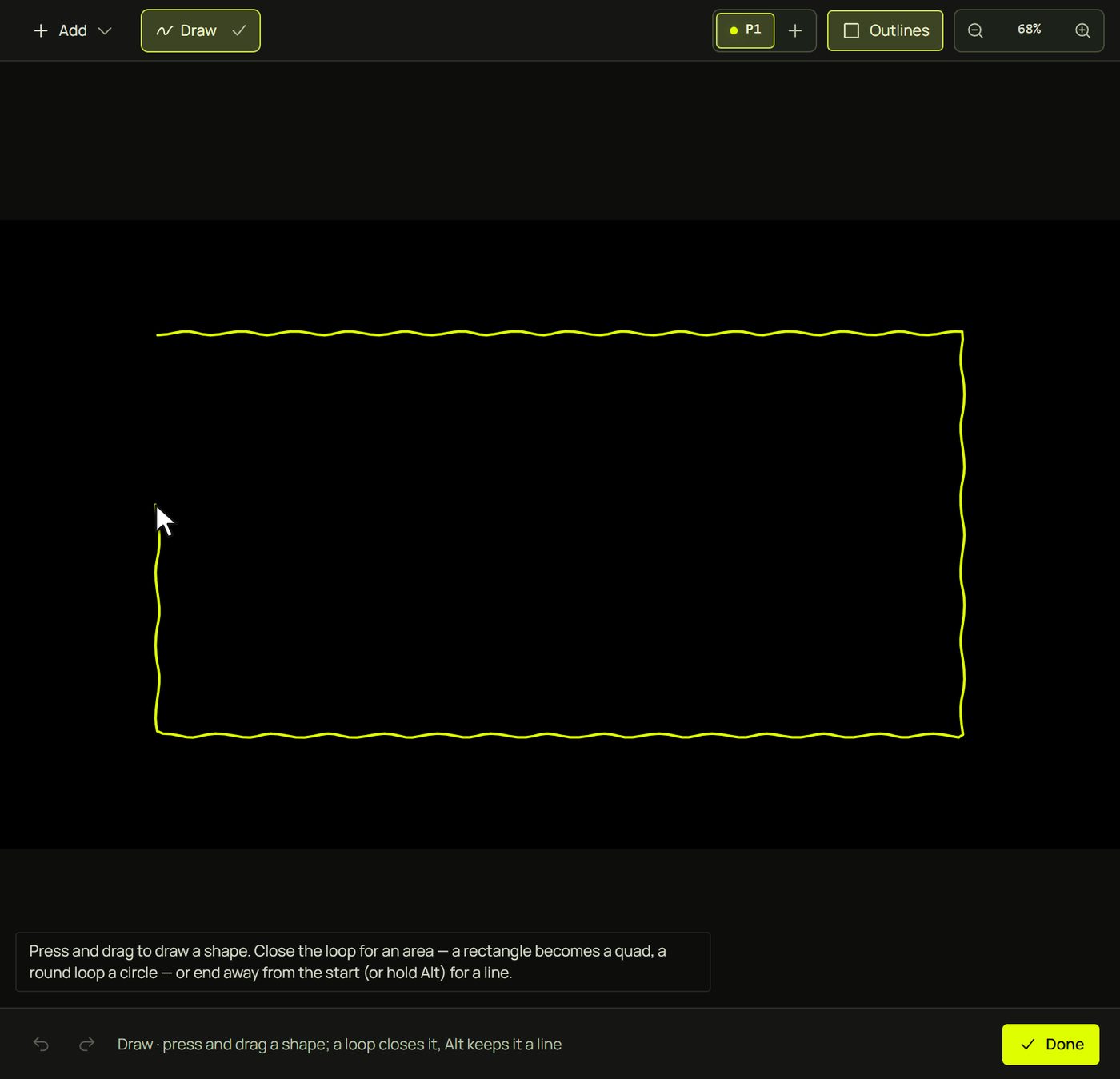
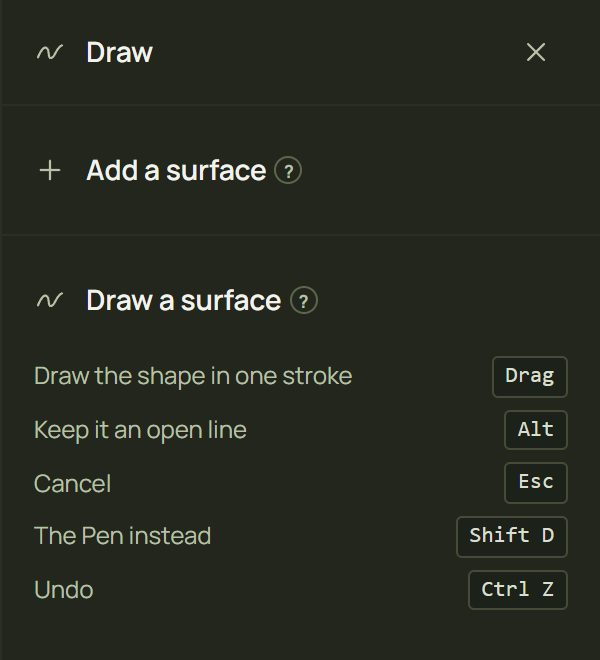
- Press Add ▸ Draw, or D. A lime Draw chip appears in the canvas tool bar, and the right panel shows how to draw.
- Press and drag to draw the shape in one stroke. End near where you started to make an area; end somewhere else (or hold Alt) to make a line.
- Let go. The stroke becomes a clean shape with few points, already selected, with the Test Grid on it. Drawing stops after one shape: press D again for the next.
2What your stroke becomes
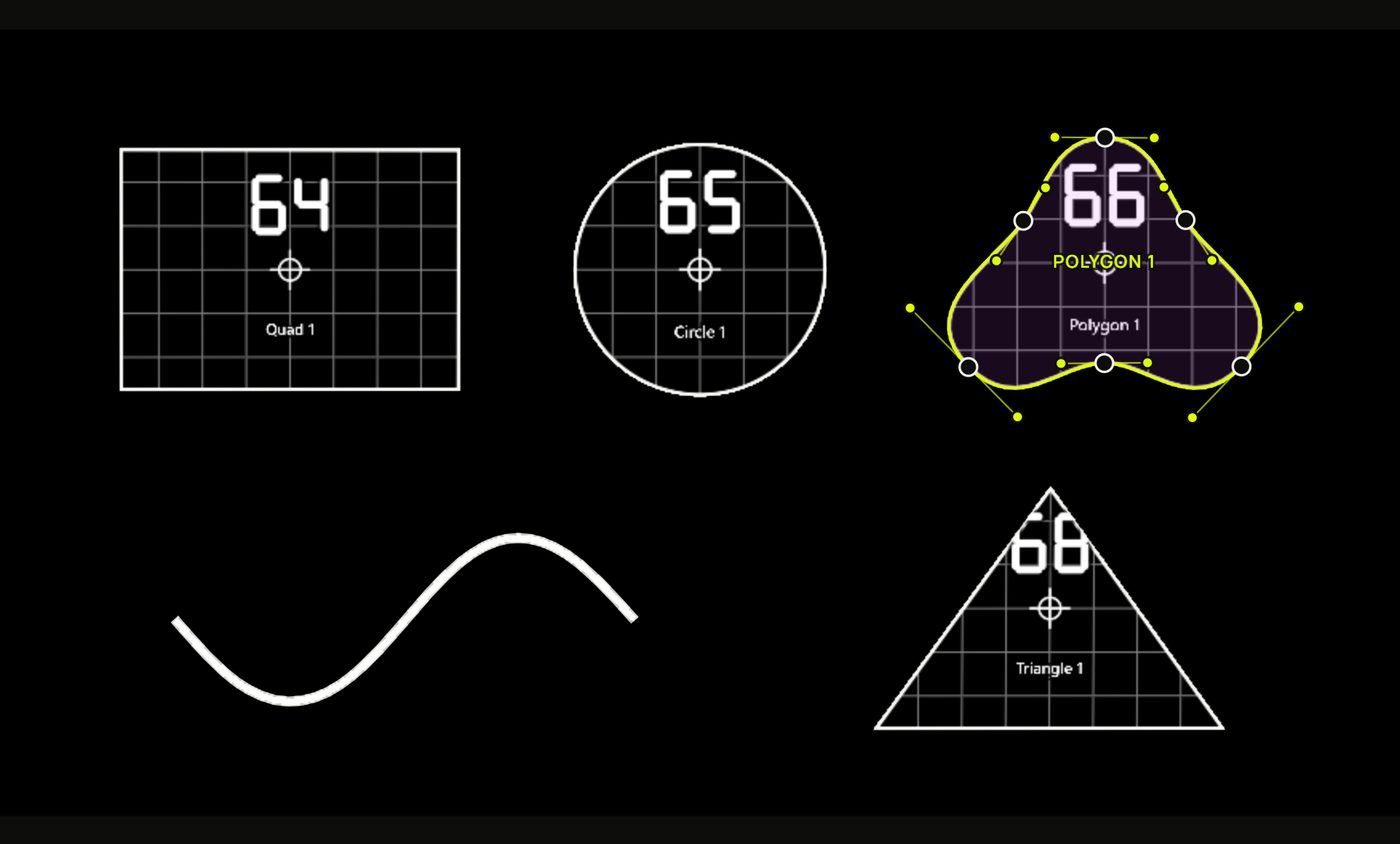
prism recognises simple shapes, so a hand-drawn rectangle comes out as a true quad with straight sides and sharp corners.
| You draw | You get |
|---|---|
| A rectangle, even a wobbly one | A quad. Its corners go where your sides meet, so rounded pen corners still give sharp ones. |
| A triangle | A triangle. |
| A round loop | A circle, or an ellipse when it's oval. |
| Any other closed shape | A polygon with smooth curves (up to 32 points). Nearly straight sides come out exactly straight. |
| An open stroke, or anything drawn with Alt held | A line: straight if you drew nearly straight, otherwise curved (up to 64 points). It starts plain white. |
3The Pen: points and curves Advanced
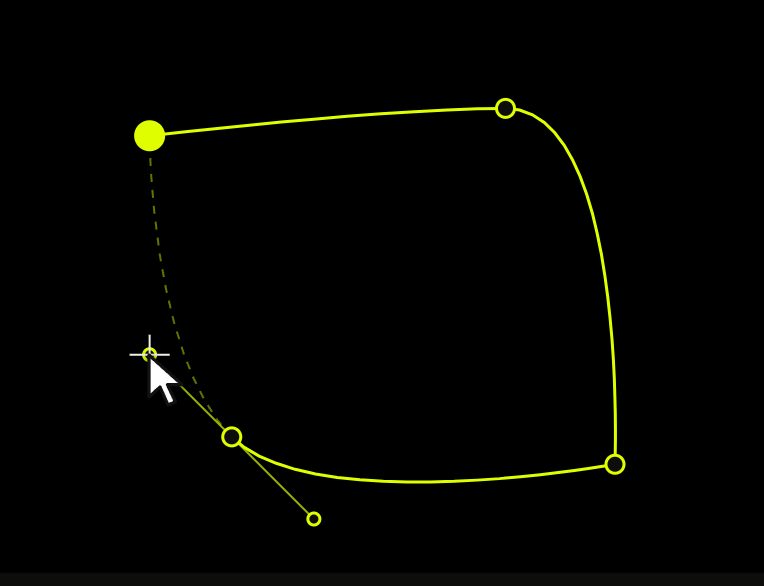
The Pen is for outlines you want exactly: you place every point, and you decide where the curves go.
- Press Add ▸ Pen, or Shift + D.
- Click to place a corner.
- Press and drag to place a smooth point: its two handles follow the pointer and set the curve. Hold Alt while you drag to move only the outgoing handle, for a sharp turn after a curve.
- Go round the outline. Backspace takes the last point back.
- Finish by clicking the first point, double-clicking, or pressing Enter (or Finish shape under the canvas). A shape needs at least three points.
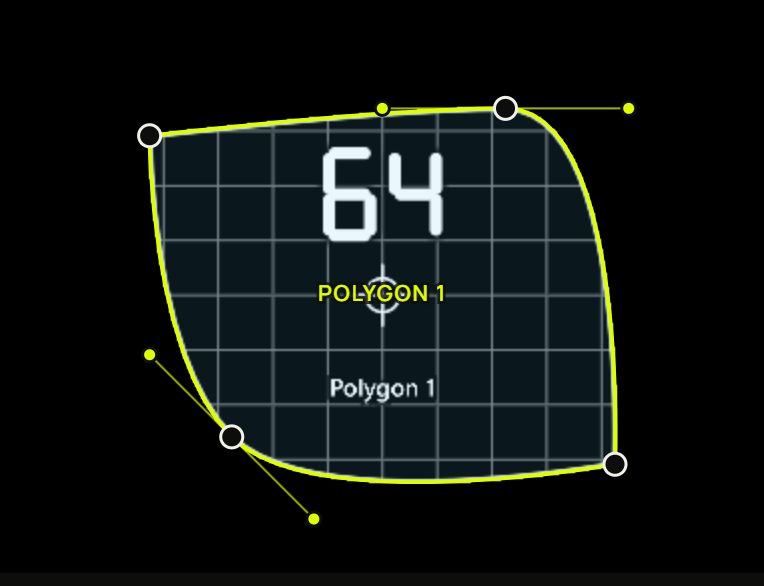
4Curves on any shape
Quads, triangles, polygons and lines can all have curved edges, whether you drew them or added them. (Circles can't, and neither can a mesh-warped shape.)
| To… | Do this |
|---|---|
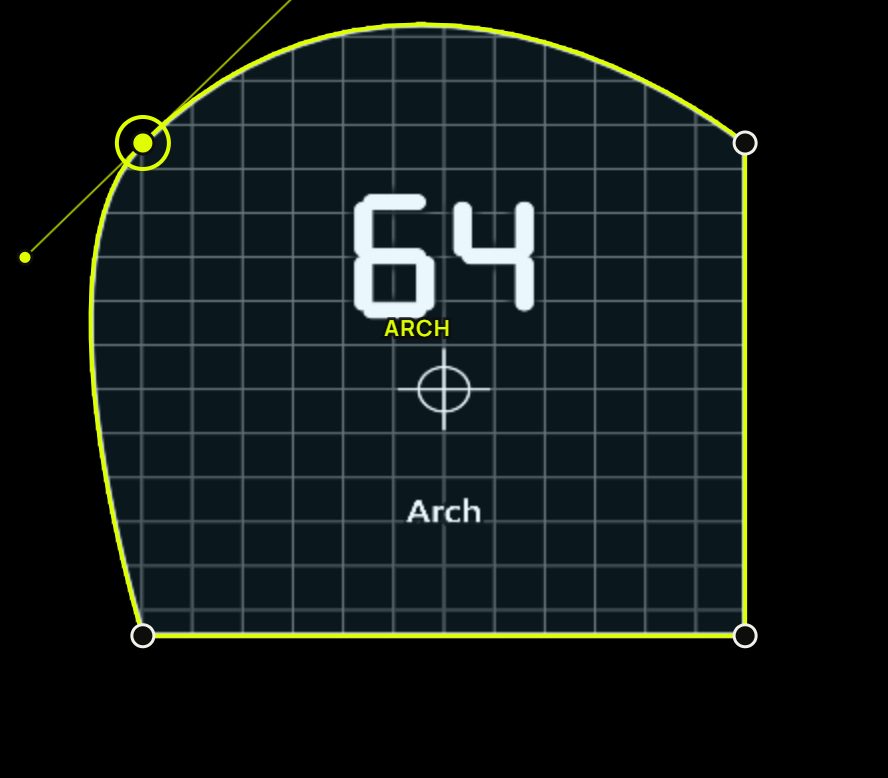
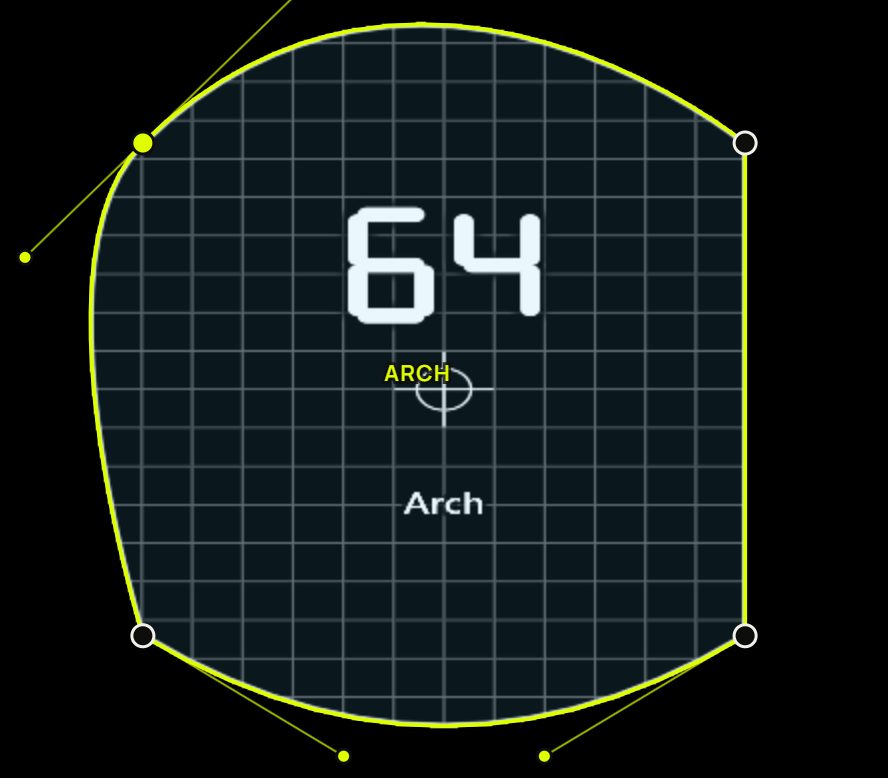
| Make a corner smooth | Double-click the point. Its handles appear along its neighbours. Double-click again to make it a corner. |
| Bend the curve | Drag a handle (the small lime dot at the end of a line). The opposite handle turns with it, so the point stays smooth. |
| Bend one side only | Alt + drag a handle: it moves alone, for a sharp point between two curves. |
| Pull handles out of a corner | Alt + drag the point itself. |
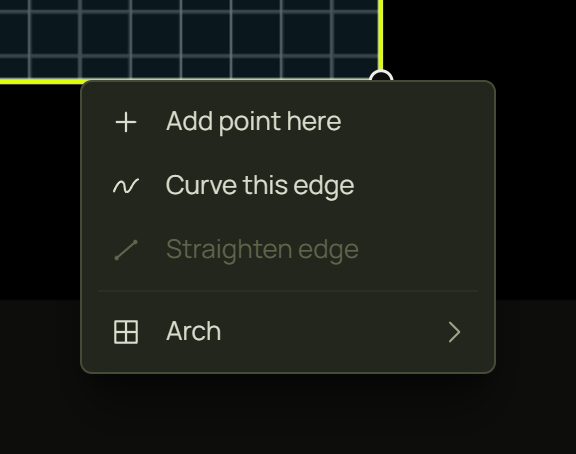
| Curve or straighten one edge | Right-click the edge ▸ Curve this edge (it bows outwards) or Straighten edge. |
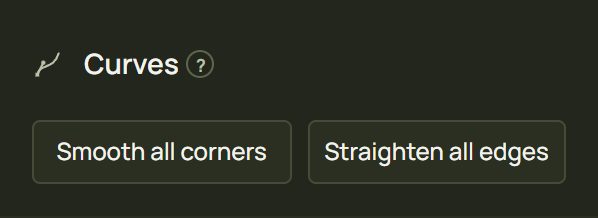
| Do the whole shape | Inspector ▸ Curves ▸ Smooth all corners or Straighten all edges. |
5Draw a mask
Both tools can also draw masks, which cut away part of a surface instead of adding one: Add ▸ Mask ▸ Draw a mask (both modes) or Pen mask Advanced. The mask cuts the surface you had selected. See Masks.
6Hints and tips
- Draw quickly and confidently. A slow, shaky stroke is smoothed away anyway; a confident one gives cleaner corners.
- A rectangle you draw is a quad, with its picture in perspective. No need to switch to Add ▸ Quad.
- Trace real objects with the Pen with the projector window open and the canvas zoomed in (Shift + 2): place each point where you see the real corner.
- Straight into a curve: in the Pen, Alt-drag the point where the straight part starts, so only its outgoing handle bends.
- Fewer points, smoother shapes. A curved edge between two points is smoother than many small straight ones.
- Undo takes back a whole shape: Ctrl + Z after a stroke removes it in one go.
7When something looks wrong
| You see | Why | Fix |
|---|---|---|
| My rectangle came out as a curved outline | It was very wobbly, or small on screen. | Zoom in or draw it bigger. Or Add ▸ Quad and drag its corners. |
| I wanted an area and got a line | The stroke ended too far from where it started. | End the stroke near its start; don't hold Alt. |
| “Press and drag to draw a shape…” | The stroke was too short to be a shape. | Press, drag round the outline, then let go. |
| A double-click doesn't curve the point | It is a circle's corner (circles don't take curves), or the end of a line (“An end of a line has one edge…”). | Use a polygon, or smooth a point in the middle of the line. |
| “The projector doesn't reach that spot…” | In the camera view, the Pen can't place a point outside the projector's picture. | Place points inside the lit area, or switch to the projector view. |
8Mouse and keyboard
| Action | How |
|---|---|
| Draw · Pen | D · Shift + D |
| Draw a line (Draw) | End away from the start, or hold Alt |
| Corner · smooth point (Pen) | Click · press and drag (Alt: one handle) |
| Finish (Pen) | Click the first point · double-click · Enter |
| Take a point back (Pen) | Backspace |
| Cancel the shape, then leave | Esc, Esc · Done |
| Smooth or corner a point | Double-click it |
| Move one handle alone | Alt + drag the handle |
| Pull handles out | Alt + drag the point |