Masks
A mask is a shape that erases instead of drawing. Put one over a surface to cut a hole in it, such as a window in a wall or the gap round a door handle, or turn it inside out to keep only what is inside. A mask never shows anything itself.
Advanced mask quad, circle, triangle, polygon, Pen mask
1Add a mask
- Select the surface (or group) you want to cut, on the canvas or in the list.
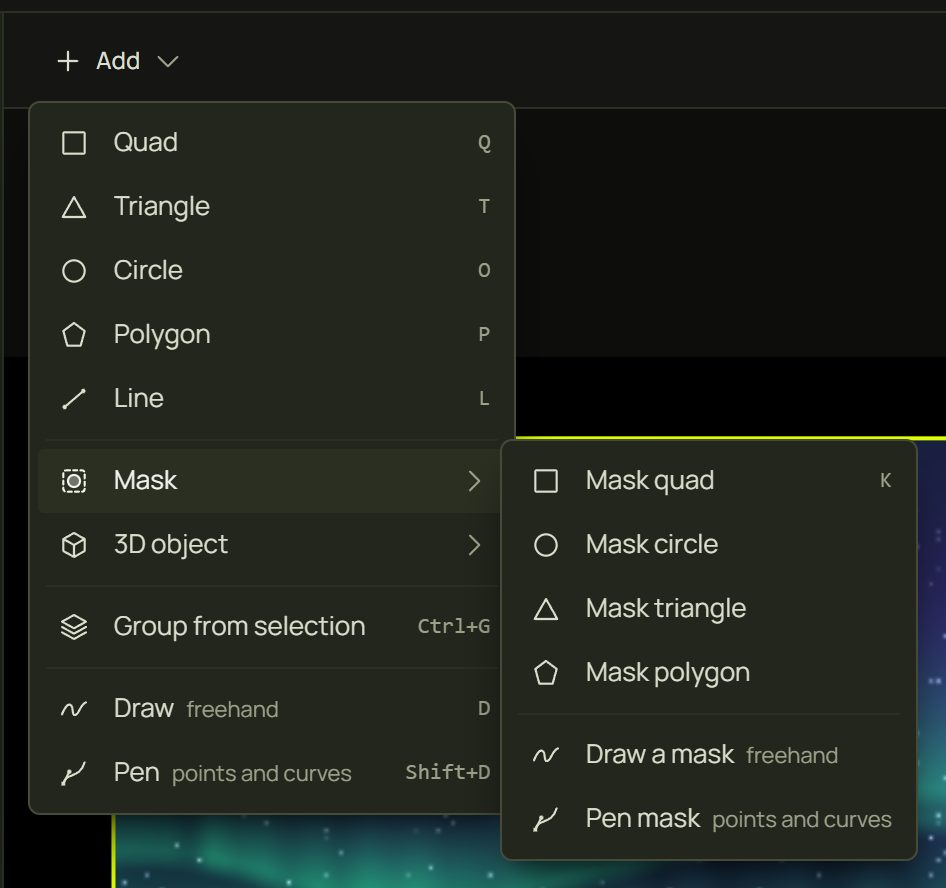
- Press Add ▸ Mask and choose its shape: Mask quad (K), Mask circle, Mask triangle, Mask polygon, Draw a mask (freehand) or Pen mask (points and curves). Right-click the canvas ▸ Add mask has the same list.
- The mask appears, already cutting the surface you selected. Drag it into place and pull its corners like any shape.
2What a mask cuts
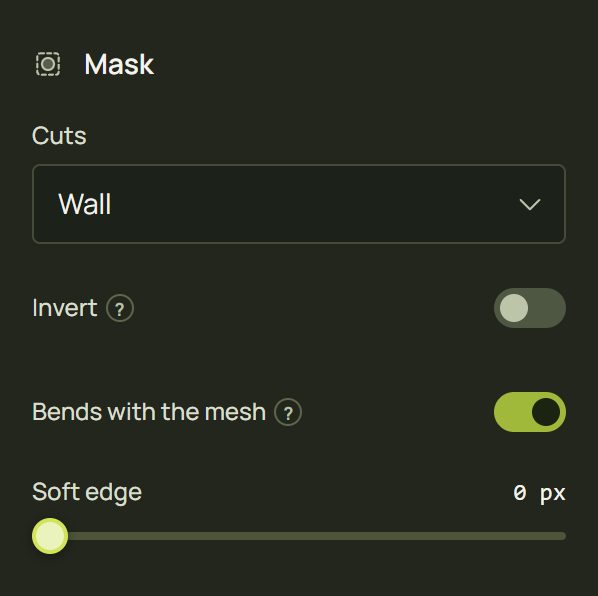
Select a mask and the inspector shows its Mask settings. Cuts says what it erases.
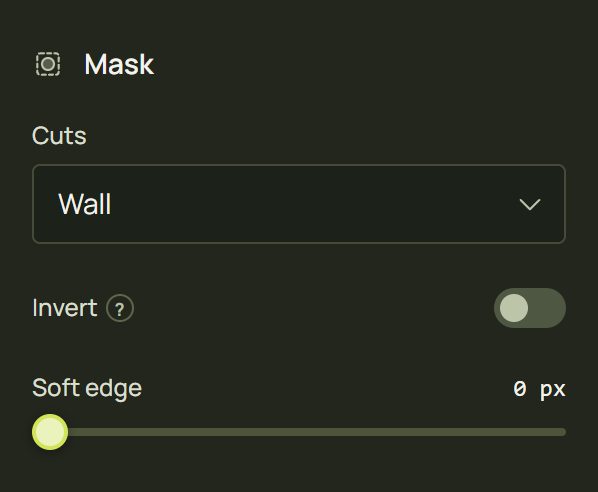
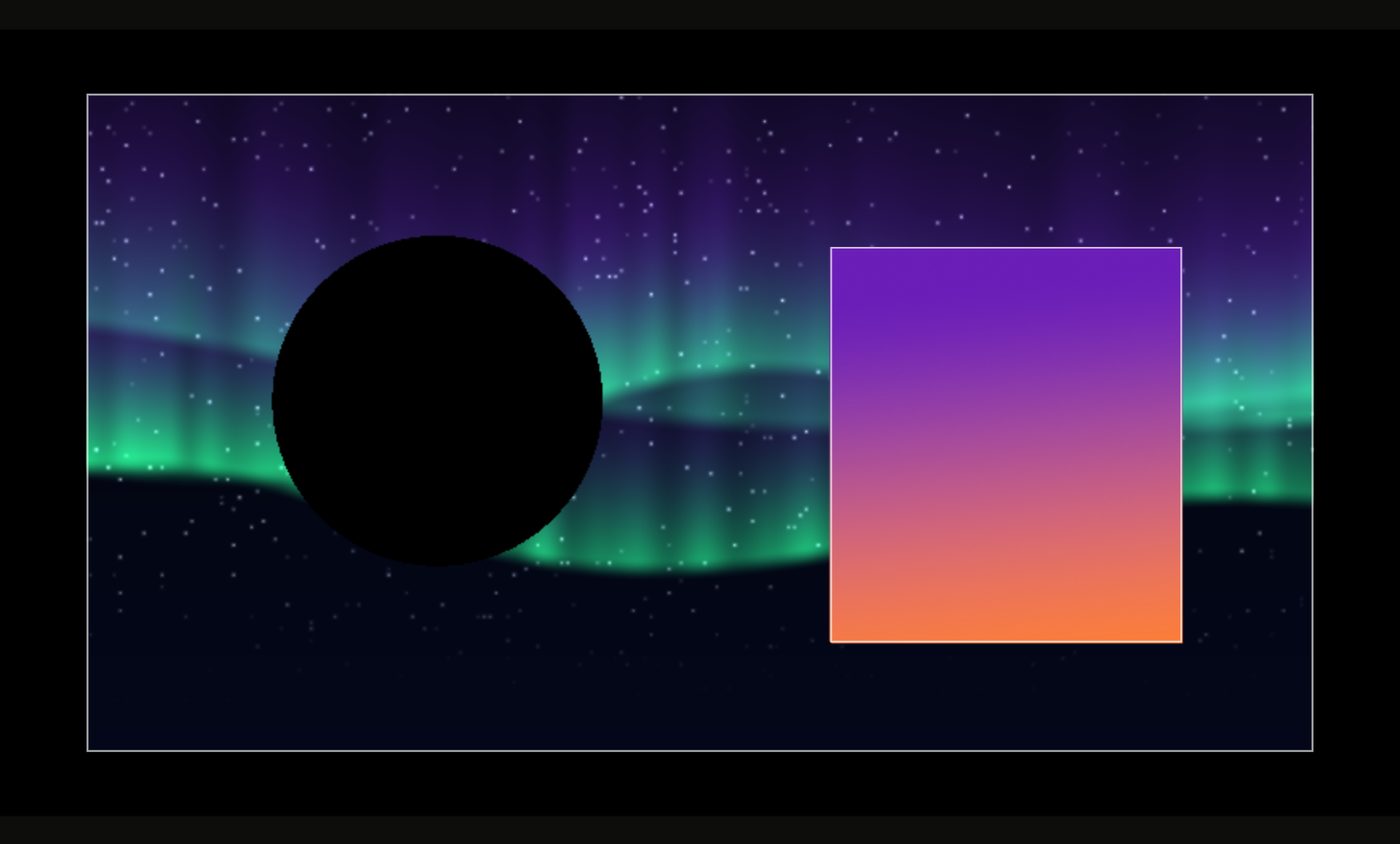
- A surface or group (the usual case): it erases only that surface, or every surface in that group.
- Everything below it: it erases everything drawn below it in the list. At the top of the list that leaves black; inside a group, what is below the group shows through. A mask added with nothing selected starts this way.
3Invert: keep only the inside
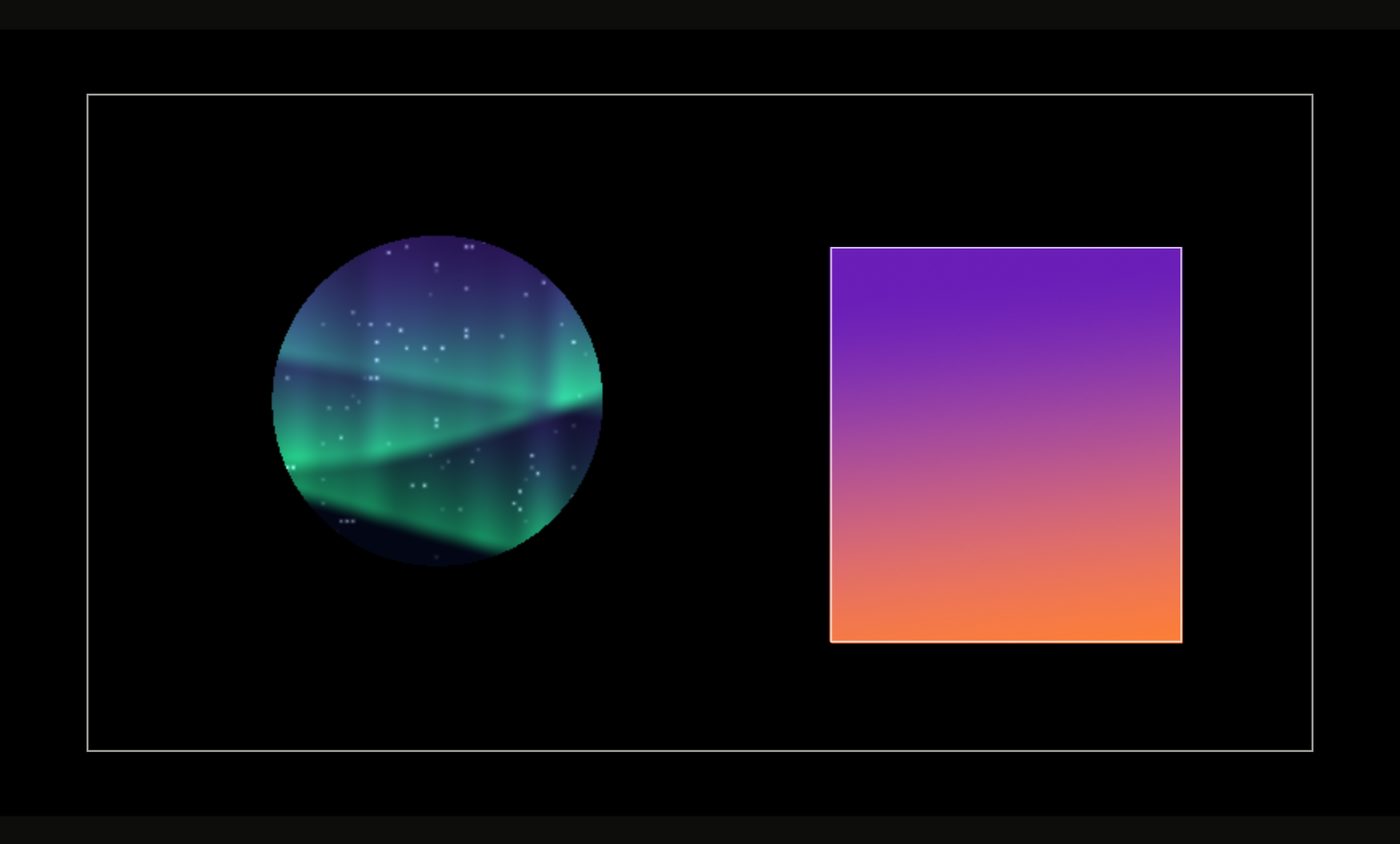
Turn on Invert and the mask does the opposite: it keeps only what is inside its shape and erases the rest of the surface it cuts.
4Soft edges
Soft edge (0 to 10 px) fades the mask's edge instead of cutting it hard. A soft round mask, inverted, makes a spotlight or vignette.
5Draw and reshape masks
Draw a mask works like Draw: draw the outline in one stroke and it becomes a clean shape. Pen mask works like the Pen.
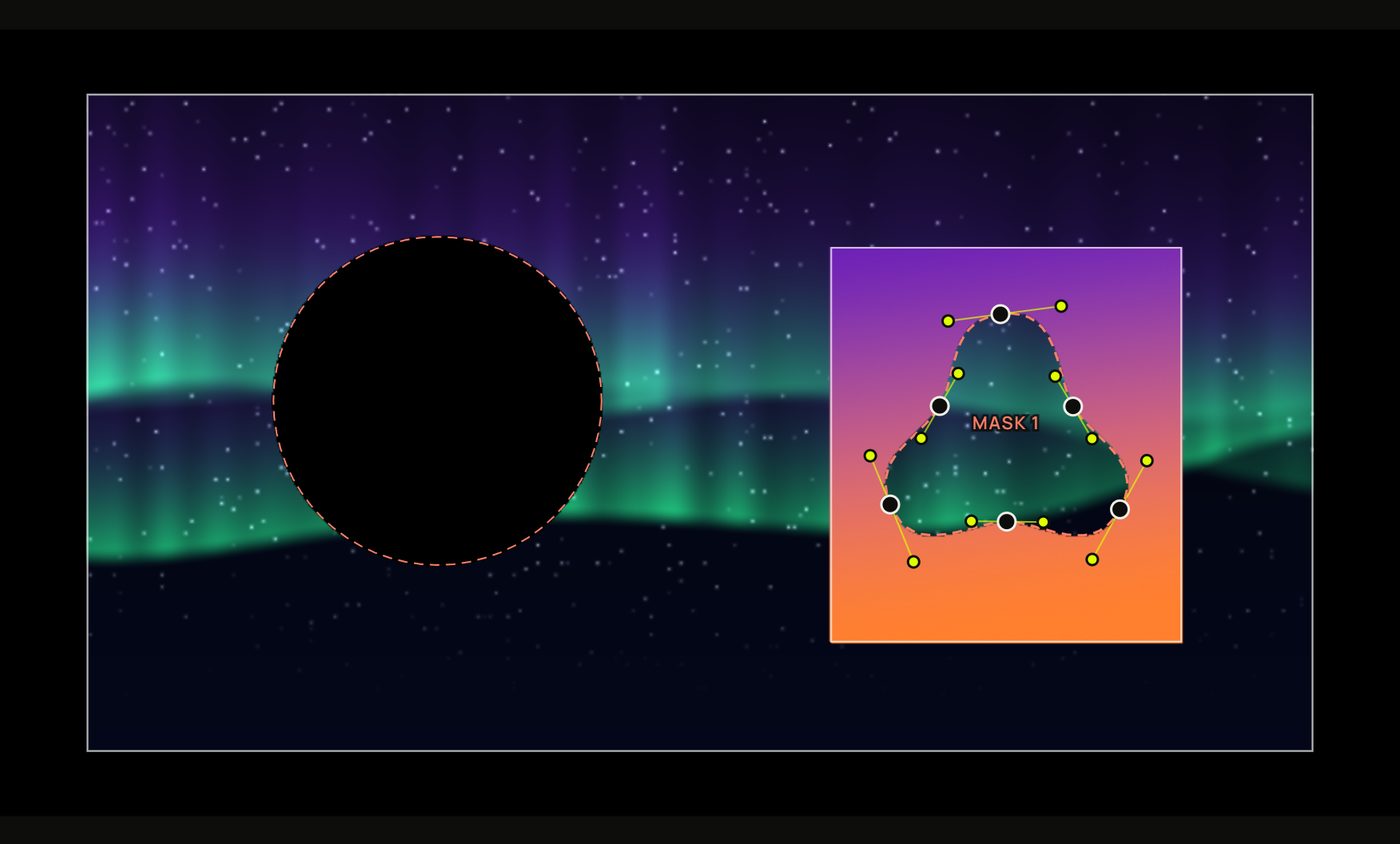
Masks are shapes, so everything from Shapes and curves works: drag corners and points, double-click an edge to add a point, nudge with the arrow keys, curve an edge.
6Masks on the canvas and in the list
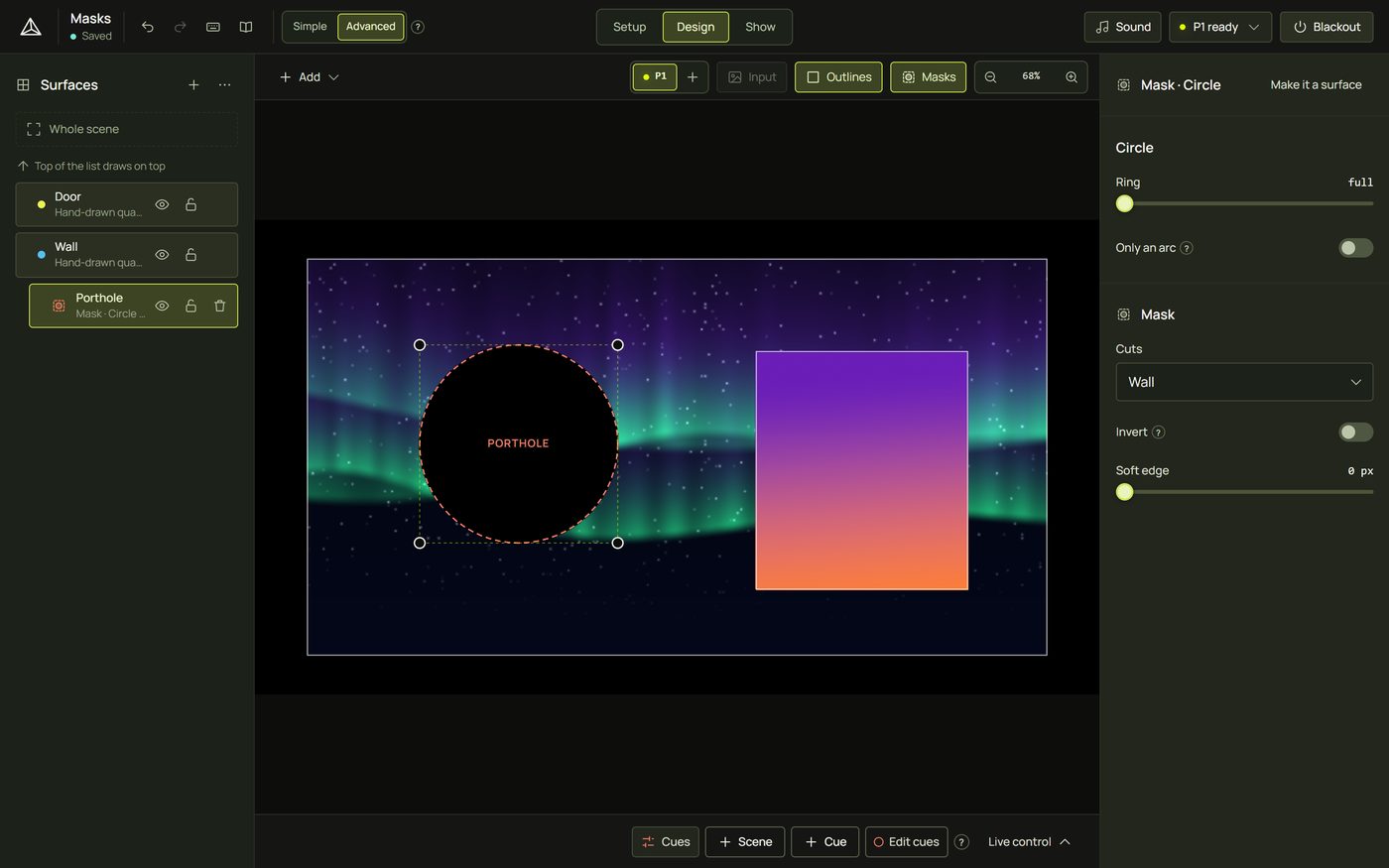
- On the canvas a mask is a dashed coral outline with its name in coral.
- The Masks button appears in the canvas tool bar when this projector has masks. Turn it off to hide their outlines while you judge the picture; hidden masks can't be clicked, except the selected one.
- In the list a mask that cuts a surface sits right under it, indented, with a dashed coral border. Its second line says what it does: “Mask · Quad · cuts Wall”, “masks everything below”, “inverted”.
- An attached mask moves with its surface in the list; it has no place of its own. To make it cut something else, change Cuts.
7When its surface is gone
If you delete the surface a mask cut, or ungroup the group it cut, the mask hides itself so it can't erase the wrong thing. Its row reads needs a target with a warning sign.
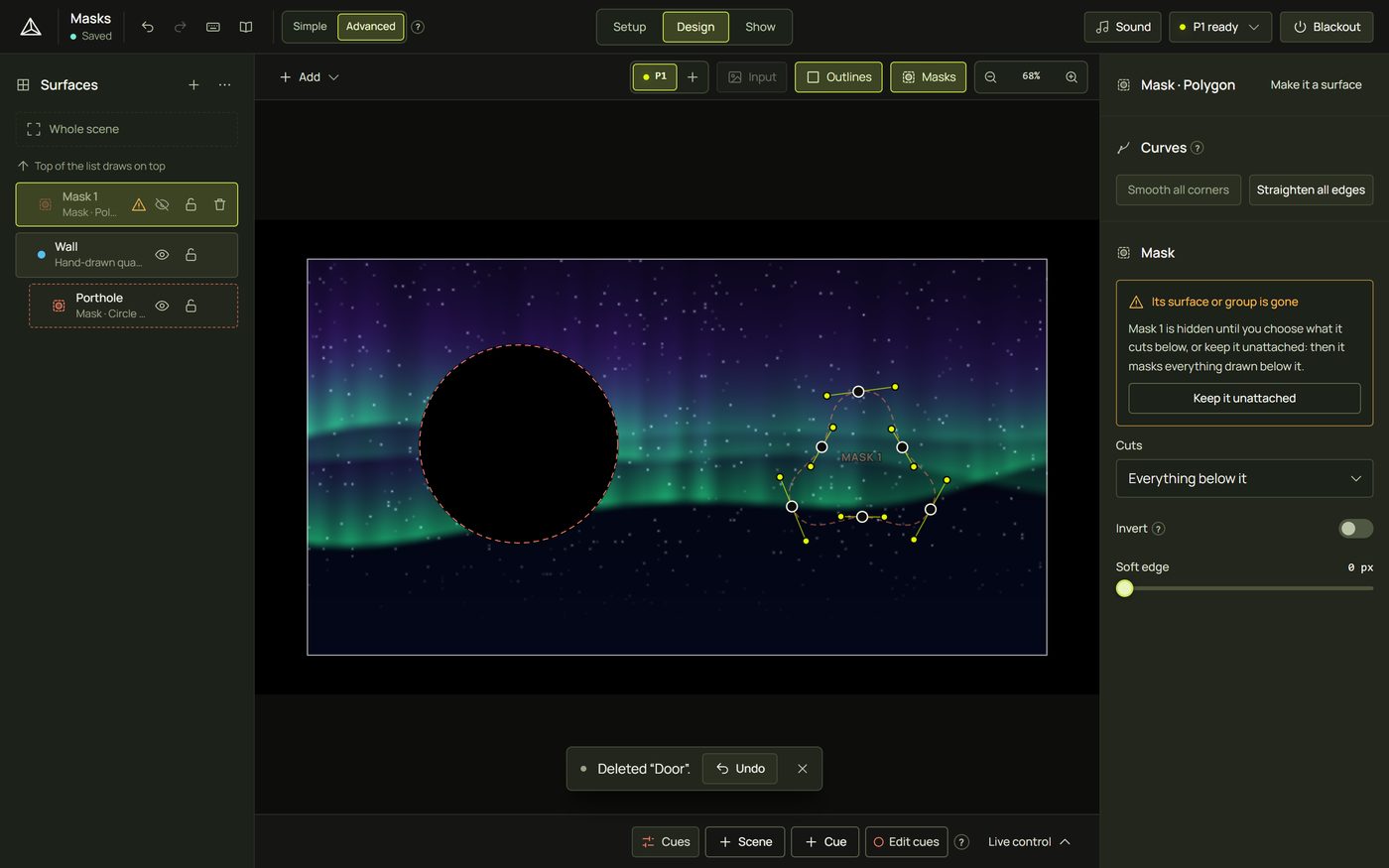
- Select the mask.
- Choose a surface or group in Cuts, or press Keep it unattached to let it mask everything below it. It shows again.
8Masks on a mesh-warped surface
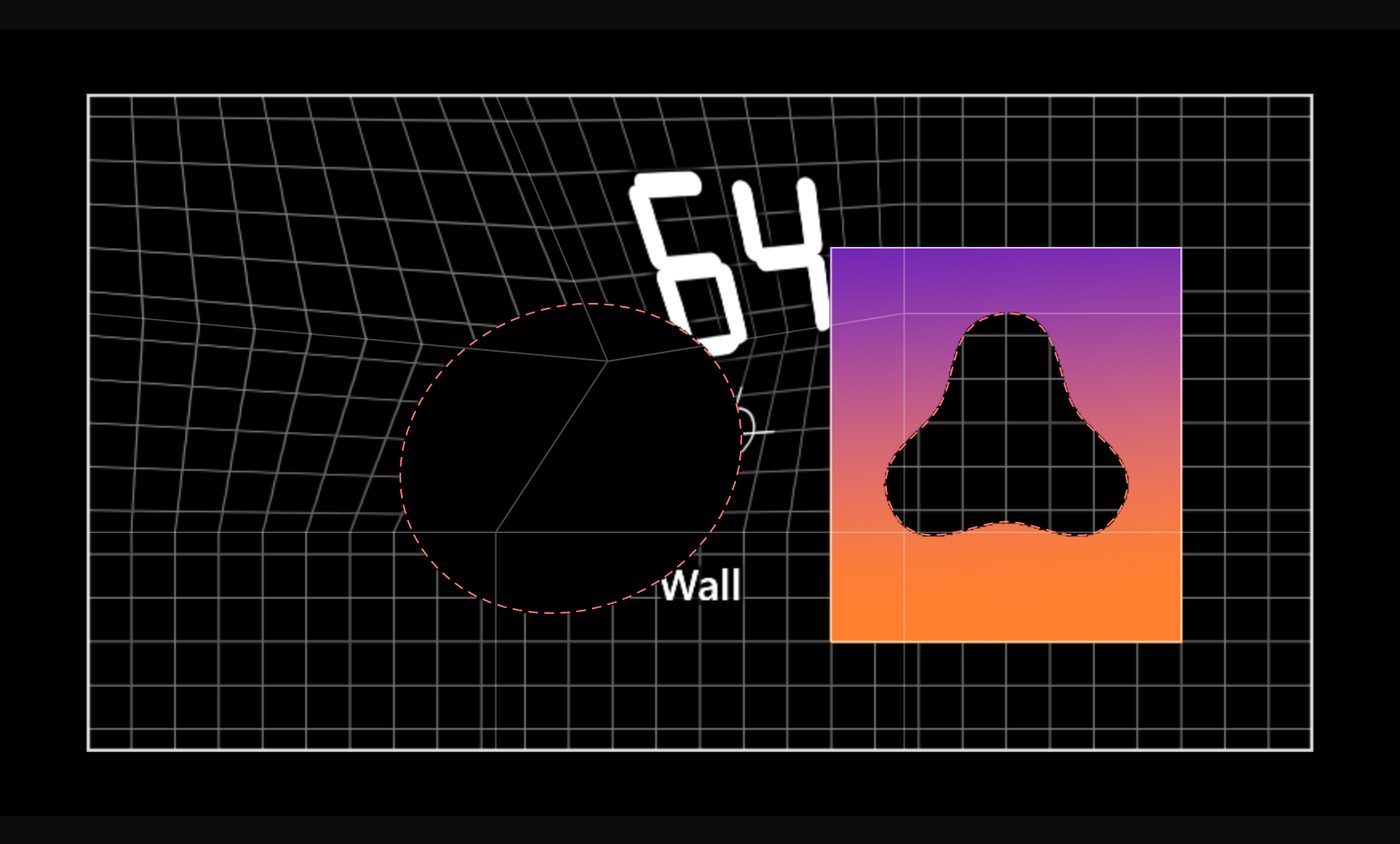
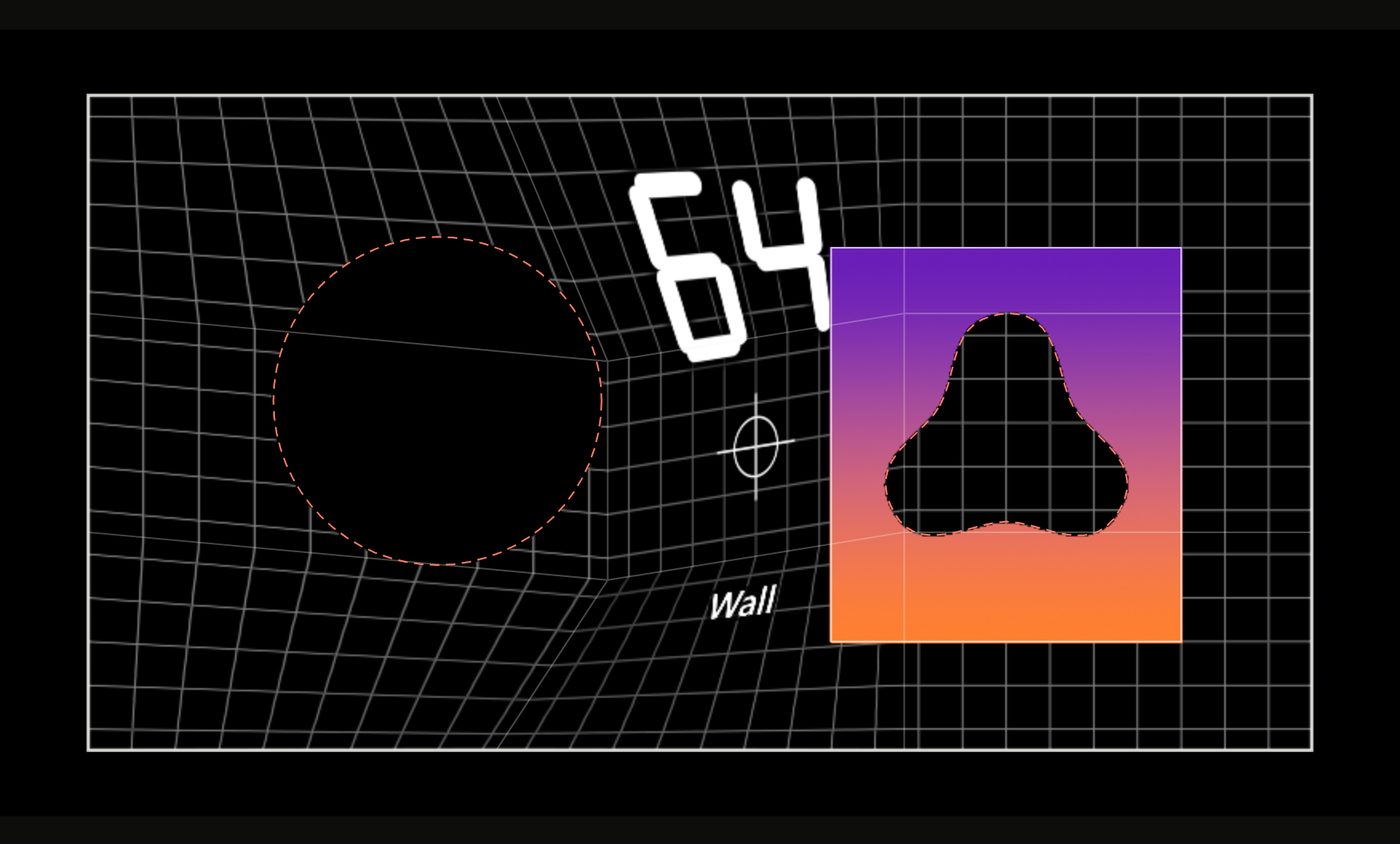
When the surface a mask cuts has a mesh warp, the mask bends with the picture: each of its points keeps its place on the picture as you bend the grid. Turn off Bends with the mesh to keep the mask where it is on the projector instead.
9Surface to mask, and back
- Any shape can become a mask: Make it a mask at the top of its shape settings, or right-click ▸ Make it a mask. Its layers go, and it masks everything below it until you choose what it cuts.
- A mask's Make it a surface turns it back into a surface. It starts dark: pick a look.
- Surfaces from older pixel scans can't become masks.
10Hints and tips
- Cut, don't build round. A wall with a window is one wall and one mask, not four strips.
- Name your masks (F2 in the list): “Window” and “Handle” beat “Mask 3”.
- Mask a group to cut every surface in it with one shape, for example the faces of a box.
- Spotlight: a soft circle mask, inverted, over a busy wall.
- Hide the outlines with Masks when you judge the picture on the projector.
11When something looks wrong
| You see | Why | Fix |
|---|---|---|
| Nothing is cut | The mask cuts another surface, or it is hidden. | Check Cuts, and the eye in its row. |
| Everything under the mask went black | It is unattached: it erases everything below it. | Set Cuts to the surface you meant. |
| A mask vanished and its row has a warning | The surface or group it cut was deleted or ungrouped. | Choose Cuts, or Keep it unattached. |
| A mask can't be clicked | Masks is off in the tool bar. | Turn it on, or select the mask in the list. |
| A mask won't take a look | Masks only erase; they have no layers. | Make it a surface. |
| The hole doesn't follow the mesh | Bends with the mesh is off, or it cuts a 3D object's face (not supported yet). | Turn the switch on. |
12Mouse and keyboard
| Action | How |
|---|---|
| Add a mask quad (cuts the selection) | K |
| Other masks | Add ▸ Mask · right-click the canvas ▸ Add mask |
| Reshape | Drag corners and points · double-click an edge · arrows to nudge |
| Delete | Delete |
| Rename | F2 in the list |