Christmas projection mapping
for homes and shop windows
Christmas projection mapping is gentler than most. Snow drifting down the front window, a warm fire flickering on a bare wall, a stack of presents that glow gold and red. Prism Mapper turns a projector and a laptop into all of that, in Chrome or Edge, and you can start on the free plan.
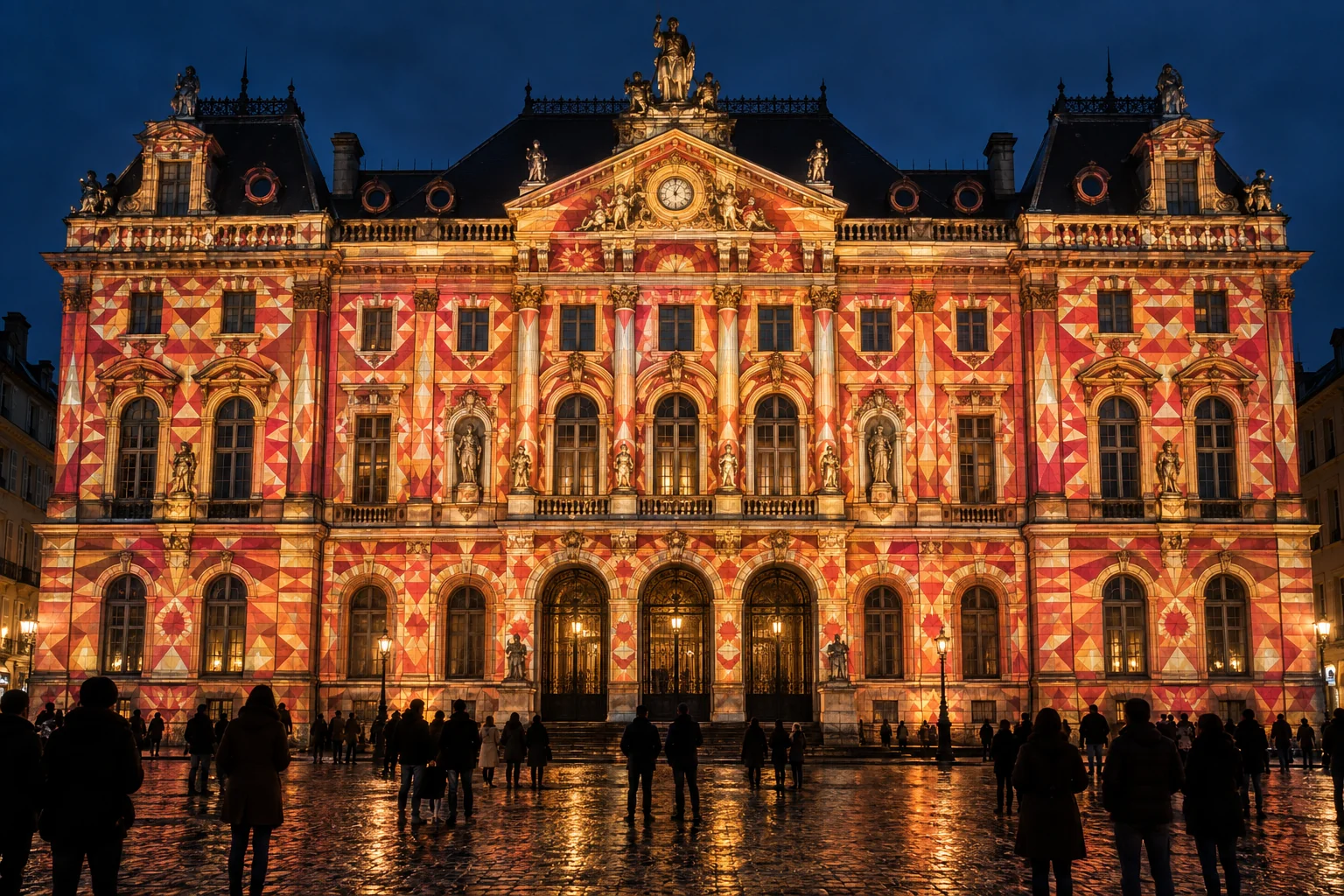
Christmas projection mapping starts in the living room
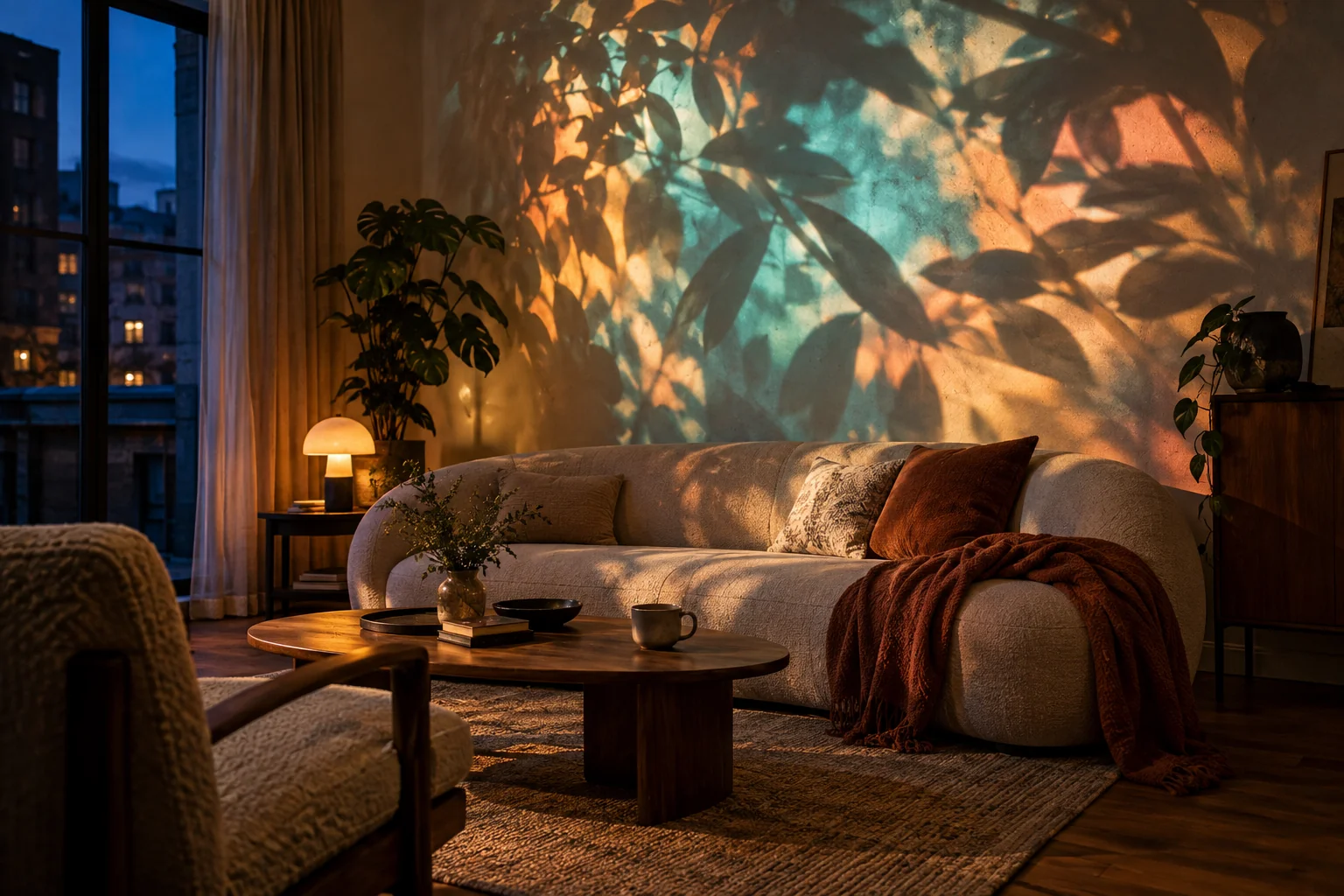
The easiest Christmas projection is the one that never goes outside. Point a projector at a pale wall, the chimney breast or the space above the sofa, and you have a fireplace that never needs logs, or northern lights rippling over the ceiling while the family watches a film.
Indoors you also control the light. Projected colour looks richest in a dim room with the main light off and the tree lights on. A projector two or three metres from the wall fills a good part of it; check your own model’s throw, as every lens differs.
Prism finds the shapes for you. Your phone, propped beside the projector, watches a short pattern of stripes and works out where the wall ends and the bookshelf begins. Each surface then gets its own look.
Built-in looks that feel like December
These are live looks, so they stay sharp at any size and you can change their colours. Fire is a starter look on the free plan; the others come with Creator.
Fire
Flames rising from the bottom edge, with drifting embers. The Campfire preset makes a convincing fireplace on a chimney breast.
Snow
Soft flakes in four layers of depth, blown by the wind. It is see-through between the flakes, so it can fall over any other look.
Frost
Ice creeping in from the edges, then thawing. Its Window frost preset was made for panes of glass.
Aurora
Curtains of northern lights over a starry sky. Lovely on a ceiling or a plain wall for a calm evening.
Marquee Bulbs
Theatre bulbs chasing round a sign or a doorway, like a grotto entrance.
Fireworks
Rockets bursting into falling sparks, for New Year’s Eve. The kick drum can fire extra bursts.
Make the presents glow
A pile of wrapped boxes is the classic first mapping project. Wrap a few in plain white or brown paper so they take the light well.
- 01
Stack them where the projector can see two faces
Front and top, or front and side. A face the projector cannot reach cannot be lit.
- 02
Scan, or add a box by hand
A phone scan picks out each box. Without a phone, add a 3D box in Design, set its size and pin its real corners. Map a real box walks through it.
- 03
Give each face a different look
Gold on the front, a slow red gradient on the top, Edge Chase racing round the outline like ribbon.
- 04
Save it as a scene
Then try a second scene with snow over everything, and switch between them with GO.
Christmas window projection from inside
Glass lets light pass straight through, so a window needs something to catch it. Hang a white blind, a sheet or frosted film inside the pane and project onto it from the room. People outside see it lit from behind, like a lantern.
Snow and frost read beautifully this way. Avoid text, though: anything written will read backwards from the street. Draw the window as one shape and, if the frame gets in the way, cut round it with a mask.
Wait for proper darkness. A projector cannot compete with daylight, so the window comes alive from late afternoon in December.
Shop window projection, done properly
A festive window draws people in from the pavement. A few things to plan before you start.
- Commercial use
- A window for a business is commercial use, which starts on the Studio plan. The free and Creator plans are for personal projects.
- Your own artwork
- Creator and above let you put your own images and videos on surfaces, such as your logo or this season’s product shots.
- Scenes that move on by themselves
- Set each scene to change after a time, so the window cycles through snow, gifts and your offer without anyone pressing GO.
- Starts on its own each morning
- Installations that start by themselves are on the Pro plan. On Studio, someone opens the project and presses GO each day.
- Brightness against the street
- Shop lights and street lamps wash out projection. Turn the window display lights down and test after dark.
What you need, and what is free
You need a laptop with Chrome or Edge, a projector connected as a second screen, and ideally a phone to scan with. That is all; there is nothing to install.
The free plan gives you one projector, the 12 starter looks (including Fire, Gradient, Colour Cycle and Edge Chase), four scenes and a small watermark. Creator adds Snow, Frost, Aurora and every other look, the look packs, your own pictures and the timeline. If you have never mapped anything before, start with projection mapping on boxes.
Can I project Christmas decorations onto a window?
Yes, from inside. Hang a white blind, sheet or frosted film behind the glass and project onto that, so the window glows for people outside. Shapes, snow and patterns work well; words will look backwards from the street.
Can I project onto a Christmas tree?
You can, but a green tree is dark and full of gaps, so most of the light is lost. Pale, matt surfaces work far better: try the wall behind the tree, the presents underneath, or a flat tree cut from white card.
Can I light the front of my house?
Yes, if the projector can see the area you want and it is properly dark. Brightness matters most outdoors, so a larger wall needs a stronger projector. Keep the projector and its cables dry, ideally projecting from inside or under cover.
Is there a snow effect on the free plan?
Snow is not one of the 12 starter looks; it comes with the Creator plan. On the free plan, Fire, Gradient, Colour Cycle and Edge Chase still make a warm festive scene.
Can I use this for my shop window?
Yes. Business use needs the Studio plan, which also adds Show mode and up to four projectors. If you want the window to start by itself every day, that is on Pro.
Make the window glow this December
Plug in a projector, open Prism Mapper in your browser and start free.
Start creating free