Welcome to prism
prism turns a projector into a paintbrush for real things. It finds the walls and objects in front of your projector, then lets you light each one with its own moving look, in time with your music, and play the result as a show.
Advanced for every tool
1What projection mapping is
A projector normally throws a plain rectangle of light onto a wall. Projection mapping shapes that light to fit real things: a stack of boxes, a doorway, a speaker, a sofa. Each surface gets its own picture, and the pictures stay exactly on their surfaces, so the objects themselves seem to glow, change colour and move.
The projector is aimed once and then left alone. All the shaping happens in software: the software decides which of the projector's pixels light each object, and paints only those.
2What prism does
| Step | What happens | More |
|---|---|---|
| Measure the room | The projector shows a series of stripes while your phone watches. From them prism works out where every projector pixel lands. | Pair your phone and scan |
| Find the objects | It separates the things in front of the projector and asks “What do you want to map?”. You click the ones you want. | What do you want to map? |
| Paint them | More than 90 built-in looks, most of them moving, plus your own images, videos and text. AI animations made for a surface use AI credits from your plan. | Choosing looks |
| Move with the music | Looks react to the sound from a microphone or the computer. Surfaces can pulse, and scenes can change on the beat. | React to the music |
| Run the show | Save looks as scenes, then press GO to step through them. Show mode gives you big buttons and a Blackout. | Scenes and cues |
No shapes to draw by hand unless you want to: the scan draws them for you. You can also draw by hand without a phone, which is quick for a single wall or a few boxes.
3What you need
| What | Why | Good to know |
|---|---|---|
| A projector | It lights your objects. | Connect it to the laptop as a second screen (extended, not mirrored). A cable (HDMI) is best; Wi-Fi projection works, more slowly. See Projectors and outputs. |
| A laptop or PC | It runs prism and sends the picture to the projector. | Use Chrome or Edge. Other browsers work on a best-effort basis; window placement, graphics and file storage work best in these two. |
| A phone with a camera | It watches the scan. Only needed for scanning. | iPhone with Safari, or Android with Chrome. It opens prism's camera page from a QR code; nothing to install. |
| Something to prop the phone on | The phone must not move during the scan. | A small tripod with a phone clamp is ideal; a stack of books works. |
| A dim room | The scan reads light and dark stripes. | Lights off or low while you scan, so the projector is the brightest thing the camera sees. |
| Things to map | The fun part. | Pale, matt objects are easiest. Very shiny or very dark ones may need the lights lower. |
| Music (optional) | Looks can move with it. | The laptop's microphone is enough; the computer's own sound or a video's soundtrack works too. |
https:// pages. The QR code prism shows already uses your studio's secure address; if prism runs on localhost the Pair step tells you what to do.4How the app is laid out
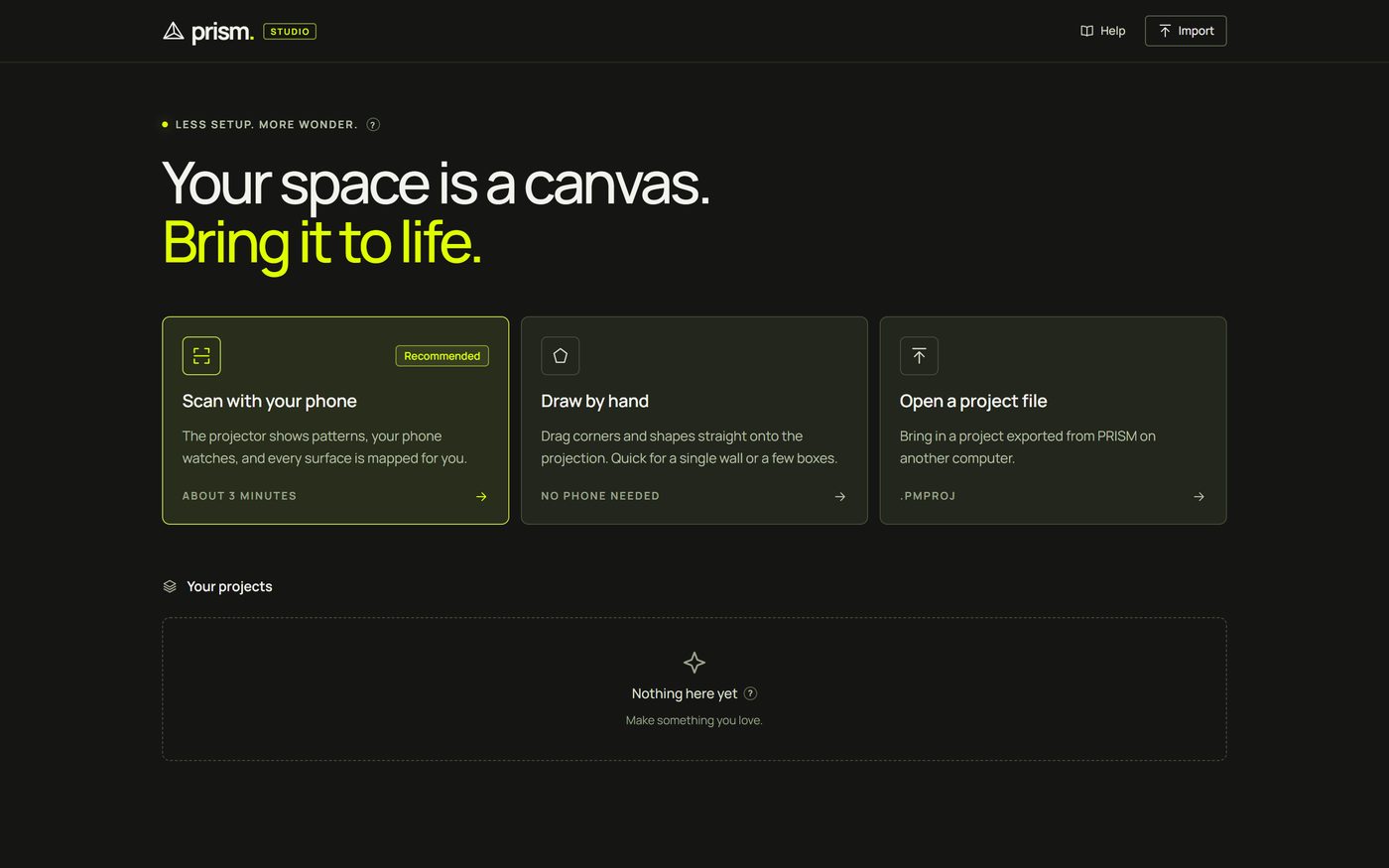
The start page lists your projects and starts new ones: Scan with your phone (the usual way), Draw by hand (no phone needed) or Open a project file (a .pmproj from another computer).
Inside a project, the top bar is always there:

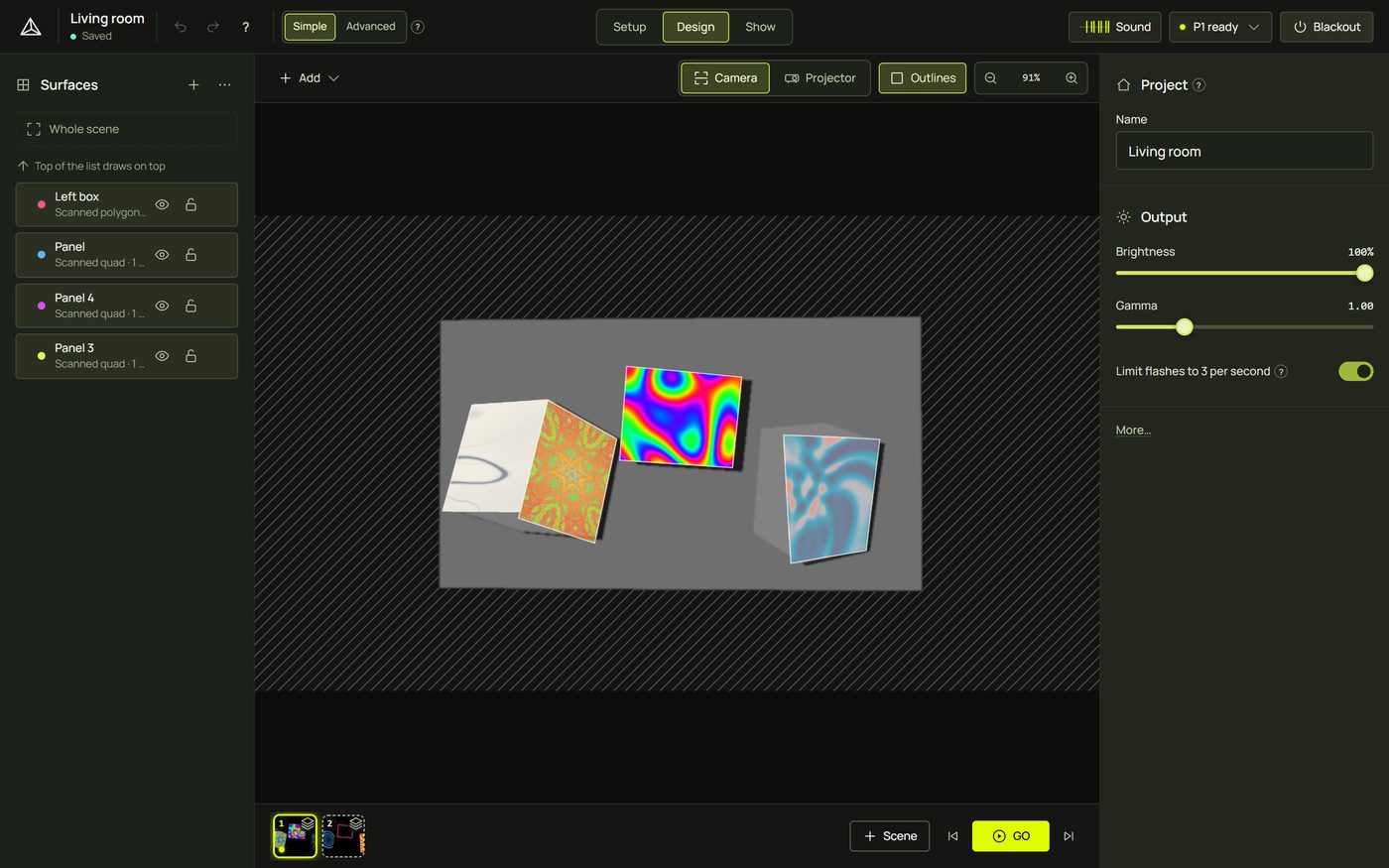
The three modes are the three stages of every project:
| Mode | What you do there |
|---|---|
| Setup | Get the room ready, in four steps: Outputs (open the projector window) › Pair phone › Scan › Review (choose what to map). A hand-drawn project has only Outputs. |
| Design | Give each surface a look. The picture in the middle shows your room (Camera) or what the projector sends (Projector); your surfaces are listed on the left; the selected one's settings are on the right; scenes sit in the strip underneath. |
| Show | Run it: a big GO, your scenes, trigger pads, the sound, a preview and Blackout. |
5Simple and Advanced
prism has two ways to look at the same project. Simple shows what a show needs: shapes, looks, blend modes, music and scenes. Advanced adds every tool: layers, automation, the timeline, MIDI and OSC, mesh warping, several projectors and more. Switch any time with Simple | Advanced in the top bar; your project doesn't change, only how much is on screen. A new browser starts in Simple. Read more in Simple and Advanced.
6Where your work is kept
- Automatically, in this browser. Every change is saved as you go; the top bar says Saved. Undo (Ctrl + Z) takes back any change.
- On another computer? Export the project from the start page (the export button on its card gives a
.pmprojfile), then use Open a project file there. - The phone keeps nothing. Its camera picture stays on the phone; only the finished scan, with one photo of the scene, goes to your laptop.
7Finding help
These pages open in their own browser tab, so your project, the projector window and the music keep running while you read.
| From | Open the documentation with |
|---|---|
| Anywhere in a project | F1 |
| The top bar in Simple | Help ? ▸ Documentation |
| The top bar in Advanced | The book button, next to the keyboard button |
| The start page | Help, top right |
For a quick answer without leaving your work, use the small ? beside a setting.
Hints and tips
- Start small. A plain wall and two or three boxes make a great first show, and teach you everything.
- Don't move the projector after scanning. The mapping belongs to where the projector is. If it gets knocked, scan again (or, in Advanced, align the whole scene).
- Look for the “?”. Almost every setting has a small ? beside it that explains it in place; F1 opens these pages.
- Blackout is always one click away in the top bar, and B in Show mode and in the projector window.
- Export before a show. A
.pmprojfile is a complete backup of the project.
When something looks wrong
| You see | Why | Fix |
|---|---|---|
| A note on the start page that the browser is supported “on a best-effort basis” | You're not using Chrome or Edge. | Open prism in Chrome or Edge on the laptop that drives the projector. |
| “Waiting for an older prism window to close” | Another studio tab, or a projector window, still has the old project database open. | Close the other prism tabs and the projector window; the project is then created straight away. |
| Nothing on the projector | The projector window isn't open, or isn't on the projector. | Setup ▸ Outputs ▸ Open window, move it onto the projector and click inside it. See Projectors and outputs. |
| The laptop's desktop appears on the projector | The screens are mirrored. | Set the displays to Extend (on Windows: Win + P ▸ Extend). |
| The phone can't open the link | It needs an https:// address it can reach. | See Pair your phone and scan. |
| A tool you read about is missing | It's an Advanced tool and you're in Simple. | Switch to Advanced in the top bar, or use the section's More…. |
Read Projects, saving and backups before changing browser addresses or taking a show to another computer. New to mapping? Try First projection without a phone.