Align the whole scene Advanced
If the projector gets nudged after you've mapped, every surface slides off its object by the same amount. Instead of scanning again, move the whole picture back in one go by dragging the four corners of the projector's frame.
1When to use it
| What happened | Best fix |
|---|---|
| Everything shifted or tilted a little (the projector or its table was knocked) | Whole scene: this page. |
| One surface sits slightly off, the rest are fine | One surface in the same tool (below), or drag its corners in Design. |
| The projector moved a lot, or its zoom or lens shift changed | Rescan: objects at different distances move differently, and only a scan measures that. |
2Open the Align tool
- Switch to Advanced in the top bar.
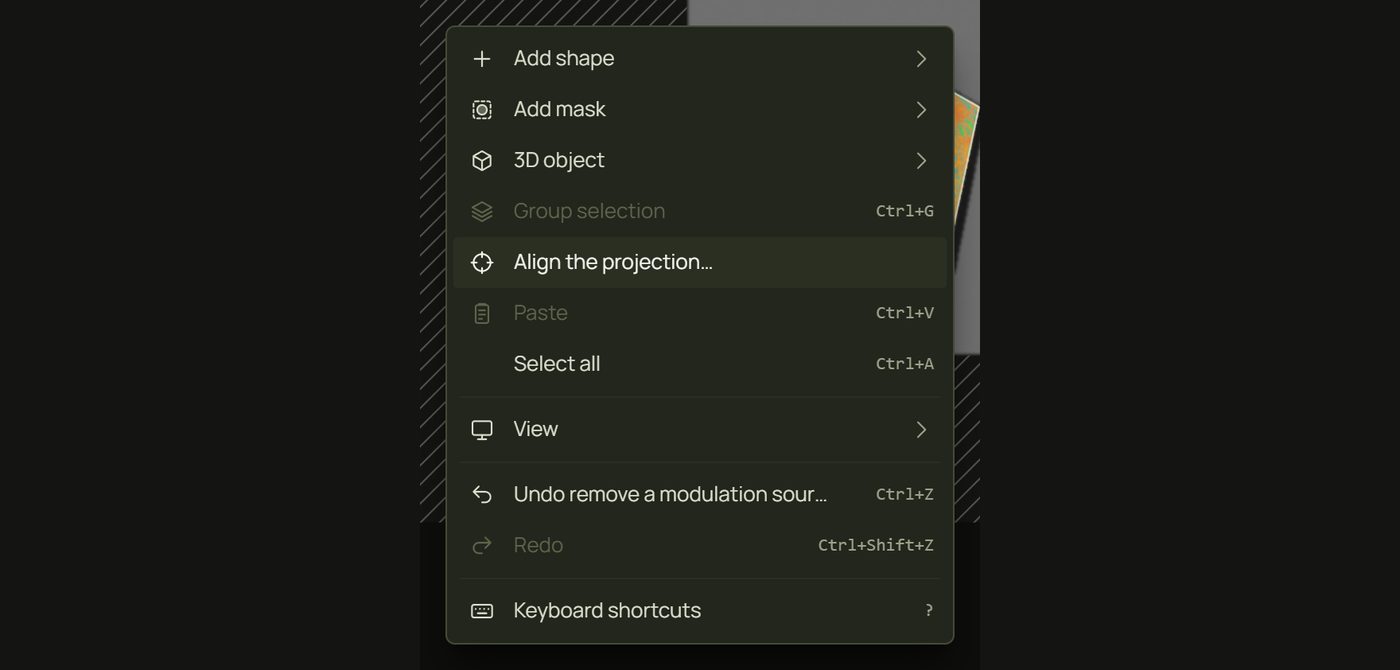
- In Design, right-click an empty part of the canvas and choose Align the projection….
3Whole scene
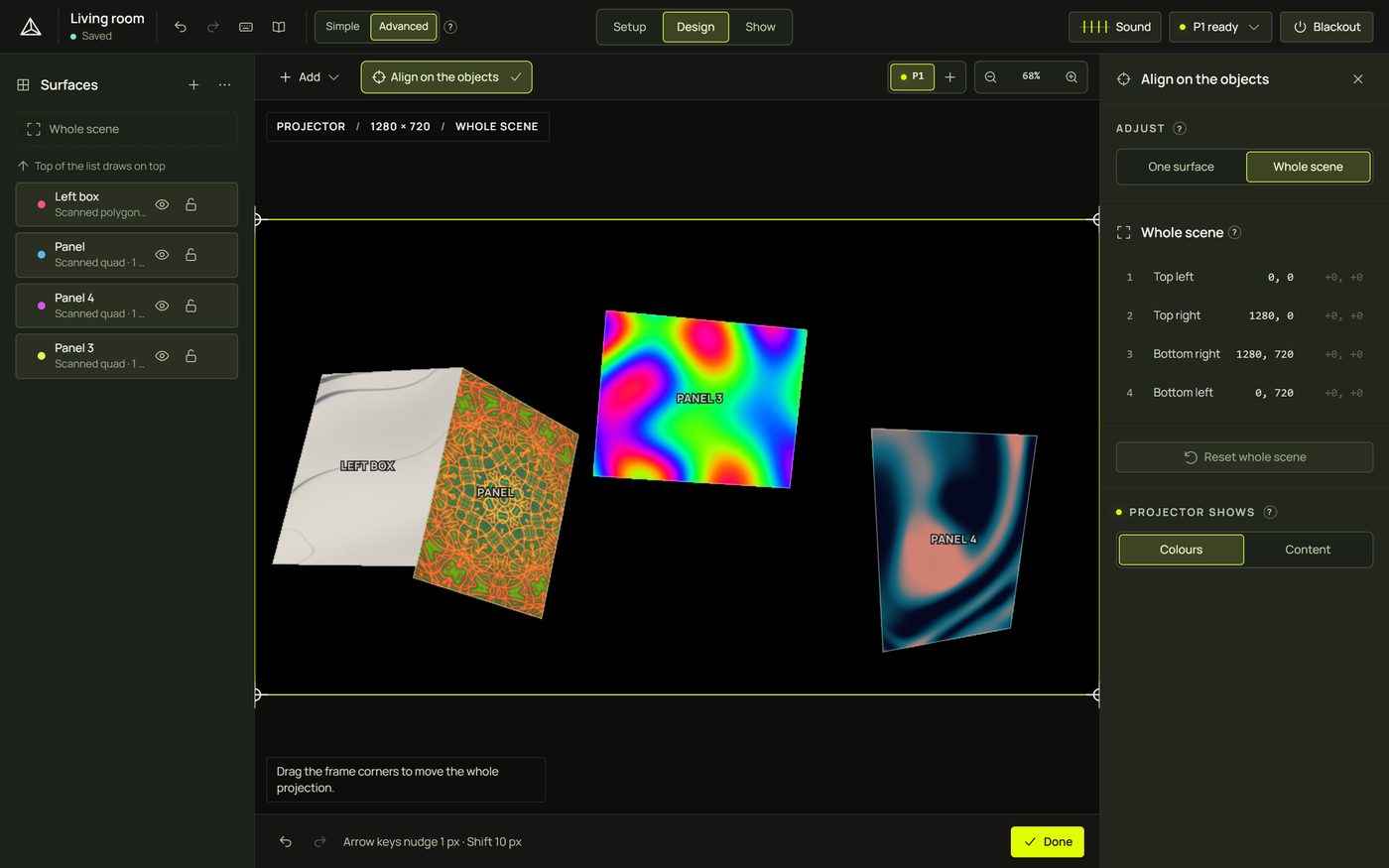
The tool opens on One surface. Under Adjust, choose Whole scene (or press G). The four corners of the projector's frame get crosshair handles, on the laptop and on the projector itself.
4Drag the corners
- Pick a corner of a large surface that's easy to see on the real object, and look at the projector.
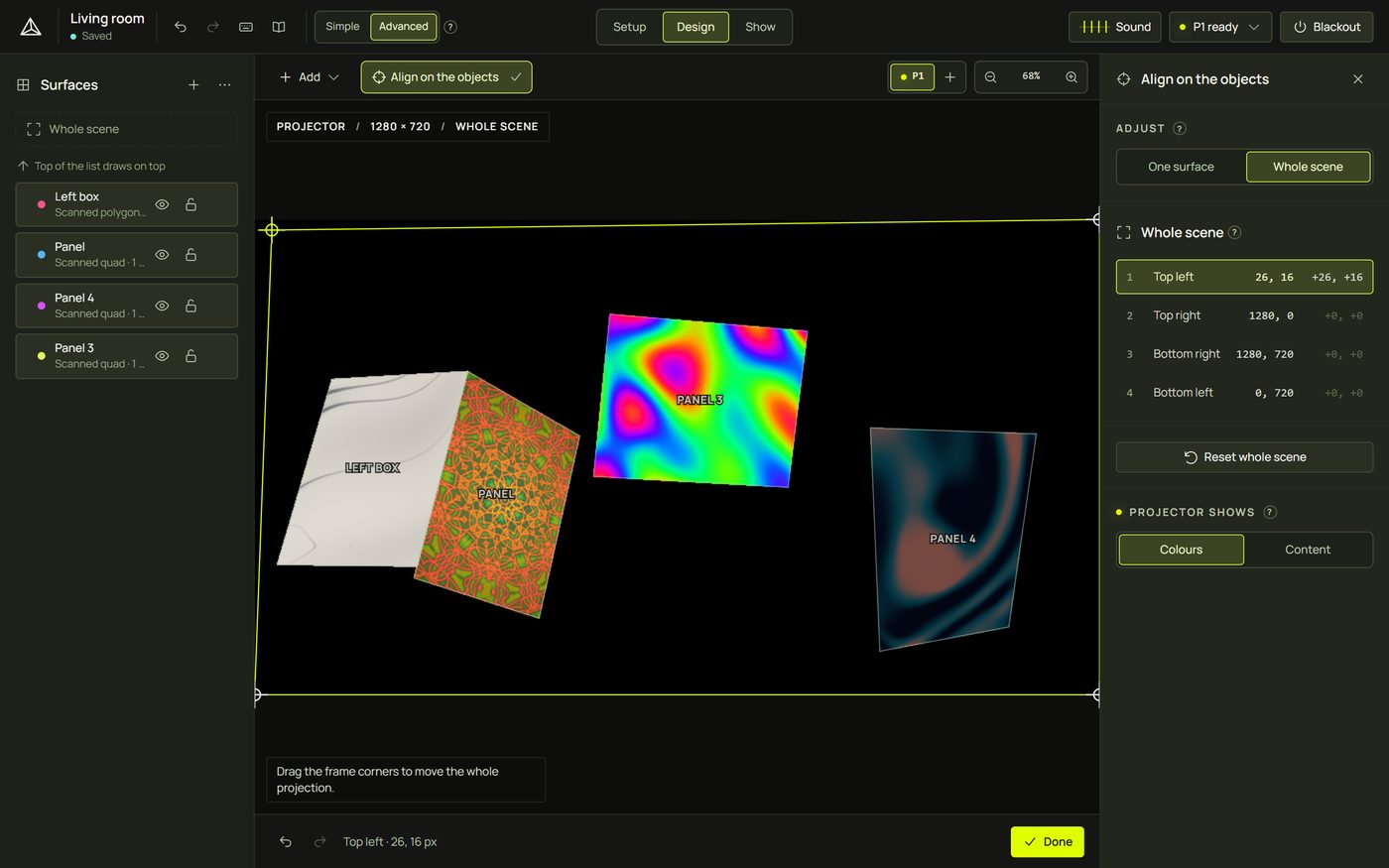
- Drag the frame corner nearest to it until the projected edge sits on the real one again. Every surface moves with it.
- Fine-tune with the keyboard: 1–4 pick a corner, arrow keys nudge it by 1 pixel, Shift + arrows by 10.
- Repeat for the other corners until everything lines up.
5Check on the projector
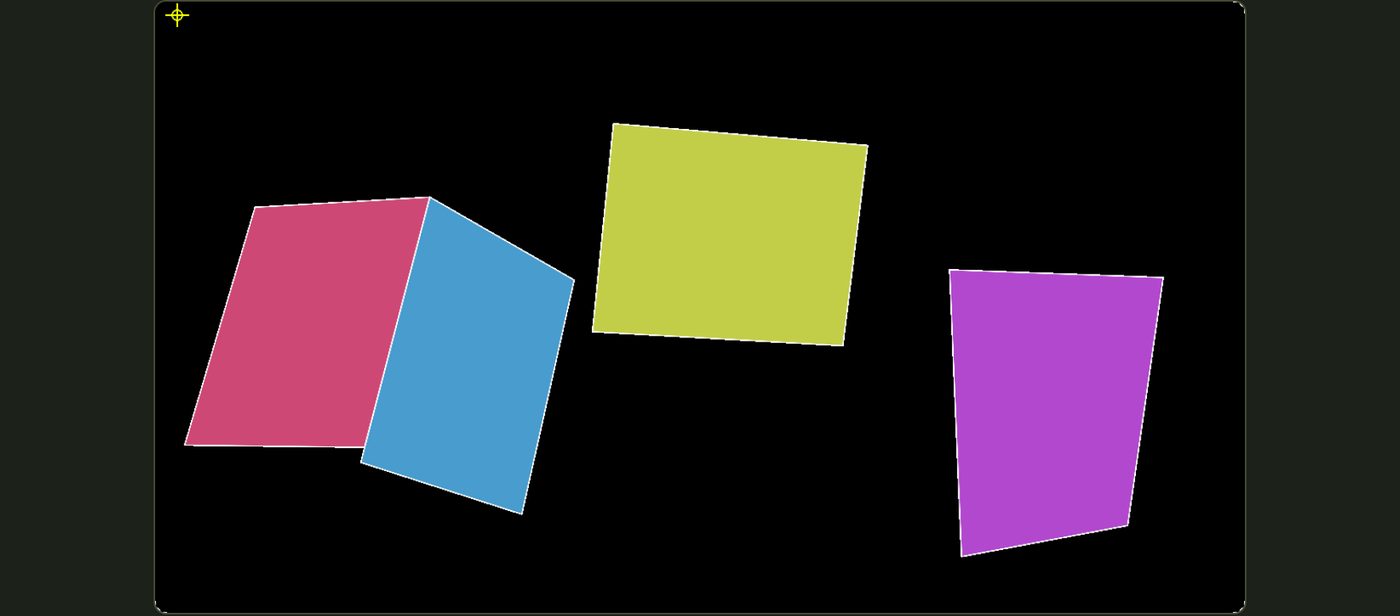
Projector shows chooses what the projector draws while you align: Colours (each surface in its own flat colour, easiest to see edges) or Content (the show itself). Either way, crosshairs mark the corners you're moving.
6One surface at a time
With One surface, click a surface (in the frame or the list on the left): its four corners get handles instead. Drag them onto the real corners. The same panel has that surface's Feather (softens the edge) and Erode (shrinks it inward to hide spill), and Reset alignment. The list shows which surfaces were adjusted.
7Reset and finish
- Reset whole scene puts the frame's corners back where the scan left them.
- Each drag is one undo step: Ctrl + Z.
- Done returns to Design. The correction is saved with the projector.
Hints and tips
- Work from far corners. Line up the corner farthest from where the projector points first; small errors there are the biggest.
- Use Colours. Flat colours make edges easy to see; the Test Grid look works well too.
- A shift needs all four corners moved the same way; a turn moves them round; a tilt moves one side more than the other.
- Several projectors? Each has its own whole-scene correction: pick the projector (P1, P2) in the canvas toolbar first.
- Prevent it: fix the projector down with tape or a clamp once it's aimed.
When something looks wrong
| You see | Why | Fix |
|---|---|---|
| No Align the projection… in the menu | You're in Simple, or you right-clicked a surface. | Switch to Advanced; right-click an empty part of the canvas. |
| A corner won't go where you drag it | The frame would fold over itself; prism refuses shapes that cross. | Move the other corners first, in smaller steps. |
| The front objects line up but the wall doesn't (or the other way round) | The projector moved enough for depth to matter. | Rescan: only the scan measures depth. |
| Everything looks right on the laptop but not on the projector | The picture on the laptop is not the check; the real objects are. | Always align by looking at the projector. |
| You want to start again | The corners have drifted after many drags. | Reset whole scene. |
Mouse and keyboard
| Action | How |
|---|---|
| Whole scene / one surface | G |
| Pick a corner | Click its handle · 1 2 3 4 (top left, top right, bottom right, bottom left) |
| Move a corner | Drag · arrow keys 1 px · Shift + arrows 10 px |
| Let go of the corner | Esc |
| Undo · redo | Ctrl + Z · Ctrl + Shift + Z (or Ctrl + Y) |