Layers Advanced
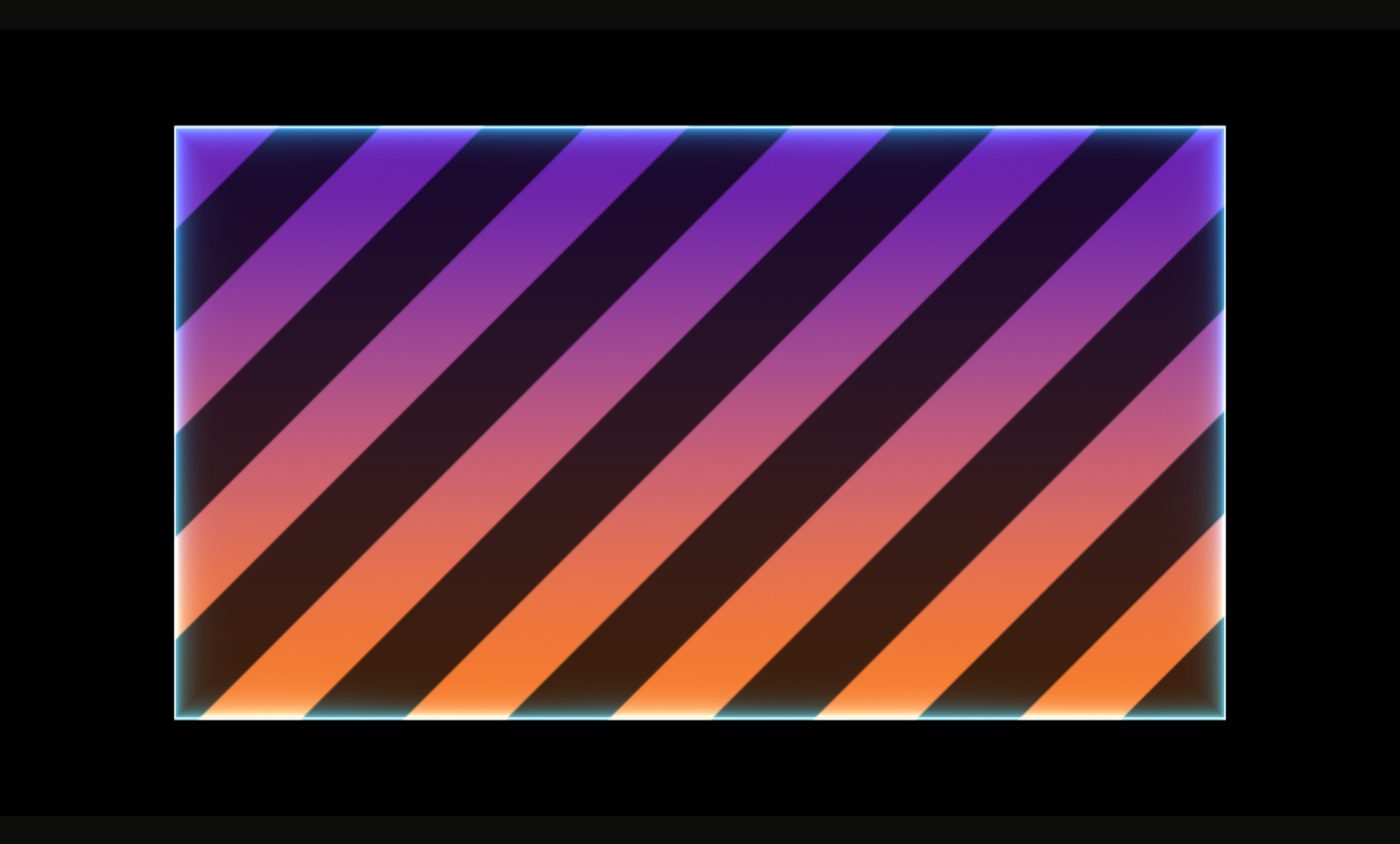
A surface can show up to four looks at once, stacked in layers: a gradient with stripes over it and a glow round the edge, for example. Each layer has its own look, its own mix with the layers below, and its own opacity.
1What layers are for
One look per surface is enough for most shows. Layers let you combine looks without making new surfaces: a base picture, a texture that darkens it, a glow that brightens its edge.
2Add a layer
- Select the surface. In the inspector, press + beside Layers (“Add a layer”).
- The library opens, titled Add a layer. Pick a look, a picture or a video. It becomes the new top layer (on each selected surface, when several are selected), and the look panel opens so you can adjust it.
- Choose how it mixes with the layers below (section 4).
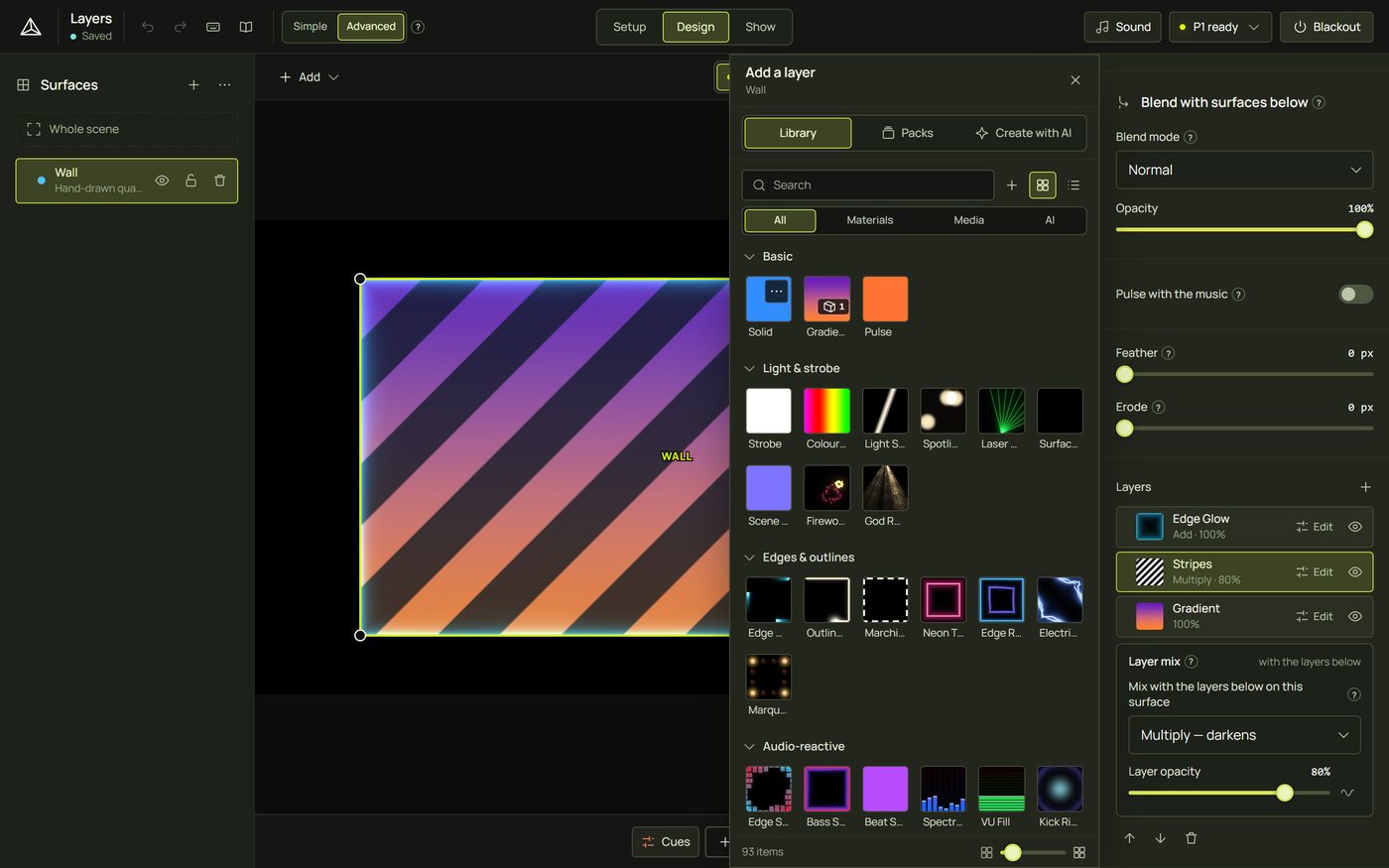
- Right-click a surface ▸ Add layer ▸ adds one straight from a list of looks.
- A surface takes at most four layers; the + then says “Four layers is the most a surface can take”.
3The stack
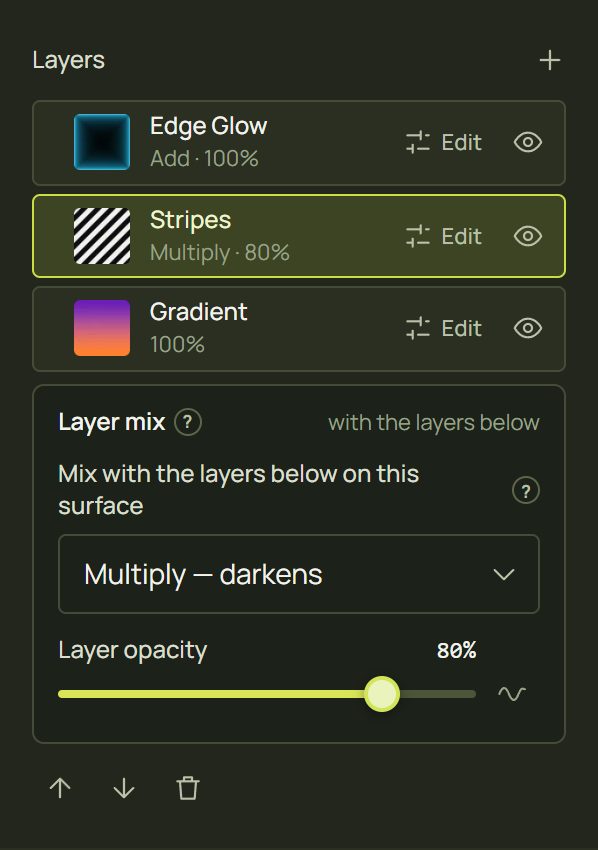
- Each row shows the look's picture and name, then its mix and opacity (“Multiply · 80%”; the bottom layer shows just its opacity), an Edit button and an eye.
- Order: the top row draws on top. Drag a row, press Alt + ↑/↓, or use the arrows under the stack.
- Hide a layer with its eye: it stays, but draws nothing.
- Delete the selected layer with the bin under the stack, or Delete with its row focused.
- Duplicate it with Ctrl + D.
4Layer mix and opacity
Select a layer's row and its Layer mix box appears under the stack.
- Mix with the layers below on this surface: the same 14 modes as surfaces (see Blend modes). Multiply darkens the layers below, Add brightens them, Overlay adds contrast…
- Layer opacity: how much of this layer shows.
- The bottom layer has no mix: it sits on the surface's own black base, and the box says bottom layer.
5Change a layer's look
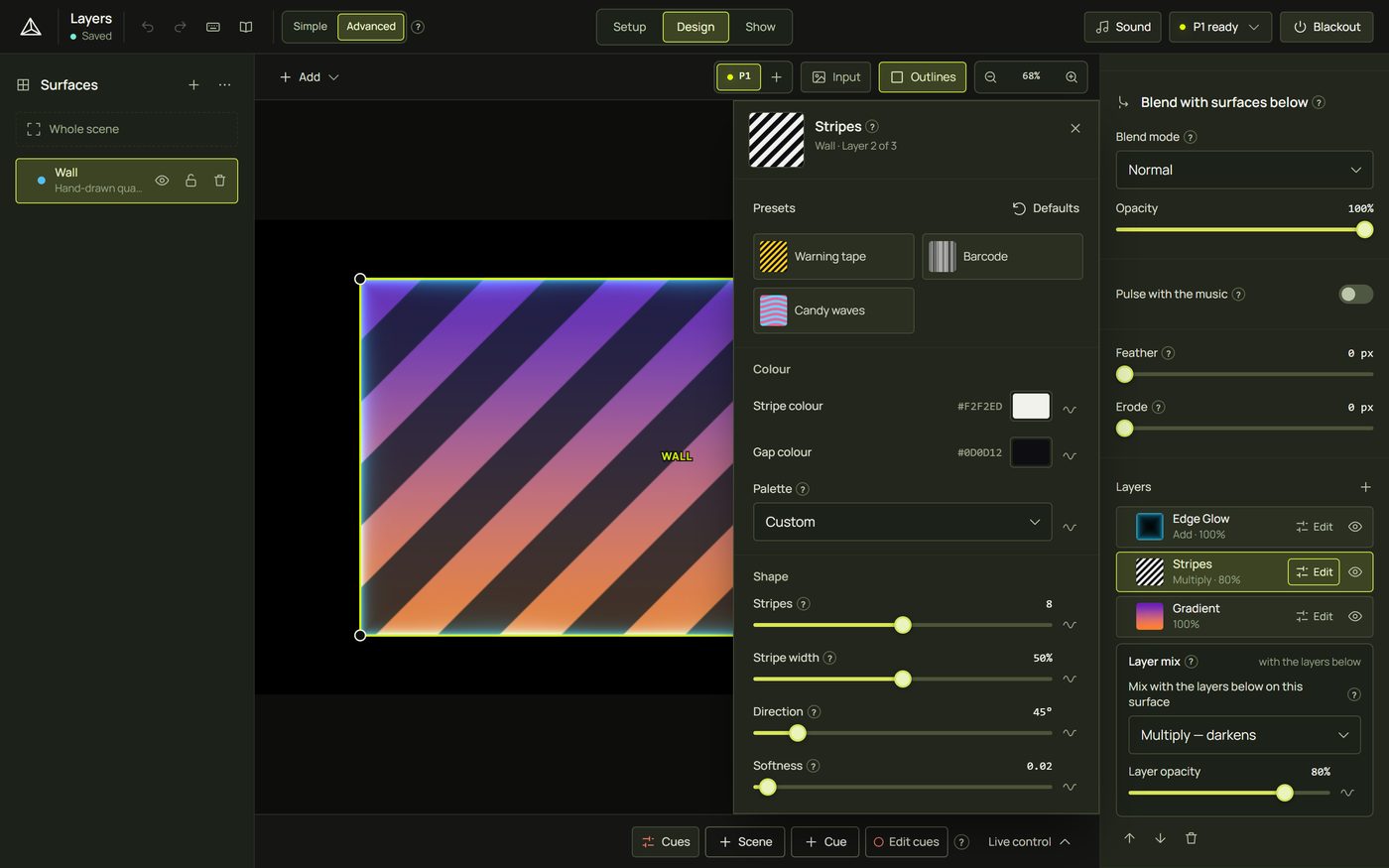
- Press Edit on the layer's row (or select it and press E). The look panel opens beside the inspector, headed with the surface and the layer, such as “Wall · Layer 2 of 3”.
- Change its settings, presets and colours there. See The look panel.
- To swap the look itself, click the look slot at the top of the inspector while the layer is selected, and pick another.
6The layer's menu
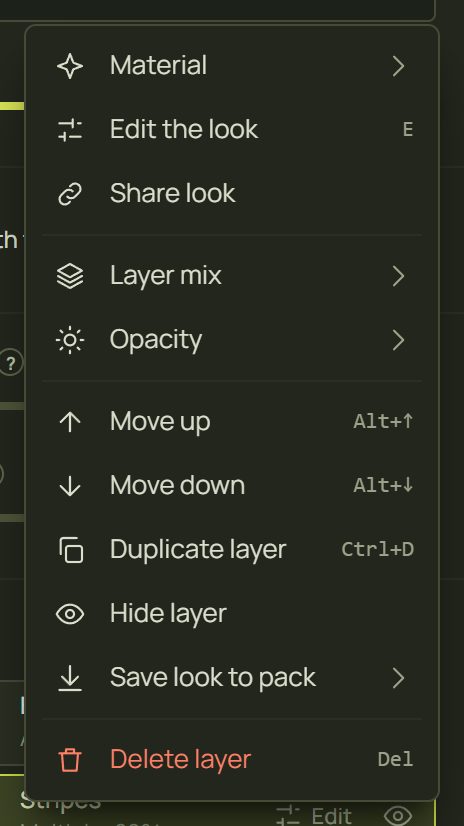
- Material ▸ swaps its look; Edit the look (E).
- Share look, or for a shared look Duplicate look and Make independent (see The look panel).
- Layer mix ▸ and Opacity ▸.
- Move up, Move down, Duplicate layer, Hide layer, Save look to pack ▸, Delete layer.
7A layer's own input
Normally every layer of a surface shows its picture the same way: the surface's input. Turn on This layer has its own input (in the inspector's Input section, with the layer selected) and this layer gets its own, for example a video cropped differently from the pattern above it. It starts from what shows now, so nothing moves. See Position, fit and input mapping.
8Hints and tips
- Base, texture, light: a picture or look at the bottom, a pattern on Multiply or Overlay in the middle, a glow on Add or Screen on top.
- Lower the Layer opacity for subtle textures; 30–60 % is often enough.
- Hide a layer to compare with and without it.
- Share looks between surfaces: a layer can use a shared look, so changing it changes every surface that uses it.
- Fewer layers draw faster. Four layers on many surfaces make a slow computer work harder.
9When something looks wrong
| You see | Why | Fix |
|---|---|---|
| The + is greyed out | The surface is locked, or already has four layers. | Unlock it, or delete a layer. |
| The new layer hides the others | It is on top and on Normal, so it covers them. | Set its Layer mix or Layer opacity, or move it down. |
| A layer's mix does nothing | It is the bottom layer, or every layer below it is hidden. | Move it up, or show a layer below it. |
| Changing a layer changed other surfaces | Its look is shared. | Right-click the layer ▸ Make independent or Duplicate look. |
| No Layers section | Simple mode hides it while a surface has one layer. | Open the inspector's More…, or switch to Advanced. |
10Mouse and keyboard
| Action | How |
|---|---|
| Edit the look | Edit · E |
| Move up · down | Drag · Alt + ↑ / ↓ |
| Select the next layer | ↑ / ↓ with a row focused |
| Duplicate · delete | Ctrl + D · Delete |
| Menu | Right-click the row · Shift + F10 |